> ## Documentation Index
> Fetch the complete documentation index at: https://docs.zyme.sh/llms.txt
> Use this file to discover all available pages before exploring further.
# Profile
## Overview
In **Account → Preferences → Profile**, you can personalize your zyme workspace.
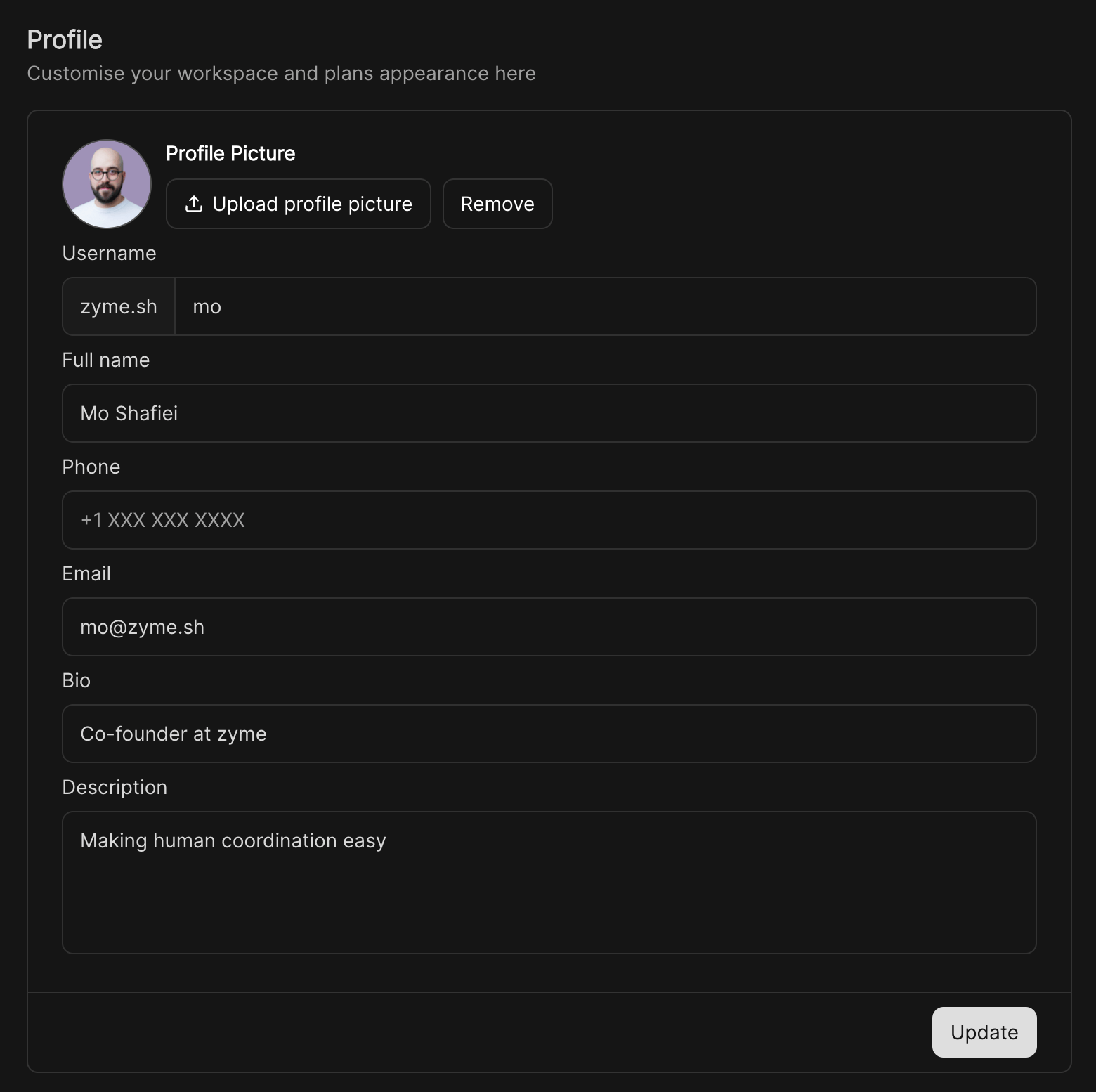 ## Set your profile picture
The default avatar will be the first and last initials of your account.
To add a new photo, hover over the avatar until the edit pencil icon shows up, and click on it.
A pop-up folder will show up for you to select the photo you want to update.
## Name and username
Under **Account → Preferences**, members can choose to show full names or usernames.
You can also set how you’d like your name to appear to others.
## Email address
Your email address is your unique ID (User Account) for all workspaces you have created a User for. For example:
| Action | Result |
| ---------------------------------------------------------------------------------------- | ---------------------------------------------------------------------------------------------------------------------------------------------------------------------------------------------- |
| You joined Workspace A using [jane.doe@email.com](mailto:jane.doe@email.com) | A User Account was created under [jane.doe@gmail.com](mailto:jane.doe@gmail.com) and a User was created for Workspace A. |
| You joined Workspace B. | A User was created for Workspace B under your User Account [jane.doe@email.com](mailto:jane.doe@email.com). |
| You updated your email address in Workspace B to [jdoe@gmail.com](mailto:jdoe@gmail.com) | Your email address for your User Account, Workspace A, and Workspace B was updated to [jdoe@gmail.com](mailto:jdoe@gmail.com). [jane.doe@email.com](mailto:jane.doe@email.com) does not exist. |
### Change your email address
To change your email address:
Open your account settings and navigate to the **Profile** section.
Hover over your current email address and click on the field to edit.
A confirmation email will be sent to both your old and new email addresses.\
You must click the link in **both emails** for the change to take effect.
Changing your email updates it across all workspaces linked to your previous address. If you only want to update one workspace, invite your new email as a separate member and then leave the workspace using your old account.
## Account deletion
To delete your account, enter your username and click on the **Delete my account** button. Once deleted, you’ll no longer have access to your workspace.
## Set your profile picture
The default avatar will be the first and last initials of your account.
To add a new photo, hover over the avatar until the edit pencil icon shows up, and click on it.
A pop-up folder will show up for you to select the photo you want to update.
## Name and username
Under **Account → Preferences**, members can choose to show full names or usernames.
You can also set how you’d like your name to appear to others.
## Email address
Your email address is your unique ID (User Account) for all workspaces you have created a User for. For example:
| Action | Result |
| ---------------------------------------------------------------------------------------- | ---------------------------------------------------------------------------------------------------------------------------------------------------------------------------------------------- |
| You joined Workspace A using [jane.doe@email.com](mailto:jane.doe@email.com) | A User Account was created under [jane.doe@gmail.com](mailto:jane.doe@gmail.com) and a User was created for Workspace A. |
| You joined Workspace B. | A User was created for Workspace B under your User Account [jane.doe@email.com](mailto:jane.doe@email.com). |
| You updated your email address in Workspace B to [jdoe@gmail.com](mailto:jdoe@gmail.com) | Your email address for your User Account, Workspace A, and Workspace B was updated to [jdoe@gmail.com](mailto:jdoe@gmail.com). [jane.doe@email.com](mailto:jane.doe@email.com) does not exist. |
### Change your email address
To change your email address:
Open your account settings and navigate to the **Profile** section.
Hover over your current email address and click on the field to edit.
A confirmation email will be sent to both your old and new email addresses.\
You must click the link in **both emails** for the change to take effect.
Changing your email updates it across all workspaces linked to your previous address. If you only want to update one workspace, invite your new email as a separate member and then leave the workspace using your old account.
## Account deletion
To delete your account, enter your username and click on the **Delete my account** button. Once deleted, you’ll no longer have access to your workspace.