> ## Documentation Index
> Fetch the complete documentation index at: https://docs.zyme.sh/llms.txt
> Use this file to discover all available pages before exploring further.
# Security and Access
> Manage your account security and access.
## Overview
zyme gives you full control over your sessions and account access. From managing active devices to updating your password, these settings help protect your account from unauthorized use.
## Active sessions
See where you’re currently signed in and manage access to your account.
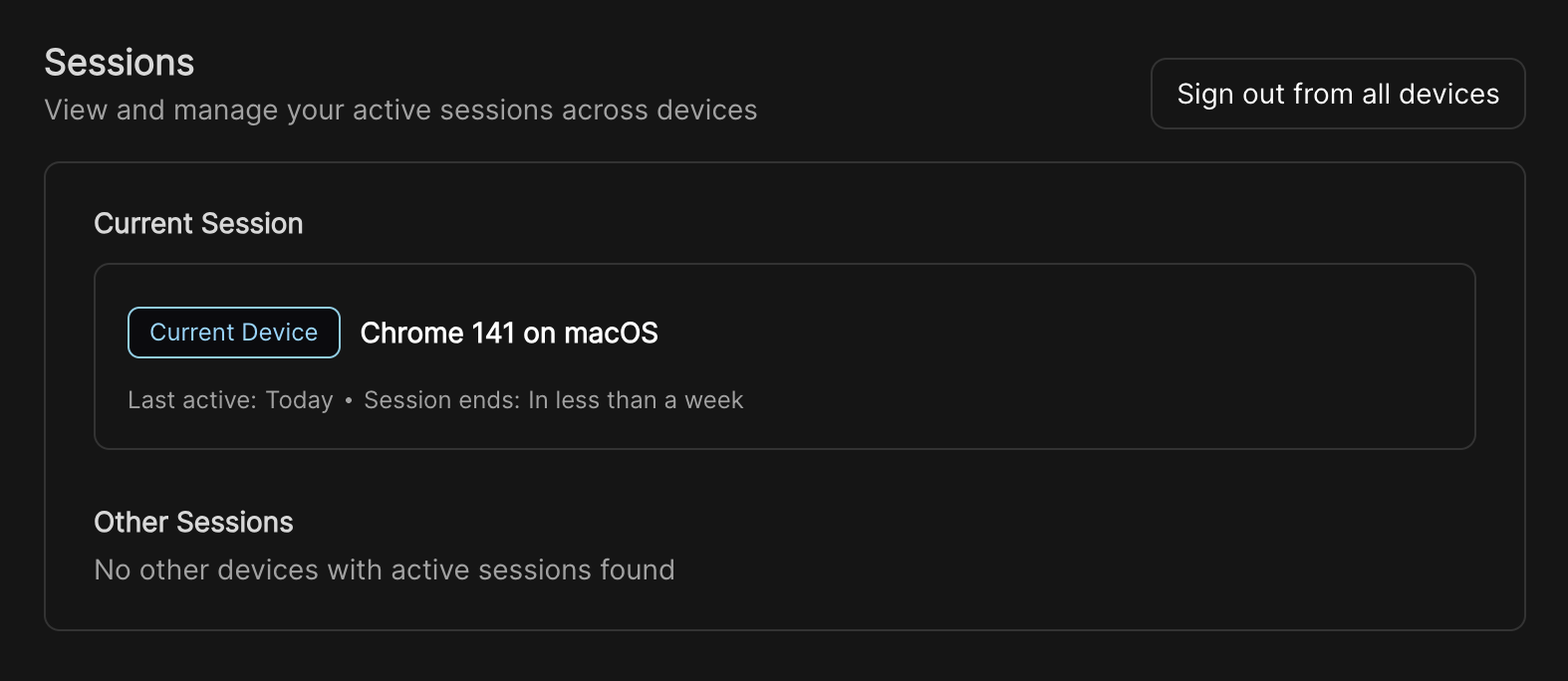 * View details about your current device (browser, operating system, last activity, expiration).
* End all active sessions at once with **Revoke all**.
* Use **Revoke all other sessions** to sign out everywhere except your current device.
This is helpful if you log in on shared devices or want to ensure no unauthorized access remains active.
## Password management
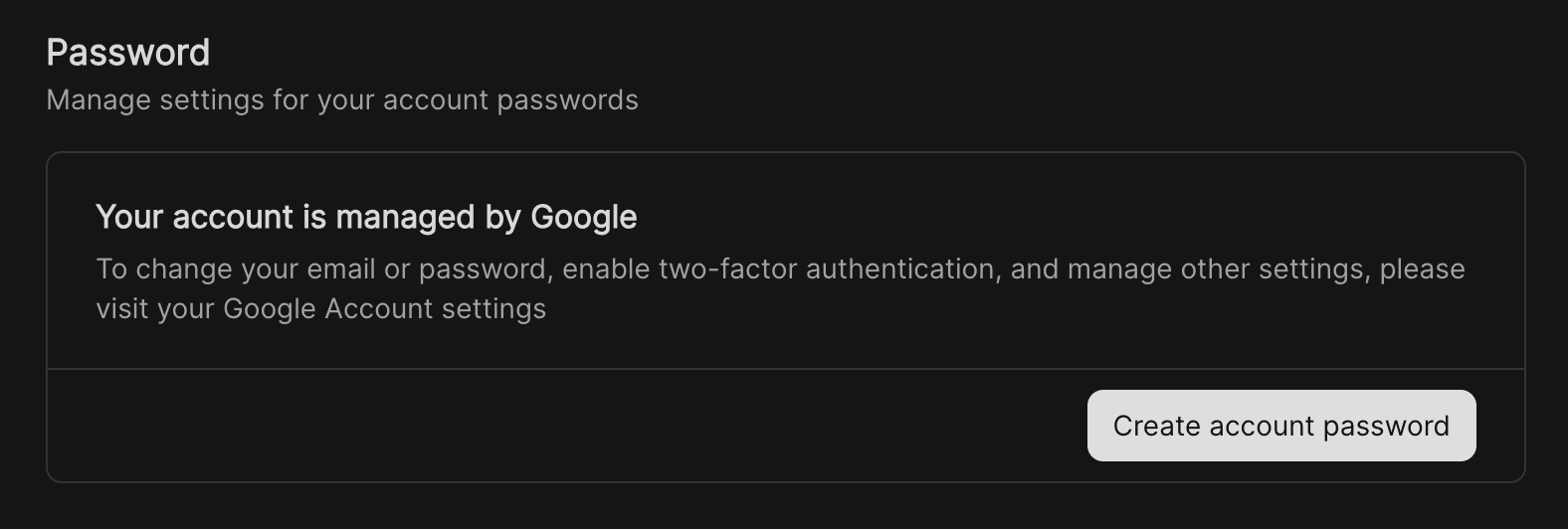
If your account is connected to Google, password and security settings are managed directly through your Google Account. This includes updating your password, enabling two-factor authentication, and changing your email address.
For accounts created directly with zyme, you can set a unique password by clicking **Create account password**.
* View details about your current device (browser, operating system, last activity, expiration).
* End all active sessions at once with **Revoke all**.
* Use **Revoke all other sessions** to sign out everywhere except your current device.
This is helpful if you log in on shared devices or want to ensure no unauthorized access remains active.
## Password management
If your account is connected to Google, password and security settings are managed directly through your Google Account. This includes updating your password, enabling two-factor authentication, and changing your email address.
For accounts created directly with zyme, you can set a unique password by clicking **Create account password**.
 Keeping your password updated and enabling two-factor authentication (if available) is strongly recommended to maximize your account security.