> ## Documentation Index
> Fetch the complete documentation index at: https://docs.zyme.sh/llms.txt
> Use this file to discover all available pages before exploring further.
# Availability
> Define your recurring or specific availability in zyme to control when meetings can be booked.
## Overview
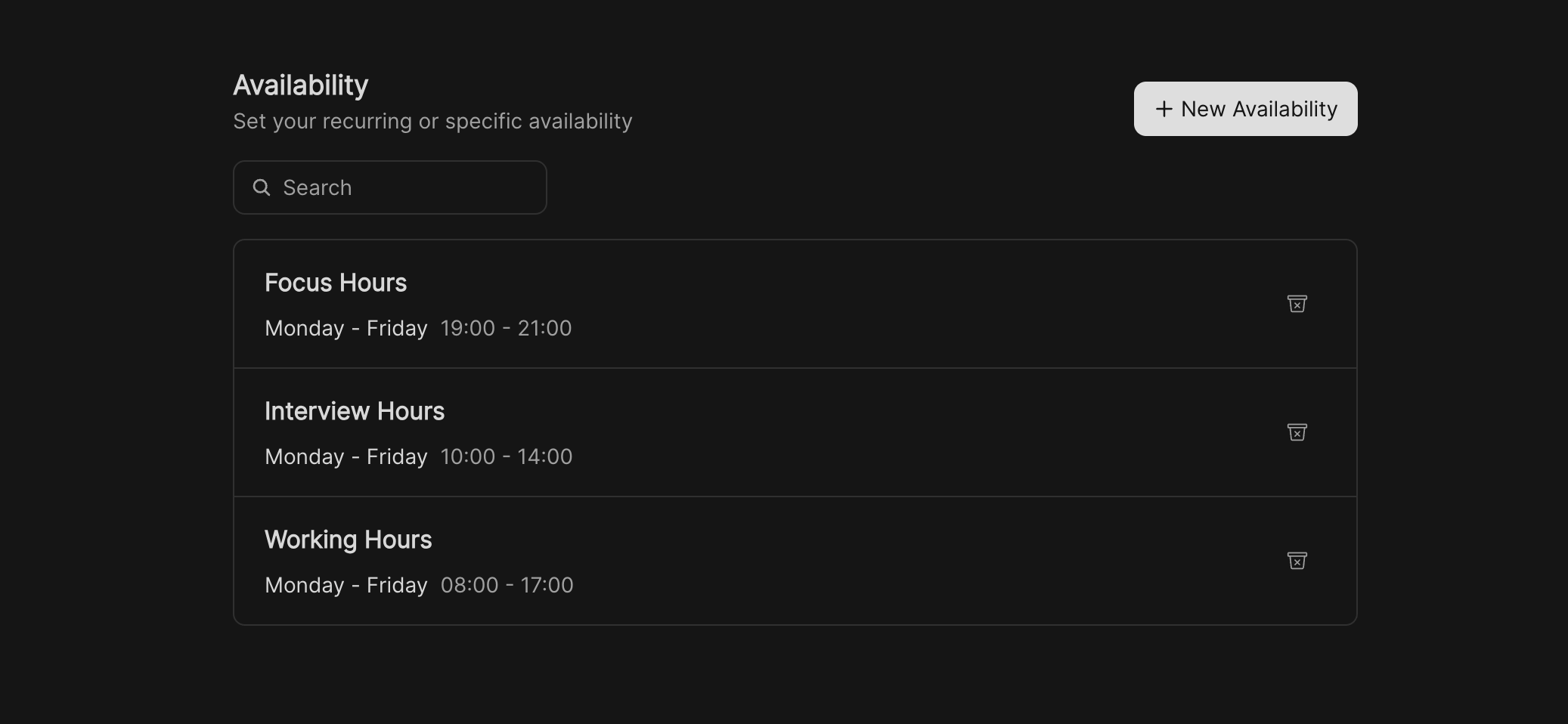
The **Availability** page allows you to define when you’re available for meetings. Once created, these availability profiles can be applied to meeting nodes in your workflows, ensuring clients can only book at times that work for you.
 ## How it works
* Availability sets your **working hours** or **specific time windows**.
* Multiple availabilities can be created for different purposes (e.g., office hours, client calls, interviews).
* Meeting nodes will reference these availabilities so bookings only appear within the defined slots.
## Creating a new availability
## How it works
* Availability sets your **working hours** or **specific time windows**.
* Multiple availabilities can be created for different purposes (e.g., office hours, client calls, interviews).
* Meeting nodes will reference these availabilities so bookings only appear within the defined slots.
## Creating a new availability
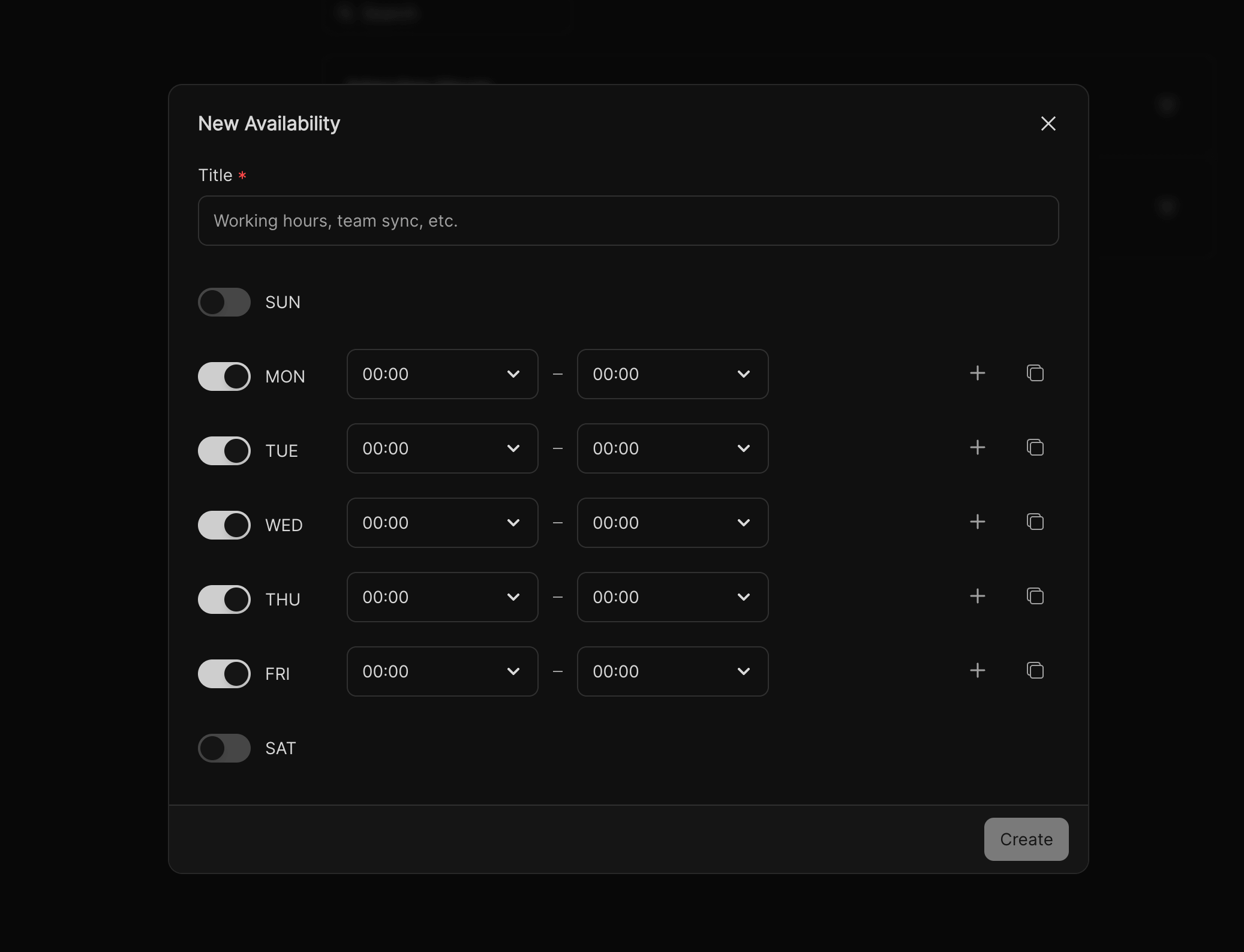 From the Availability page, click the **+ New Availability** button on the top right.
Give your availability a descriptive name (e.g., *Working Hours*, *Team Sync*).
Toggle the days you are available and set a **start** and **end time**.
* Use the **+ button** to add multiple time ranges in the same day.
* Use the **copy button** to duplicate times across other days.
Click **Create** to add your availability to the list.
## Managing availability
* **Edit or delete** availability entries anytime from the list.
* **Search and filter** using the input field for easier navigation.
* Apply availability to **meeting nodes** when designing workflows.
## Example use cases
* Define **9:00 – 17:00, Monday–Friday** as regular working hours.
* Create a separate availability for **Interview Slots** on Wednesdays.
* Limit bookings to **mornings only** or **specific days of the week**.
From the Availability page, click the **+ New Availability** button on the top right.
Give your availability a descriptive name (e.g., *Working Hours*, *Team Sync*).
Toggle the days you are available and set a **start** and **end time**.
* Use the **+ button** to add multiple time ranges in the same day.
* Use the **copy button** to duplicate times across other days.
Click **Create** to add your availability to the list.
## Managing availability
* **Edit or delete** availability entries anytime from the list.
* **Search and filter** using the input field for easier navigation.
* Apply availability to **meeting nodes** when designing workflows.
## Example use cases
* Define **9:00 – 17:00, Monday–Friday** as regular working hours.
* Create a separate availability for **Interview Slots** on Wednesdays.
* Limit bookings to **mornings only** or **specific days of the week**.