> ## Documentation Index
> Fetch the complete documentation index at: https://docs.zyme.sh/llms.txt
> Use this file to discover all available pages before exploring further.
# Concepts
> Gain a basic understanding of zyme's design so you can set up your workspace and navigate efficiently.
## Overview
zyme is a web-based platform for building **step-by-step workflows**.
A workflow is a structured process composed of **steps** such as notes, videos, meetings, attachments, and more.
Understanding these core concepts will help you set up your workspace, collaborate with others, and make the most out of zyme.
## Workspace
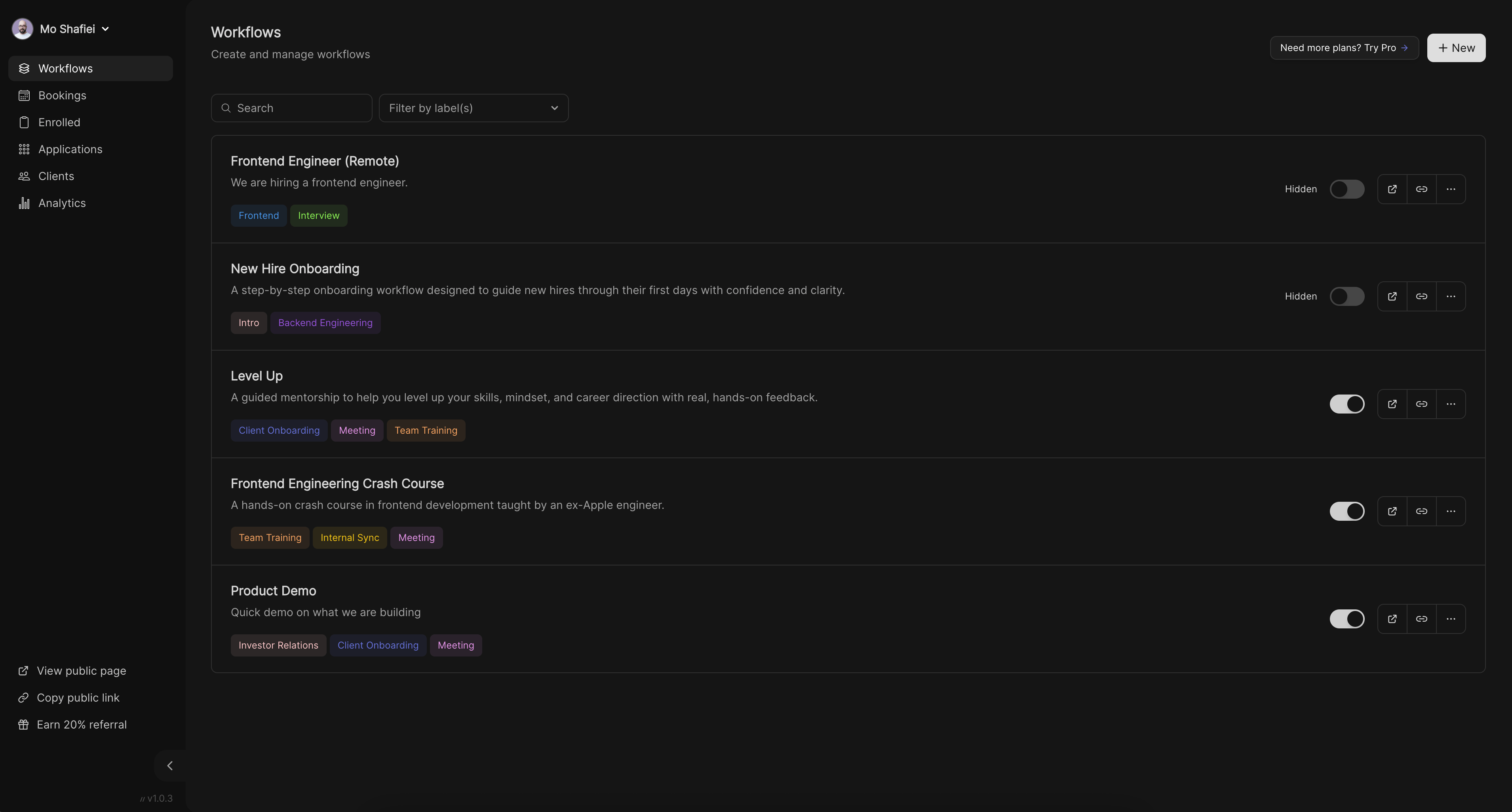
A **workspace** is your primary environment inside zyme. It contains all of your workflows, bookings, preferences, and clients.
Workspaces are tied to your account and can be shared with other collaborators.
Think of it as your **organization hub**, where everything is stored and managed.
 ## Teams
**Teams** allow multiple people to collaborate on workflows.
Within a team, members can collaboratively create, edit, and manage workflows, share clients, and track progress.
This is especially useful for businesses, schools, or groups that need to coordinate processes across multiple people.
## Workflow
A **workflow** is a structured process you create in zyme. It consists of a series of steps designed to guide clients or participants
toward a specific goal; whether that’s onboarding, training, hiring, or running events.
## Teams
**Teams** allow multiple people to collaborate on workflows.
Within a team, members can collaboratively create, edit, and manage workflows, share clients, and track progress.
This is especially useful for businesses, schools, or groups that need to coordinate processes across multiple people.
## Workflow
A **workflow** is a structured process you create in zyme. It consists of a series of steps designed to guide clients or participants
toward a specific goal; whether that’s onboarding, training, hiring, or running events.
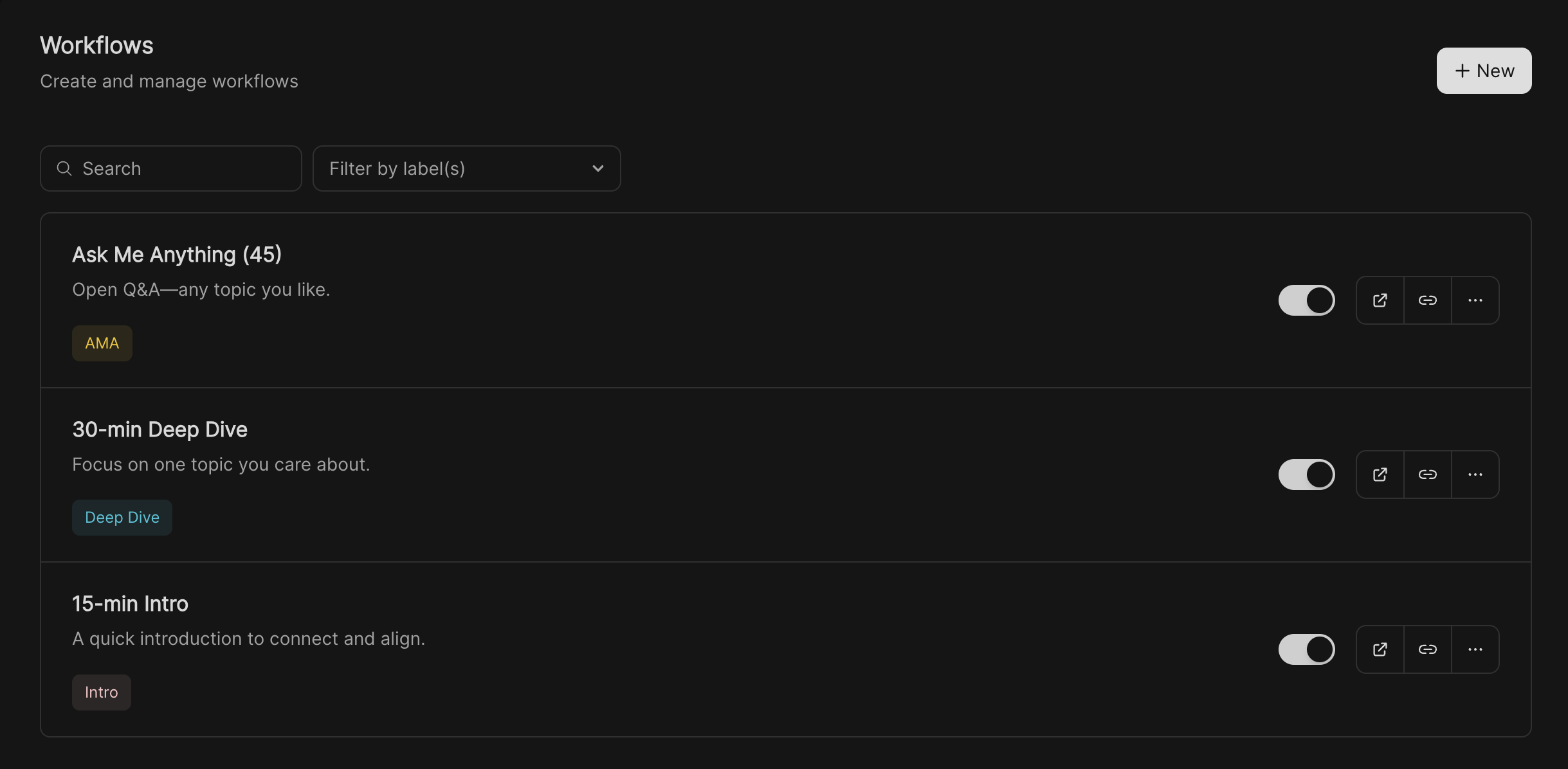 Workflows can be:
* **Public** (shared via link, discoverable)
* **Private** (restricted to invited clients or with access controls)
* **Paid** (require payment before access)
## Step
Each workflow is made up of **steps**.
A step can be one of several types, such as:
* **Note** – Share written instructions or context.
* **Video** – Embed or link to a video tutorial.
* **Meeting** – Schedule a live call or sync.
* **Attachment** – Share or request files.
* And more.
Workflows can be:
* **Public** (shared via link, discoverable)
* **Private** (restricted to invited clients or with access controls)
* **Paid** (require payment before access)
## Step
Each workflow is made up of **steps**.
A step can be one of several types, such as:
* **Note** – Share written instructions or context.
* **Video** – Embed or link to a video tutorial.
* **Meeting** – Schedule a live call or sync.
* **Attachment** – Share or request files.
* And more.
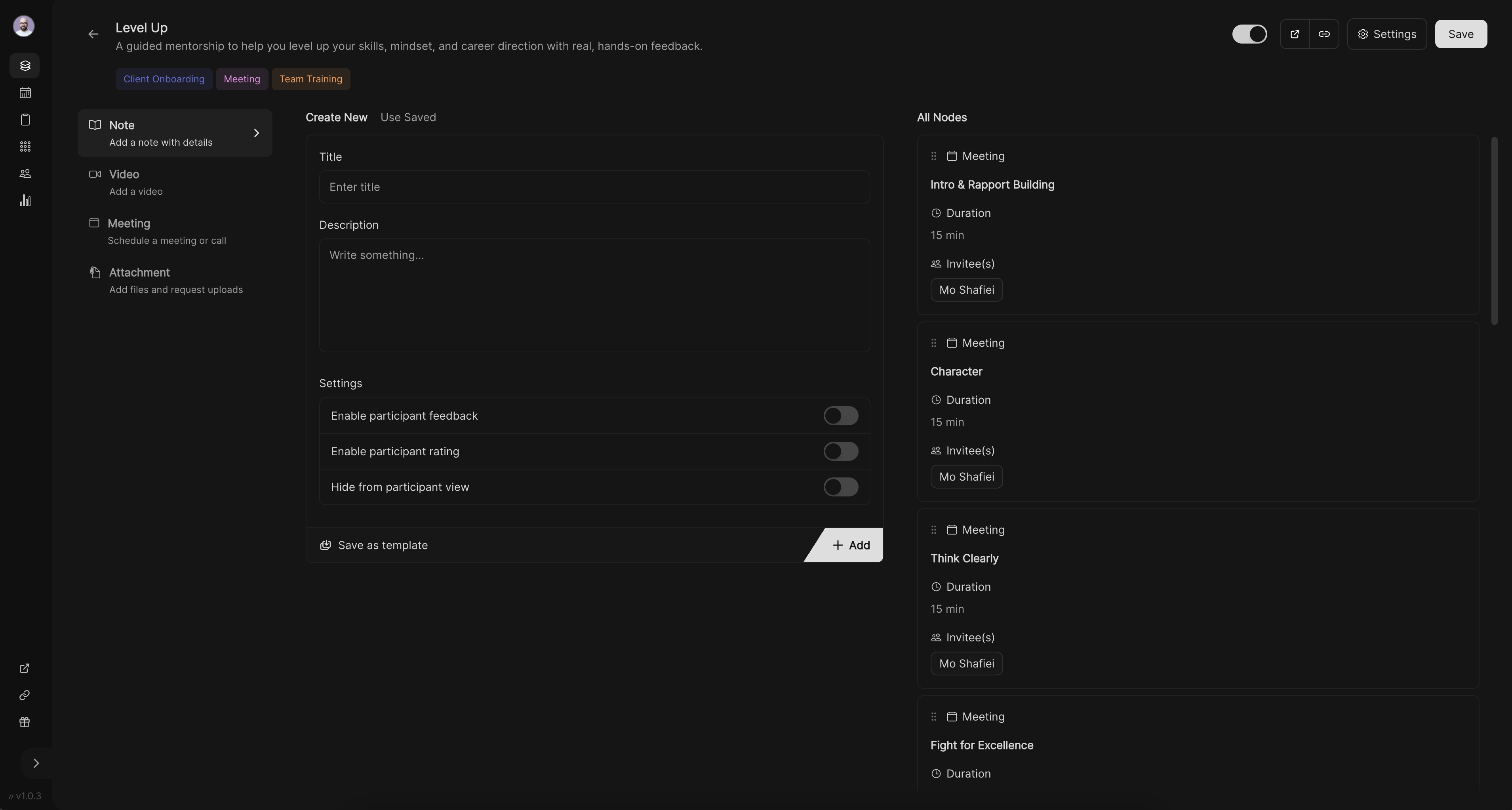 Steps are flexible and can include feedback, ratings, or visibility options depending on your needs.
## Playground
The **Playground** is a preview and testing environment. It lets you experience your workflow the same way a client would.
You can test steps, view progress, and ensure everything works before publishing.
## Preview
The **Preview** page is what clients see when they open your shared workflow link.
It reflects the workflow design, steps, and preferences you’ve set, including availability, payment, and booking options.
Preview helps you verify the experience before clients interact with it.
## Taking actions
Throughout zyme, you can take **actions** such as:
* Sending booking requests
* Accepting or rejecting enrollments
* Providing feedback or ratings
* Managing clients or availability
Actions connect your workflows with real people, ensuring both planners and participants stay on track.
## Availability
**Availability** defines when you are open for bookings. You can set recurring hours (e.g., weekdays 9–5), or add custom schedules (e.g., travel, busy, out-of-office).
Steps are flexible and can include feedback, ratings, or visibility options depending on your needs.
## Playground
The **Playground** is a preview and testing environment. It lets you experience your workflow the same way a client would.
You can test steps, view progress, and ensure everything works before publishing.
## Preview
The **Preview** page is what clients see when they open your shared workflow link.
It reflects the workflow design, steps, and preferences you’ve set, including availability, payment, and booking options.
Preview helps you verify the experience before clients interact with it.
## Taking actions
Throughout zyme, you can take **actions** such as:
* Sending booking requests
* Accepting or rejecting enrollments
* Providing feedback or ratings
* Managing clients or availability
Actions connect your workflows with real people, ensuring both planners and participants stay on track.
## Availability
**Availability** defines when you are open for bookings. You can set recurring hours (e.g., weekdays 9–5), or add custom schedules (e.g., travel, busy, out-of-office).
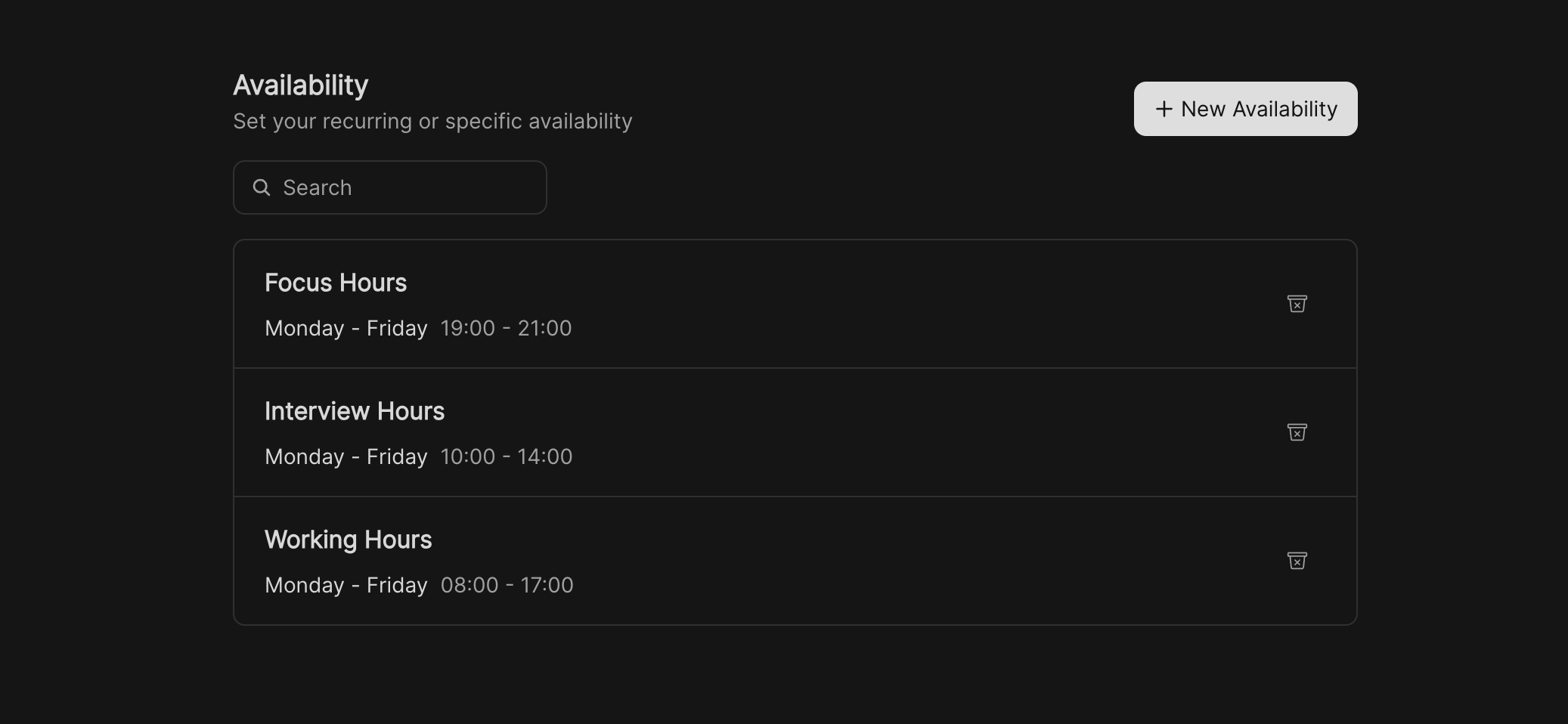
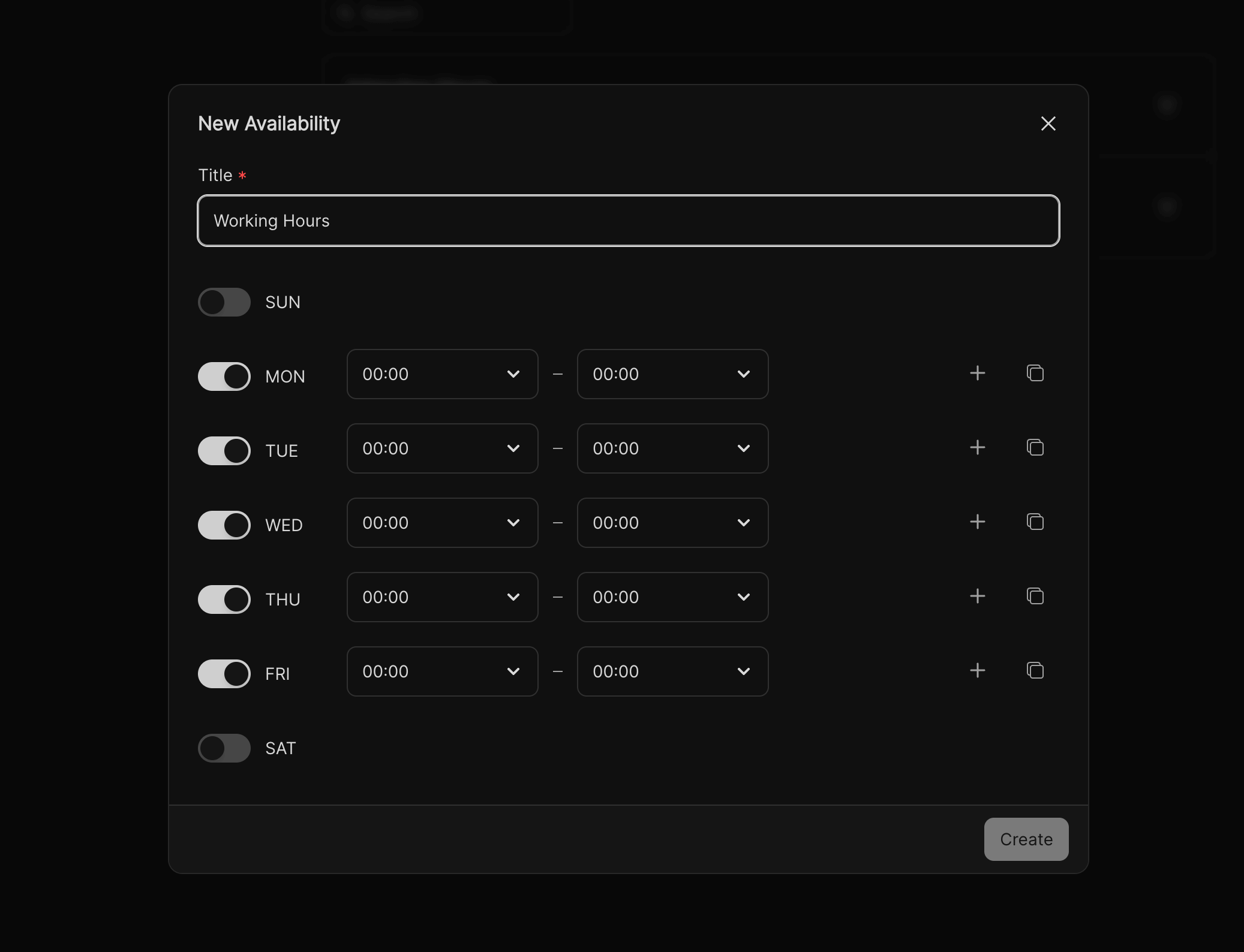 This ensures meetings and booking steps only happen when you're actually available.