# Notifications
Source: https://docs.zyme.sh/account/notifications
Manage how you receive updates, alerts, and important communications.
## Overview
In **Account → Preferences → Notifications**, you can manage how notifications are sent.
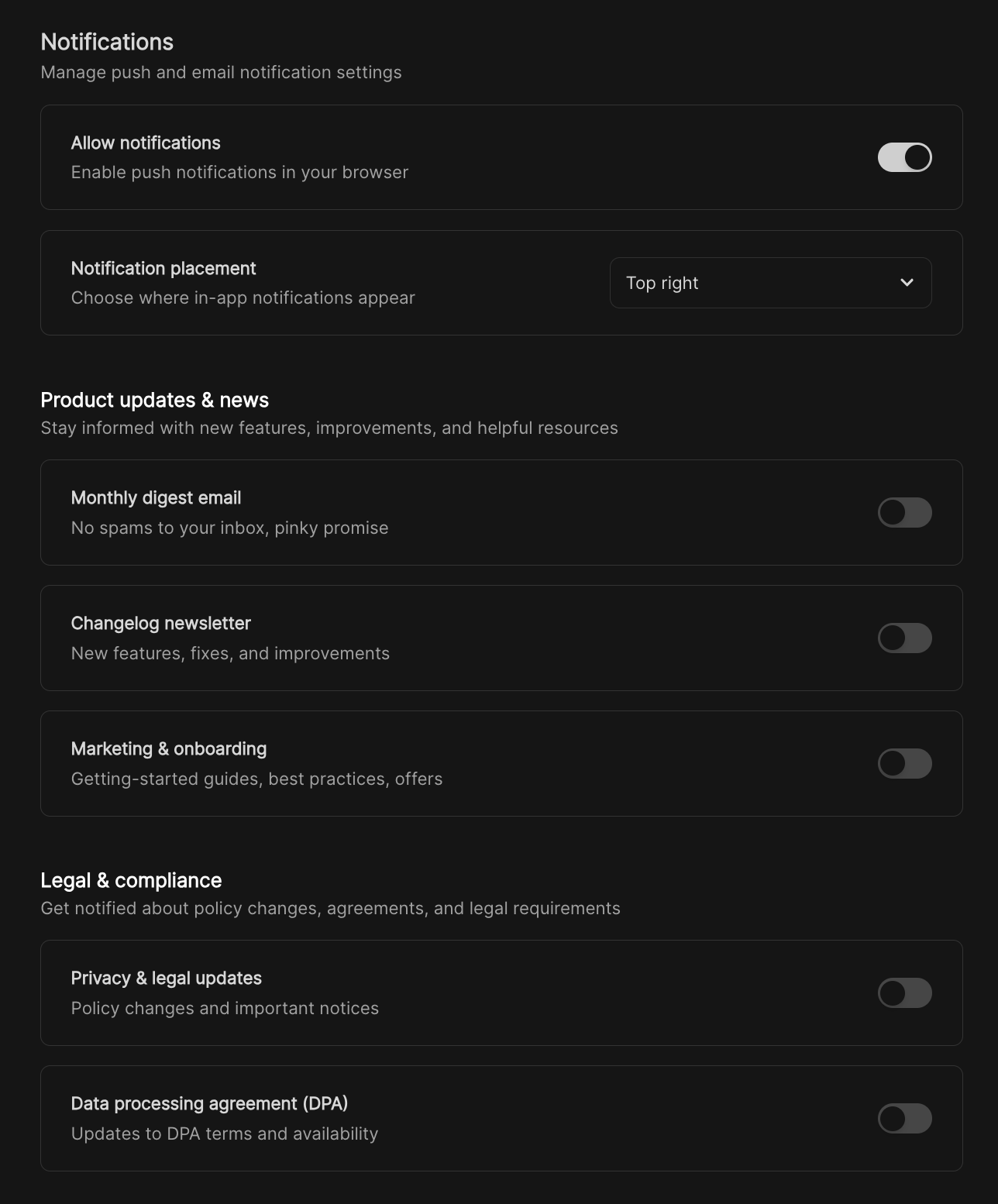 Notifications help you stay updated without distractions. You can choose what you want to hear about and how you want to be notified.
* **Allow notifications**: Enable browser push notifications to receive instant alerts.
* **Notification placement**: Choose where in-app notifications appear.
## Product updates & news
Stay informed about new features, improvements, and helpful resources.
* **Monthly digest email** – A summary of highlights delivered to your inbox.
* **Changelog newsletter** – Detailed updates on new features, fixes, and improvements.
* **Marketing & onboarding** – Helpful guides, best practices, and offers to get more from zyme.
## Legal & compliance
Receive important information about policies and agreements.
* **Privacy & legal updates** – Notifications about policy changes and important notices.
* **Data Processing Agreement (DPA)** – Updates to DPA terms and availability.
# Preferences
Source: https://docs.zyme.sh/account/preferences
Adjust your preferences to help you move faster and personalize your workflow.
## Overview
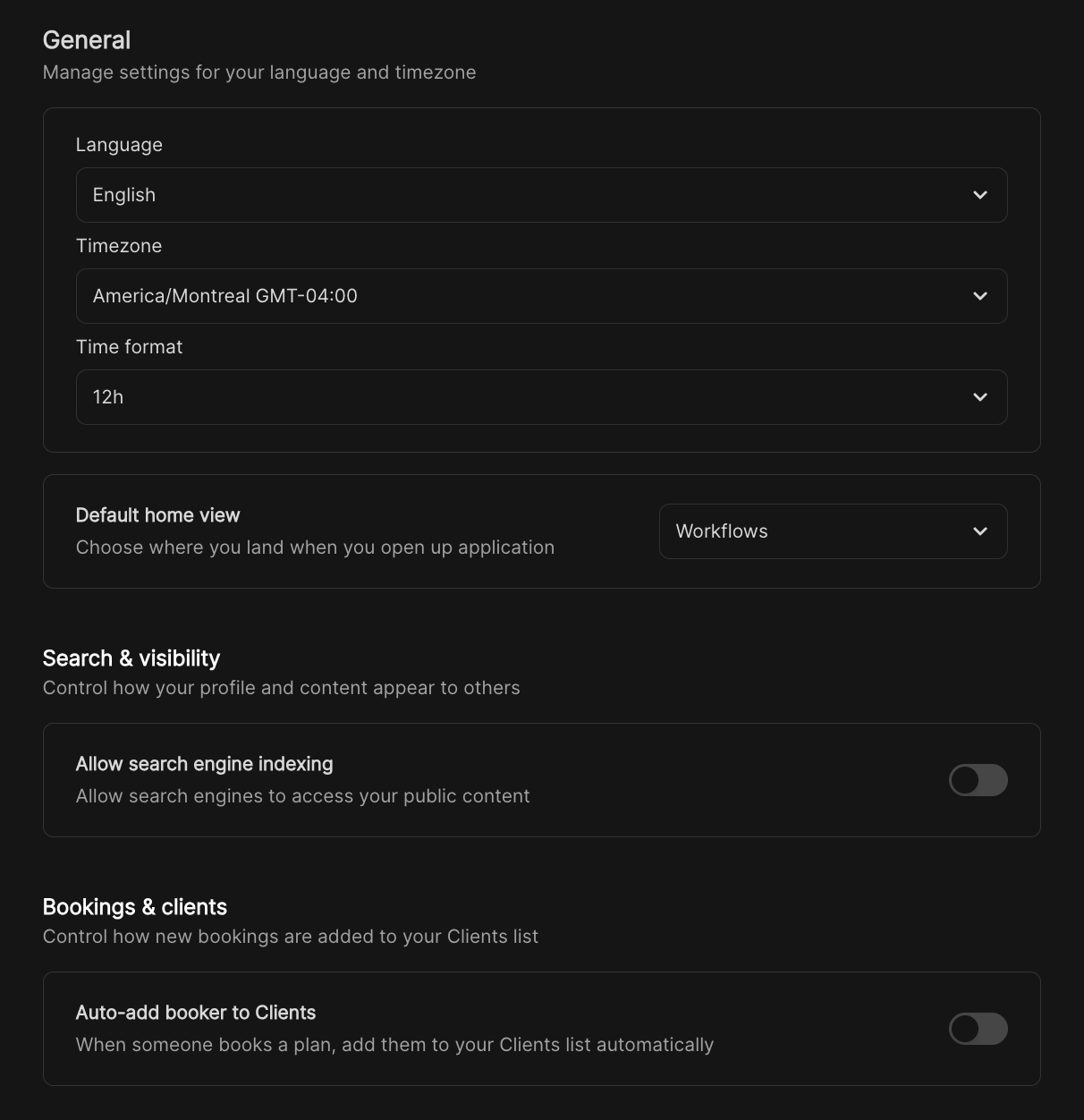
In **Account → Preferences → General**, you can set preferences for your zyme workspace.
 ## General
The **General** section lets you customize the core aspects of your experience:
* **Language**: Select the language used across the platform.
* **Timezone**: Choose the timezone appropriate for your location.
* **Time format**: Pick how time is displayed across the app: **12-hour** or **24-hour**.
* **Default home view**: Decide which view you land on each time you open the application.
***
## Search and visibility
Manage how your profile and content is seen by others:
* **Allow search engine indexing**: Toggle this option to allow (or disallow) public content from being indexed by search engines.
***
## Bookings and clients
Control how new bookings are handled:
**Auto-Add booker to clients**: Enable this to automatically add anyone who books a plan to your Clients list.
# Profile
Source: https://docs.zyme.sh/account/profile
## Overview
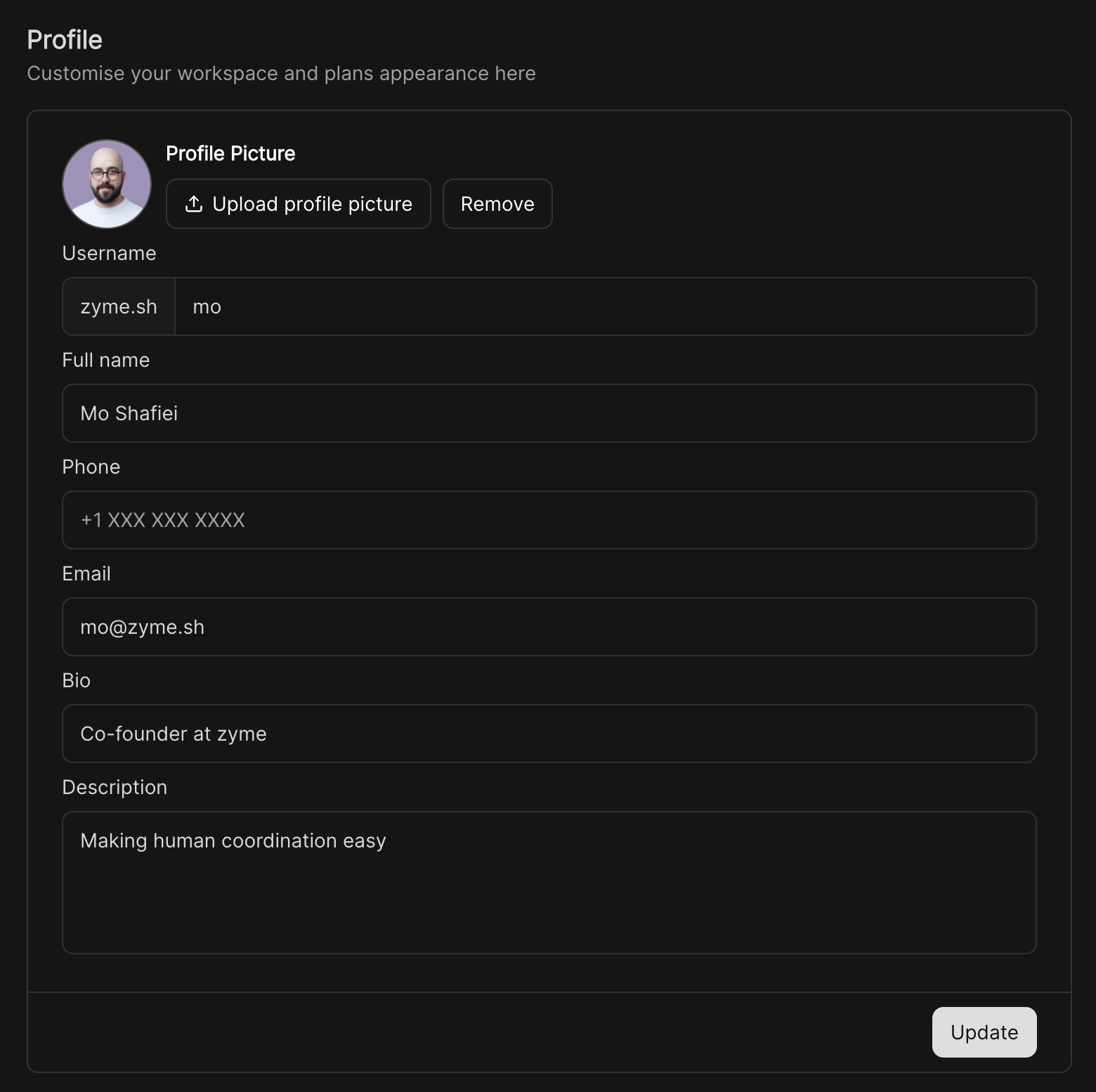
In **Account → Preferences → Profile**, you can personalize your zyme workspace.
 ## Set your profile picture
The default avatar will be the first and last initials of your account.
To add a new photo, hover over the avatar until the edit pencil icon shows up, and click on it.
A pop-up folder will show up for you to select the photo you want to update.
## Name and username
Under **Account → Preferences**, members can choose to show full names or usernames.
You can also set how you’d like your name to appear to others.
## Email address
Your email address is your unique ID (User Account) for all workspaces you have created a User for. For example:
| Action | Result |
| ---------------------------------------------------------------------------------------- | ---------------------------------------------------------------------------------------------------------------------------------------------------------------------------------------------- |
| You joined Workspace A using [jane.doe@email.com](mailto:jane.doe@email.com) | A User Account was created under [jane.doe@gmail.com](mailto:jane.doe@gmail.com) and a User was created for Workspace A. |
| You joined Workspace B. | A User was created for Workspace B under your User Account [jane.doe@email.com](mailto:jane.doe@email.com). |
| You updated your email address in Workspace B to [jdoe@gmail.com](mailto:jdoe@gmail.com) | Your email address for your User Account, Workspace A, and Workspace B was updated to [jdoe@gmail.com](mailto:jdoe@gmail.com). [jane.doe@email.com](mailto:jane.doe@email.com) does not exist. |
### Change your email address
To change your email address:
Open your account settings and navigate to the **Profile** section.
Hover over your current email address and click on the field to edit.
A confirmation email will be sent to both your old and new email addresses.\
You must click the link in **both emails** for the change to take effect.
Changing your email updates it across all workspaces linked to your previous address. If you only want to update one workspace, invite your new email as a separate member and then leave the workspace using your old account.
## Account deletion
To delete your account, enter your username and click on the **Delete my account** button. Once deleted, you’ll no longer have access to your workspace.
# Security and Access
Source: https://docs.zyme.sh/account/security-and-access
Manage your account security and access.
## Overview
zyme gives you full control over your sessions and account access. From managing active devices to updating your password, these settings help protect your account from unauthorized use.
## Active sessions
See where you’re currently signed in and manage access to your account.
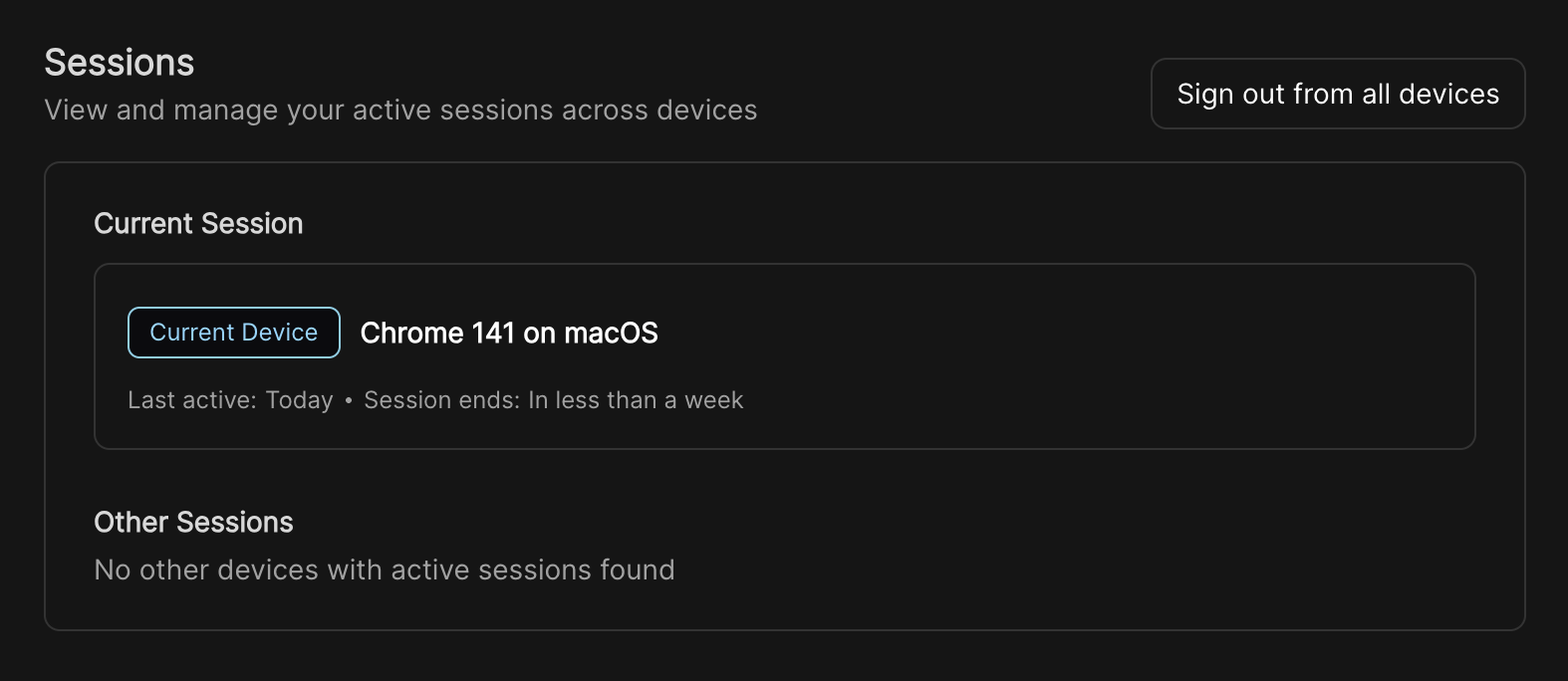 * View details about your current device (browser, operating system, last activity, expiration).
* End all active sessions at once with **Revoke all**.
* Use **Revoke all other sessions** to sign out everywhere except your current device.
This is helpful if you log in on shared devices or want to ensure no unauthorized access remains active.
## Password management
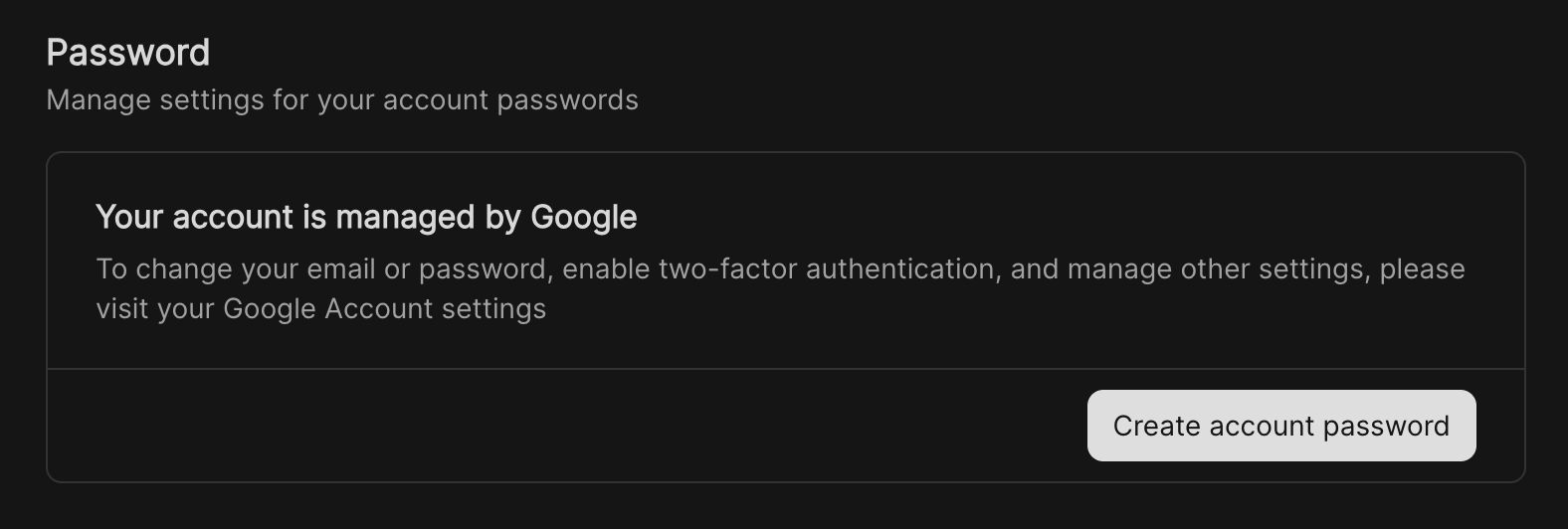
If your account is connected to Google, password and security settings are managed directly through your Google Account. This includes updating your password, enabling two-factor authentication, and changing your email address.
For accounts created directly with zyme, you can set a unique password by clicking **Create account password**.
 Keeping your password updated and enabling two-factor authentication (if available) is strongly recommended to maximize your account security.
# Audit Log
Source: https://docs.zyme.sh/administration/audit-log
Track and review important activity in zyme with the Audit Log for visibility, accountability, and compliance.
## Overview
The **Audit Log** provides a detailed record of key actions taken within your zyme account.\
It helps ensure transparency, security, and compliance by allowing you to monitor who did what, and when.
## What is tracked
The audit log records significant events, including:
* **Authentication** – Logins, signups, and failed login attempts.
* **Workflow activity** – Creation, updates, publishing, unpublishing, and deletions.
* **Bookings** – Requests, approvals, rejections, cancellations, and completions.
* **User management** – Invitations, role changes, or removals.
* **Billing actions** – Subscription upgrades, cancellations, and renewals.
## Accessing the audit log
1. Navigate to **Settings → Audit Log** in the sidebar.
2. Use the search or filters to quickly find relevant events.
3. View details for each entry, including:
* **Timestamp** – When the action occurred.
* **Actor** – The user who performed the action.
* **Action** – What was changed or triggered.
* **Context** – The workflow, booking, or entity involved.
## Why it matters
* **Security** – Detect unauthorized access or suspicious behavior.
* **Accountability** – See which user made specific changes.
* **Compliance** – Maintain accurate records for audits or regulations.
* **Troubleshooting** – Understand the sequence of actions when investigating an issue.
## Retention
Audit logs stay available for **12 months**. Need them longer or want a copy? Reach out to [support@zyme.sh](mailto:support@zyme.sh).
# Billing
Source: https://docs.zyme.sh/administration/billing
Manage your subscription plan, payments, and billing cycle in zyme.
## Overview
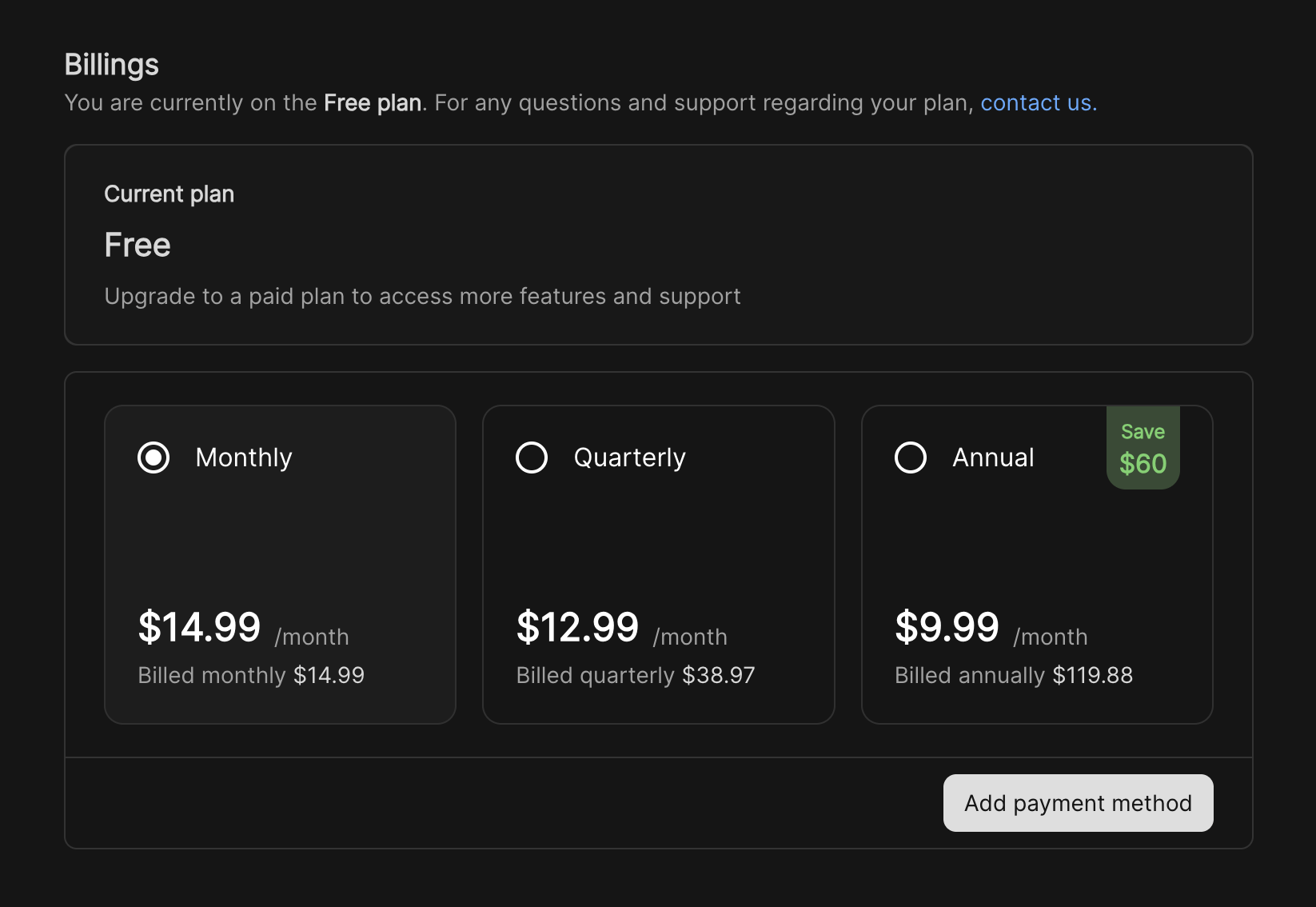
The **Billing** page lets you manage your subscription plan, view renewal details, and update your payment cycle. Whether you’re just getting started or upgrading for long-term use, you can choose a plan that fits your needs.
 ## Current plan
* Your active subscription is displayed at the top of the Billing page.
* It shows which plan you’re on (Monthly, Quarterly, or Annual) and the renewal date.
* You can cancel your plan anytime by clicking **Cancel plan**.
## Upgrading or switching plans
Open the sidebar and click **Billing** to view your subscription details.
Choose between available options. Your selection will update the highlighted option.
Press the **Upgrade** button to confirm your choice. Your billing cycle and payment amount will be updated automatically.
## Renewal and invoices
* Subscriptions renew automatically at the end of each cycle.
* The renewal date is shown under your active plan.
* Invoices and receipts are sent to your account email for each payment.
# Login Methods
Source: https://docs.zyme.sh/administration/login-methods
Learn about the different ways you can log in or sign up for zyme.
## Oveview
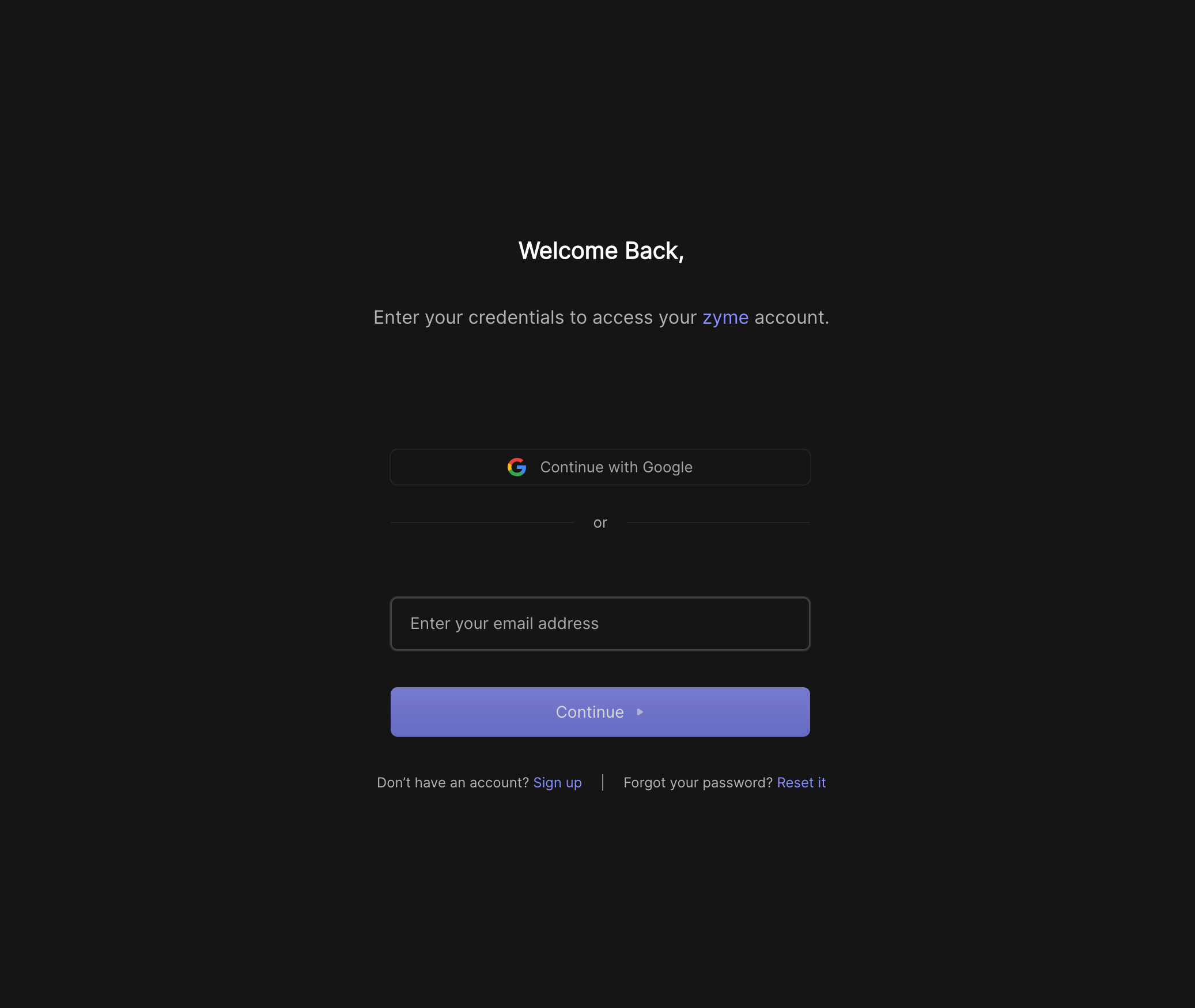
zyme supports multiple login methods so clients and planners can access the platform in the way that works best for them.
 ### Google
Log in quickly with your Google account. This is the easiest option if you already use Google for email or calendar access.
### Username & Password
Create an account with a username and password. This is the most flexible option if you don’t want to link an external account.
## One-time password (OTP)
On the **Playground** page, you can log in with a one-time password (OTP).
* Enter your email, and we’ll send you a temporary code.
* Use the code to log in instantly without setting up a password.
This is a lightweight option for clients who want quick access without creating a full account immediately.
## Signing up
If you don’t already have a zyme account:
1. Click **[Sign up](https://app.zyme.sh/sign-up)** on the login page.
2. Choose your preferred method (Google, or Username & Password).
3. Complete the signup flow.
Once signed up, you can use the same method to log in anytime.
## Best practices
* Use Google or login for the fastest setup.
* Use username & password if you prefer a standalone zyme account.
* Use OTP for quick, temporary access on the Playground.
* Always keep your credentials private and secure.
# Analytics
Source: https://docs.zyme.sh/analytics
Track and measure the performance of your workflows in zyme with analytics on views, bookings, and conversion.
## Overview
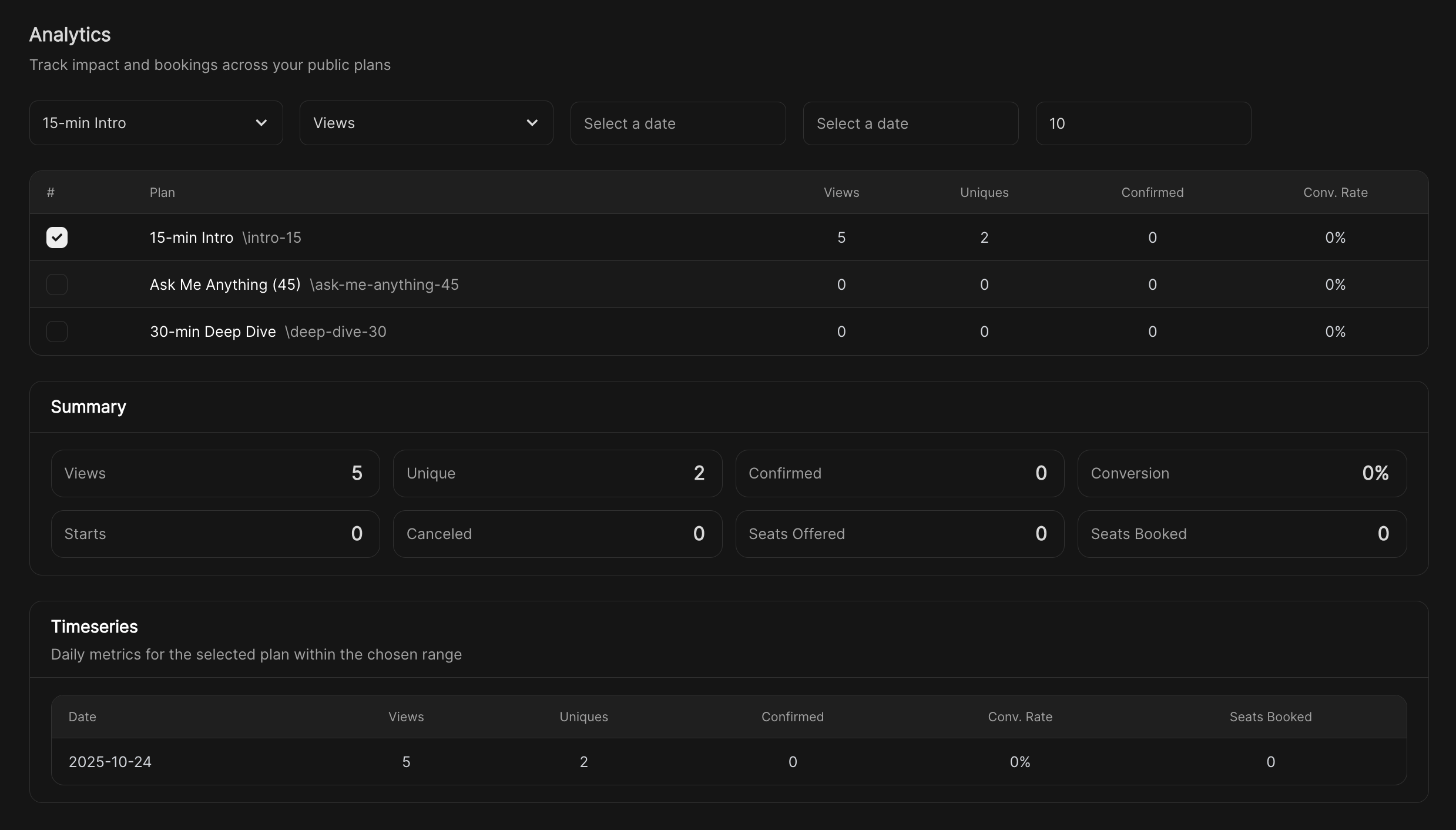 At the top of the page, you can filter analytics by:
* **Plan** – Select which workflow you want to analyze.
* **Metric** – Switch between views, bookings, confirmations, or conversion rates.
* **Date range** – Choose specific start and end dates to narrow your analysis.
* **Limit** – Define how many records or days to display.
This makes it easy to focus on the data most relevant to you.
## Plan performance
Each workflow (plan) is displayed in a table with key metrics:
* **Views** – Total times the workflow page was viewed.
* **Uniques** – Unique visitors who viewed the workflow.
* **Confirmed** – Number of confirmed bookings.
* **Conversion rate** – Percentage of visitors who booked.
## Summary
A quick snapshot of the selected plan’s performance, showing:
* **Views** – Total page views.
* **Unique** – Unique visitors.
* **Confirmed** – Number of confirmed bookings.
* **Conversion** – Overall conversion rate.
* **Starts** – How many participants began the workflow.
* **Canceled** – Number of canceled bookings.
* **Seats offered** – Total spots made available.
* **Seats booked** – How many of those spots were filled.
## Timeseries
The timeseries section shows **daily metrics** for the selected workflow within the chosen date range. Each entry includes:
* **Date** – The day the activity was recorded.
* **Views** – Total views that day.
* **Uniques** – Unique visitors that day.
* **Confirmed** – Bookings confirmed.
* **Conversion rate** – Percentage of visitors who booked.
* **Seats booked** – Number of seats booked.
This breakdown helps you identify spikes in interest or drop-offs over time.
# Availability
Source: https://docs.zyme.sh/availability
Define your recurring or specific availability in zyme to control when meetings can be booked.
## Overview
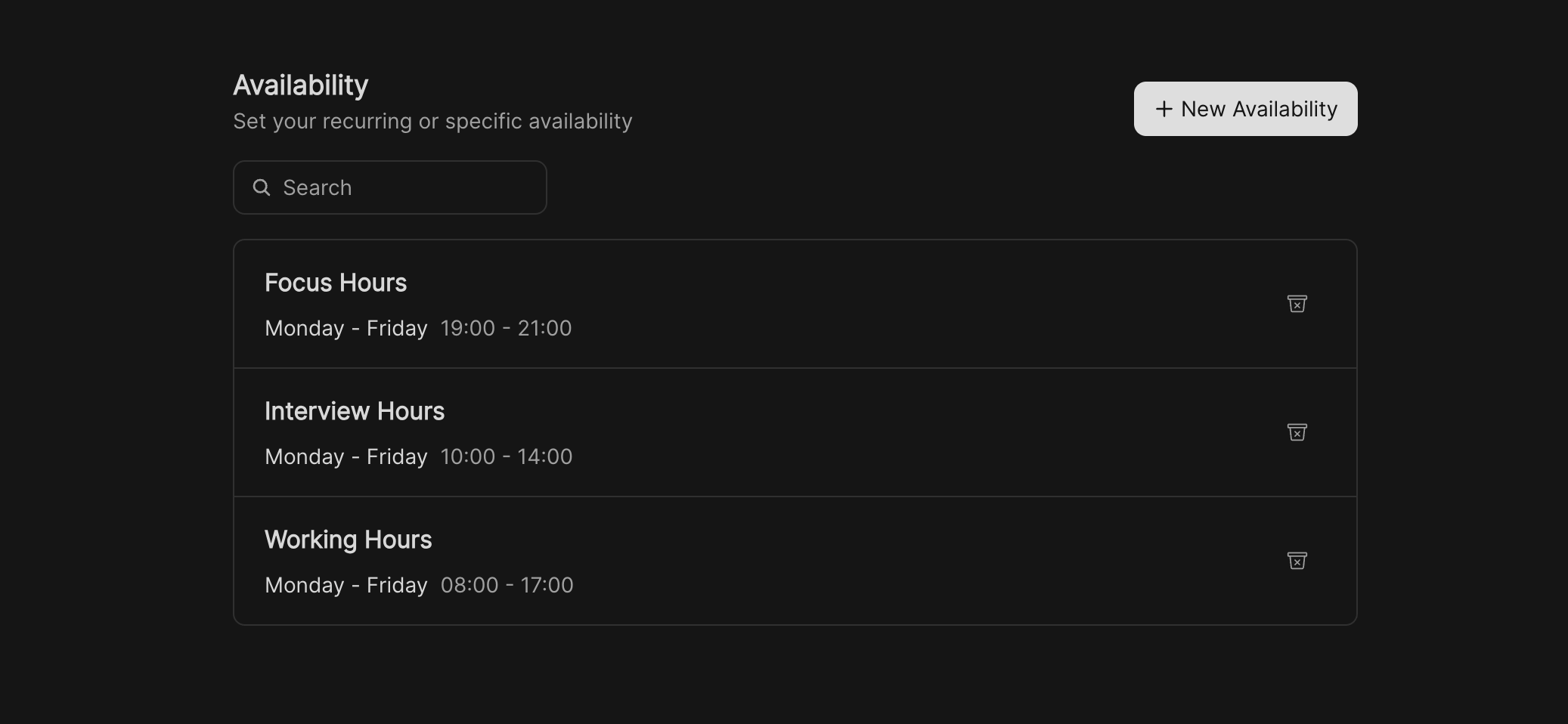
The **Availability** page allows you to define when you’re available for meetings. Once created, these availability profiles can be applied to meeting nodes in your workflows, ensuring clients can only book at times that work for you.
 ## How it works
* Availability sets your **working hours** or **specific time windows**.
* Multiple availabilities can be created for different purposes (e.g., office hours, client calls, interviews).
* Meeting nodes will reference these availabilities so bookings only appear within the defined slots.
## Creating a new availability
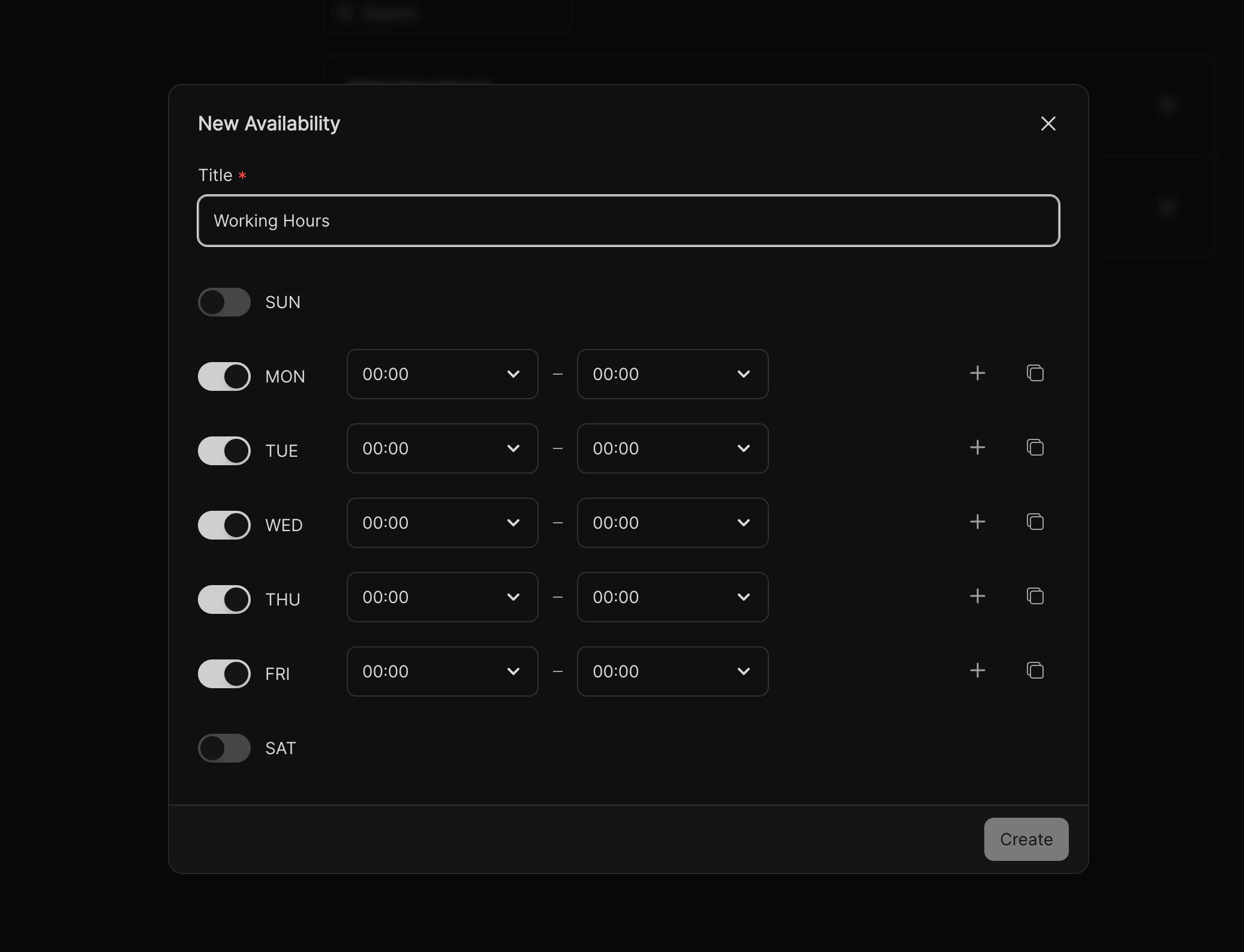
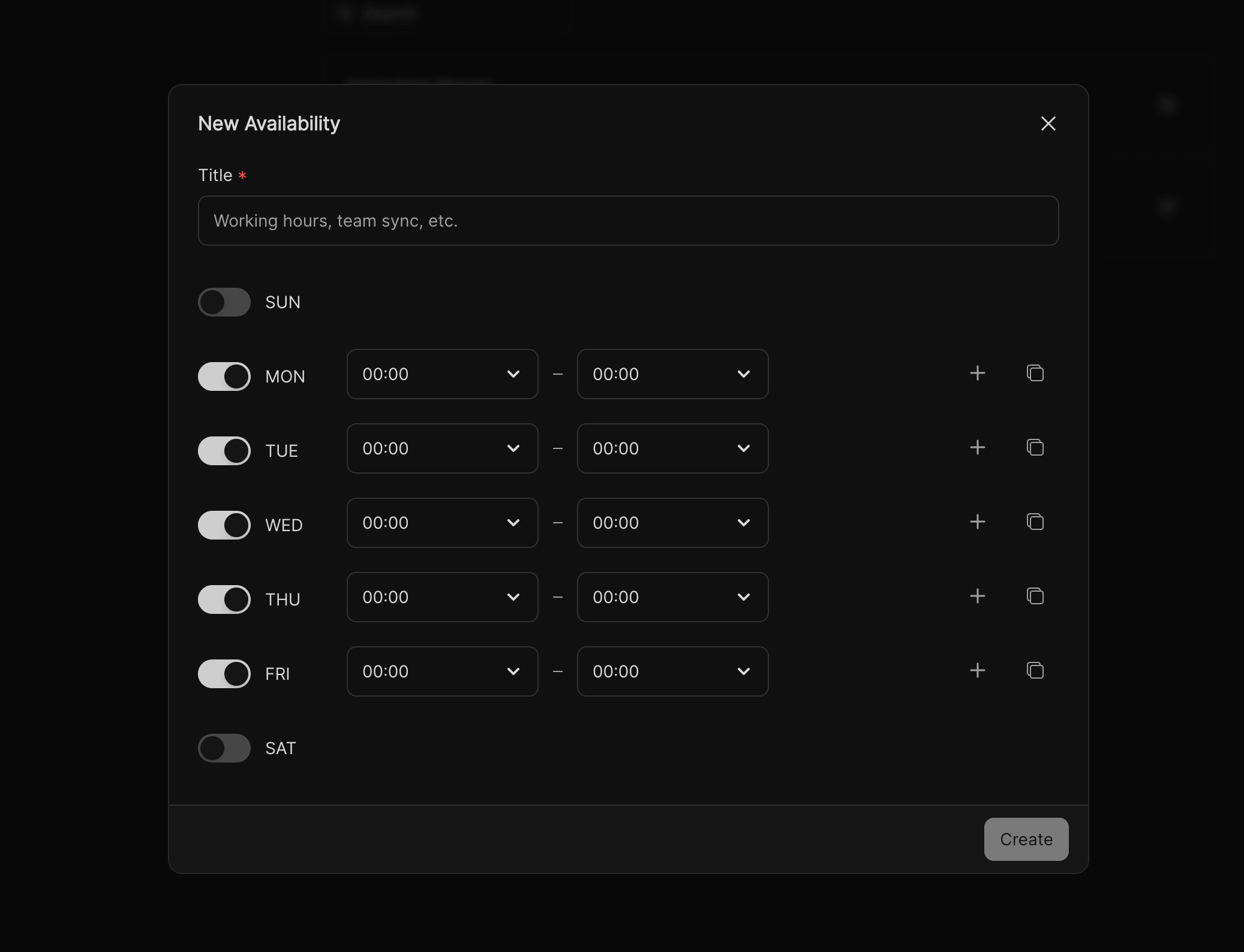 From the Availability page, click the **+ New Availability** button on the top right.
Give your availability a descriptive name (e.g., *Working Hours*, *Team Sync*).
Toggle the days you are available and set a **start** and **end time**.
* Use the **+ button** to add multiple time ranges in the same day.
* Use the **copy button** to duplicate times across other days.
Click **Create** to add your availability to the list.
## Managing availability
* **Edit or delete** availability entries anytime from the list.
* **Search and filter** using the input field for easier navigation.
* Apply availability to **meeting nodes** when designing workflows.
## Example use cases
* Define **9:00 – 17:00, Monday–Friday** as regular working hours.
* Create a separate availability for **Interview Slots** on Wednesdays.
* Limit bookings to **mornings only** or **specific days of the week**.
# Access Request
Source: https://docs.zyme.sh/booking/access-request
Learn how access requests and bookings work in zyme, including normal, paid, and confirmation-required workflows.
## Overview
Once a workflow is created, published, and made public, participants can access it. From here, users can send a **booking request** (also called an enrollment) to join the workflow.\
Bookings are how participants gain access to a workflow’s steps and begin progressing through them.
## Types of bookings
zyme supports three main types of bookings depending on how the workflow is configured:
### Normal booking
* The simplest type of booking.
* Does **not** require manual confirmation.
* Once requested, access is granted immediately, and the user can begin the workflow.
### Paid booking
* Requires payment before the booking is completed.
* After sending the booking request, the user is redirected to a **payment page**.
* Once payment is successful, the booking is confirmed, and access is granted.
### Confirmation-required booking
* Some workflows are set to require approval from the owner.
* After sending a request, the booking remains in **pending status** until approved.
* Once confirmed, the user gains access and can start progressing.
## Login required
To send a booking request, users must be logged in to zyme.
This is important because it ensures:
* Progress through each workflow step is tracked accurately.
* Feedback, ratings, and uploaded files are linked to the correct account.
* Workflow owners can monitor client progress and engagement.
If a user is not logged in when submitting a booking request, the platform will prompt them to sign in or create an account first. Once authorized, the booking flow continues seamlessly from where it left off.
## Booking limits and availability
Workflow preferences may include additional restrictions:
* **Availability windows** – Bookings can only be made within specific start and end dates.
* **Limited spots** – Some workflows have a maximum number of bookings allowed. Once filled, no more bookings are accepted unless waitlisting is enabled.
* **Waitlists** – If enabled, users can join a waitlist once all spots are taken.
* **Private access links** – Owners can create special links with usage limits, tokens, or expiry dates for restricted access.
## What happens after booking
* For **normal bookings**: access is granted immediately.
* For **paid bookings**: the user completes payment first, then access is granted.
* For **confirmation-required bookings**: the owner must approve before access is given.
Once confirmed, the user is enrolled in the workflow and can start progressing through each step.
# Feedback
Source: https://docs.zyme.sh/booking/feedback
Learn how clients can leave feedback and ratings in zyme, and how planners can review them step by step.
## Overview
Feedback and ratings give planners valuable insights into how clients are engaging with workflows.
When enabled, participants can leave comments or ratings after completing a step. This helps track performance, improve future workflows, and measure client satisfaction.
## How feedback works
* Planners can enable **feedback** or **ratings** for each workflow step.
* When enabled, the client is prompted to leave a comment, rating, or both after completing that step.
* Feedback is attached to the specific step, ensuring context is preserved.
## Client experience
1. The client completes a workflow step.
2. If feedback or ratings are enabled, they are asked to:
* Write a short comment (feedback).
* Give a star or numeric rating (performance measure).
3. Once submitted, the feedback is saved and linked to the step they just completed.
This makes it easy for clients to reflect on their progress and provide meaningful input.
## Viewing feedback as a planner
From the **Bookings** page, click the **link button** on a specific booking.This opens the booking details page at: `//`.
Scroll through the workflow steps in the booking details. Each step will show whether feedback or a rating has been left.
Open the step to view submitted comments or ratings. Use this information to evaluate performance, identify gaps, or gather client sentiment.
## What you get
* **Track performance** – Get a clear view of how each step performs and how your team is doing overall.
* **Improve workflows** – Spot unclear or repetitive steps and refine them together.
* **Measure satisfaction** – Use ratings and comments to understand client and team sentiment.
* **Foster engagement** – People feel valued when their feedback leads to real changes.
* **Collaborate better** – Collect input from teammates and clients in one place and make decisions faster.
* **Stay aligned** – Turn shared insights into simple, actionable next steps that keep everyone moving in the same direction.
# Manage Booking
Source: https://docs.zyme.sh/booking/manage-booking
Learn how to view, approve, and manage bookings in zyme, including pending requests and client progress.
## Overview
The **Bookings** page is where planners manage all incoming and active bookings.\
From here, you can review requests, approve or reject them, and check participant progress in workflows.
## Navigating to Bookings
* Open the sidebar and click **Bookings**.
* The page shows a list of all bookings with filters for **All, Active, Past, Canceled, Rejected, Waitlisted, Pending, and Completed**.
* Use the search bar or filter dropdown to quickly find specific bookings.
## Booking types
* **Pending approval** – Workflows that require confirmation will appear here until you take action.
* **Active bookings** – Approved participants currently enrolled in workflows.
* **Past or completed** – Bookings where the workflow has ended or all steps are done.
* **Canceled / Rejected** – Requests that were declined or canceled by either party.
## Accepting or rejecting a booking
Navigate to the **Bookings** page from the sidebar and find the request you want to manage.
Each entry shows the workflow title, description, labels, and who booked it.\
Use the **link button** to open the booking’s preview page and check user progress.
* Click **Approve** to confirm the request and give the user access to the workflow.
* Click **Cancel / Reject** if the request should not be accepted.
## Tracking progress
Once a booking is approved, you can view the client’s progress:
* Open the booking preview page using the **link button**.
* See how far the participant has advanced through workflow steps.
* Track feedback, ratings, and uploads associated with the booking.
# Client
Source: https://docs.zyme.sh/client
Manage your client list in zyme; add new clients, organize them with labels, and keep track of key details.
## Overview
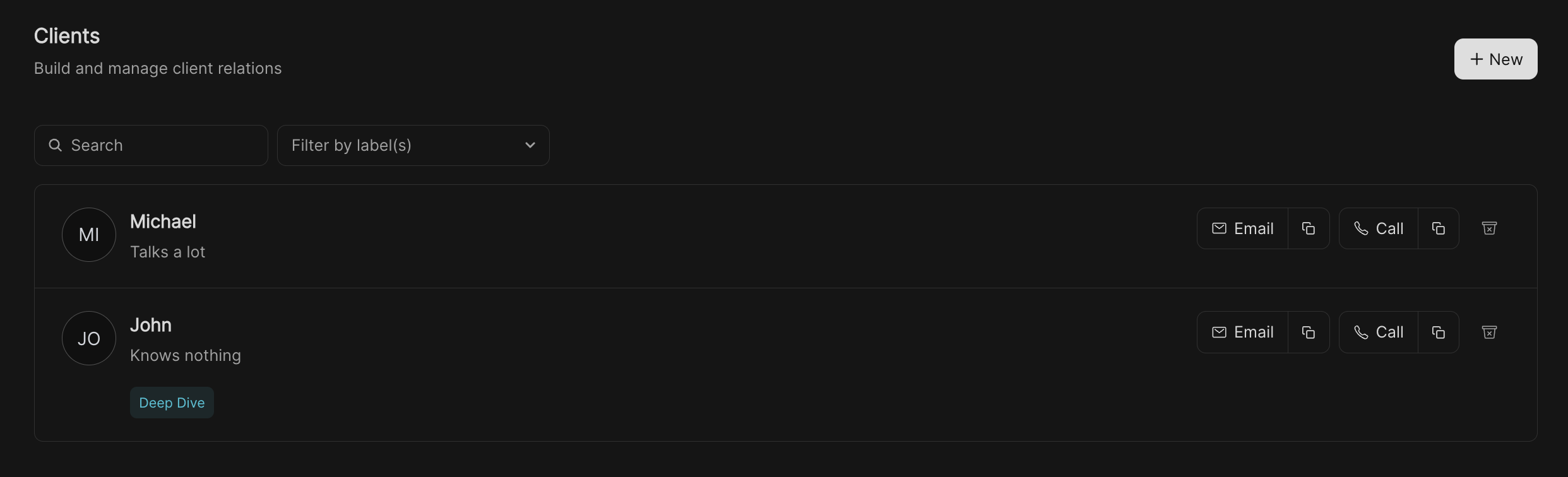
The **Clients** page allows you to manage the people you work with. Clients can be added automatically when
they book a workflow, or manually when you want to keep track of someone directly. This section helps you centralize client information and build stronger relationships.
 ## How clients are added
There are two ways clients appear in your list:
* **Automatic** – If **Auto-add booker to Clients** is enabled in your [Preferences](/preferences), anyone who books one of your workflows will be added here.
* **Manual** – You can also add a client yourself by clicking the **New** button and entering their details.
## Adding a client manually
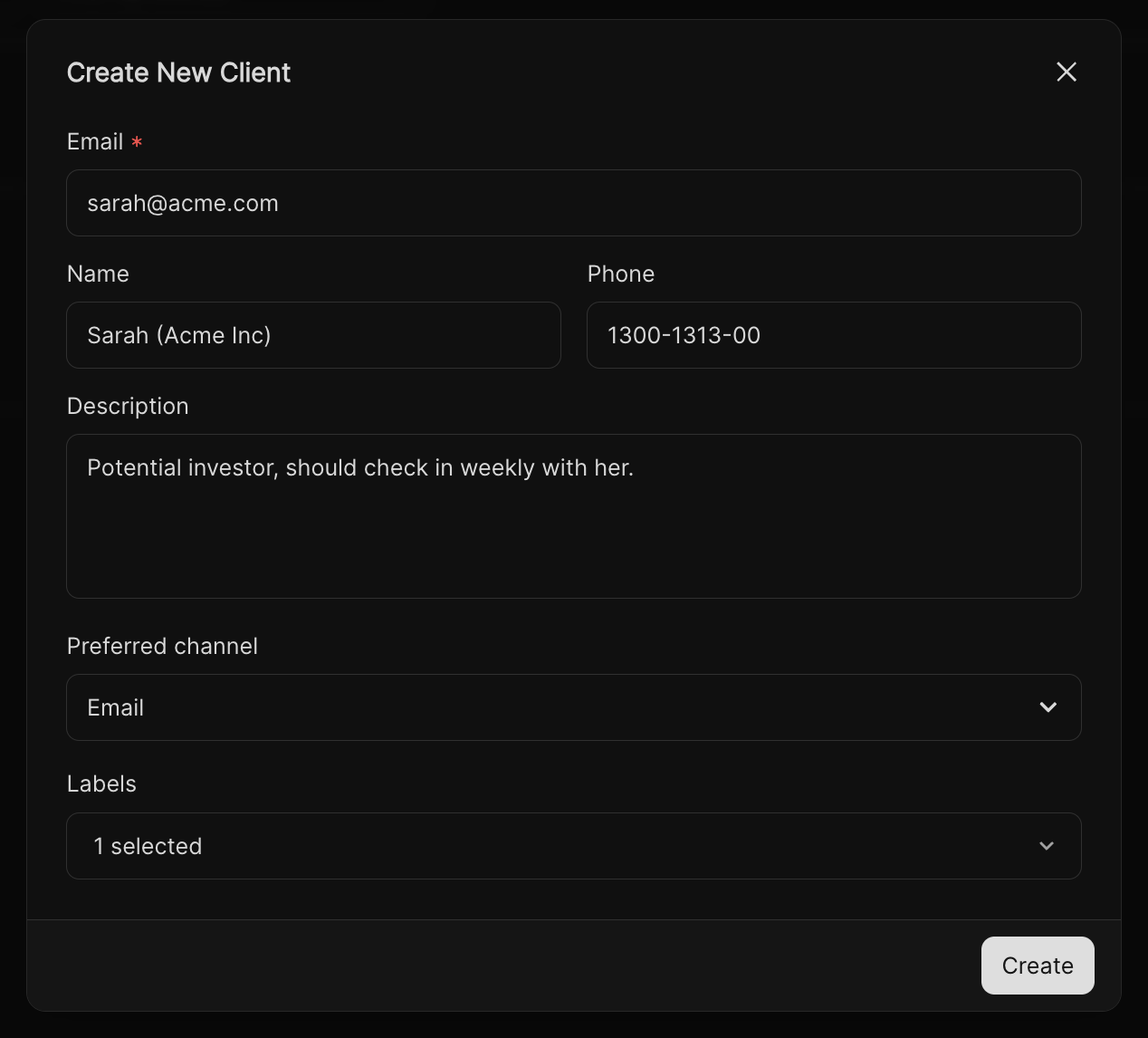 On the Clients page, click the **+ New** button in the top right corner.
Enter information such as:
* **Email** (required)
* **Name** and **Phone**
* **Description** (context about the client or project)
* **Preferred channel** (e.g., Email, Phone)
* **Labels** to categorize and organize clients
Click **Create** to add the client to your list.
## Managing clients
Once a client is in your list, you can:
* **Search & filter** – Use the search bar or label filters to quickly find clients.
* **Edit details** – Update client information at any time.
* **Add labels** – Tag clients by type (e.g., VIP, Prospect, Company).
* **Delete clients** – Remove clients from your list if they are no longer relevant.
# Concepts
Source: https://docs.zyme.sh/concepts
Gain a basic understanding of zyme's design so you can set up your workspace and navigate efficiently.
## Overview
zyme is a web-based platform for building **step-by-step workflows**.
A workflow is a structured process composed of **steps** such as notes, videos, meetings, attachments, and more.
Understanding these core concepts will help you set up your workspace, collaborate with others, and make the most out of zyme.
## Workspace
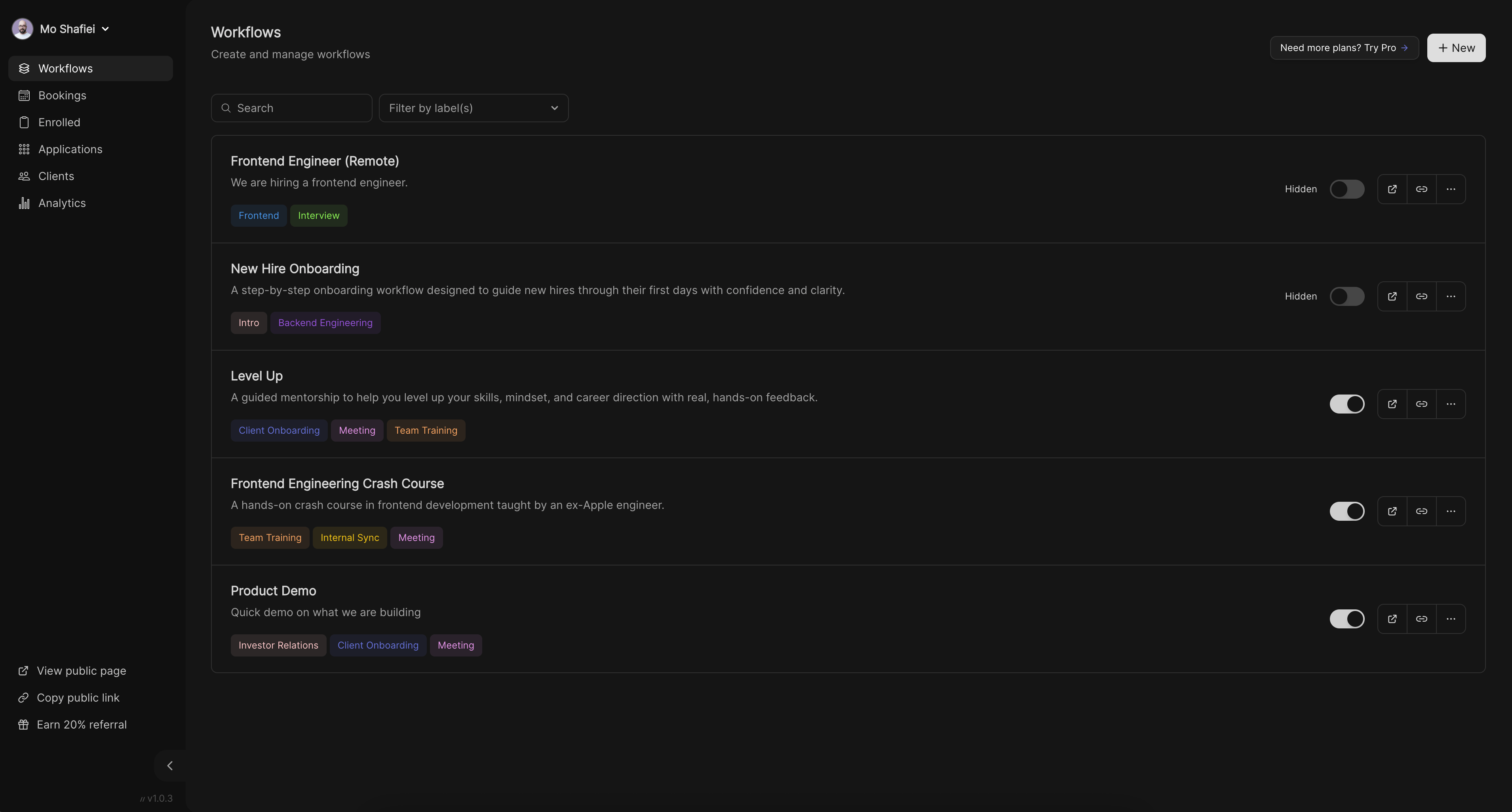
A **workspace** is your primary environment inside zyme. It contains all of your workflows, bookings, preferences, and clients.
Workspaces are tied to your account and can be shared with other collaborators.
Think of it as your **organization hub**, where everything is stored and managed.
 ## Teams
**Teams** allow multiple people to collaborate on workflows.
Within a team, members can collaboratively create, edit, and manage workflows, share clients, and track progress.
This is especially useful for businesses, schools, or groups that need to coordinate processes across multiple people.
## Workflow
A **workflow** is a structured process you create in zyme. It consists of a series of steps designed to guide clients or participants
toward a specific goal; whether that’s onboarding, training, hiring, or running events.
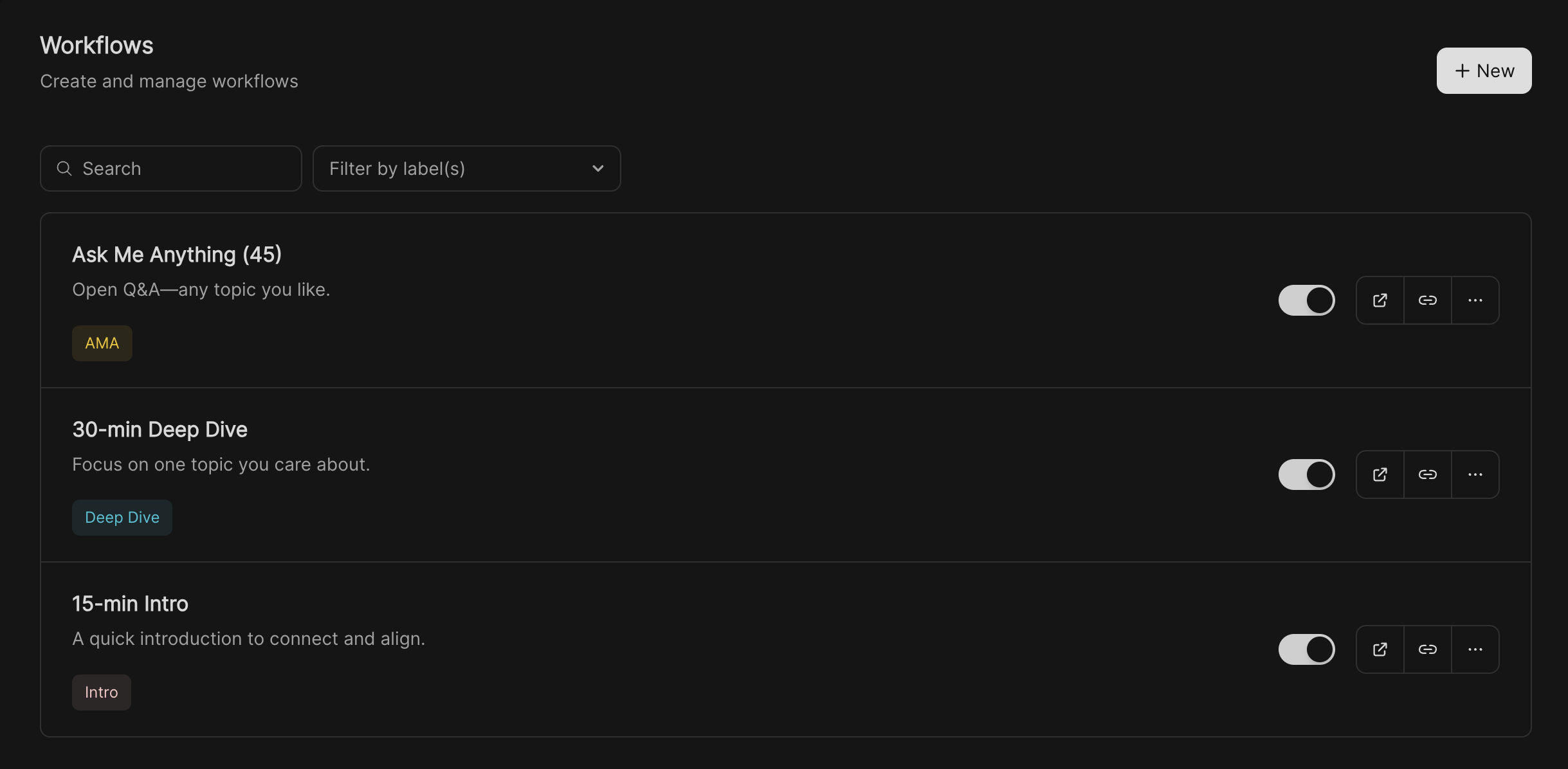 Workflows can be:
* **Public** (shared via link, discoverable)
* **Private** (restricted to invited clients or with access controls)
* **Paid** (require payment before access)
## Step
Each workflow is made up of **steps**.
A step can be one of several types, such as:
* **Note** – Share written instructions or context.
* **Video** – Embed or link to a video tutorial.
* **Meeting** – Schedule a live call or sync.
* **Attachment** – Share or request files.
* And more.
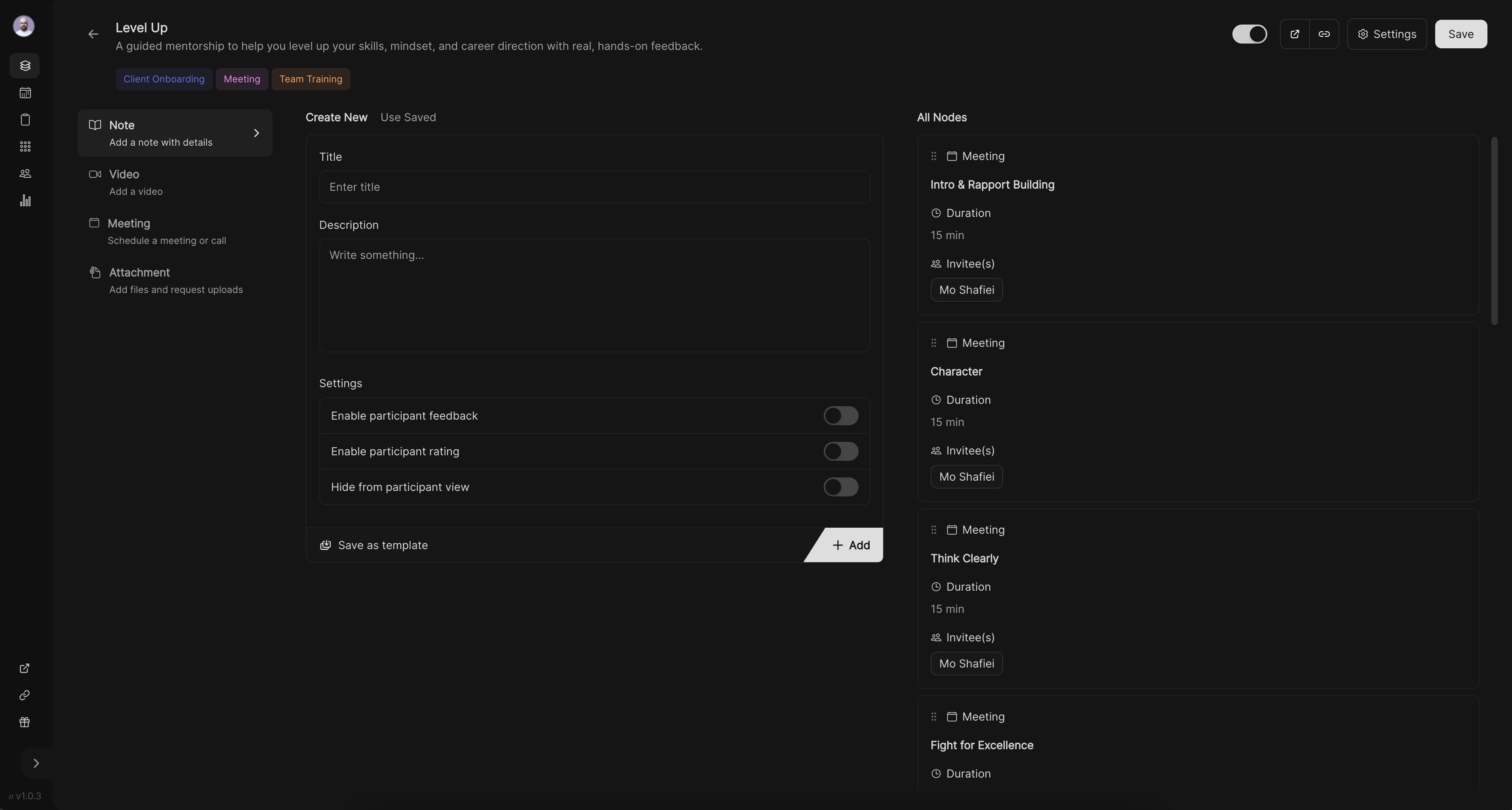 Steps are flexible and can include feedback, ratings, or visibility options depending on your needs.
## Playground
The **Playground** is a preview and testing environment. It lets you experience your workflow the same way a client would.
You can test steps, view progress, and ensure everything works before publishing.
## Preview
The **Preview** page is what clients see when they open your shared workflow link.
It reflects the workflow design, steps, and preferences you’ve set, including availability, payment, and booking options.
Preview helps you verify the experience before clients interact with it.
## Taking actions
Throughout zyme, you can take **actions** such as:
* Sending booking requests
* Accepting or rejecting enrollments
* Providing feedback or ratings
* Managing clients or availability
Actions connect your workflows with real people, ensuring both planners and participants stay on track.
## Availability
**Availability** defines when you are open for bookings. You can set recurring hours (e.g., weekdays 9–5), or add custom schedules (e.g., travel, busy, out-of-office).
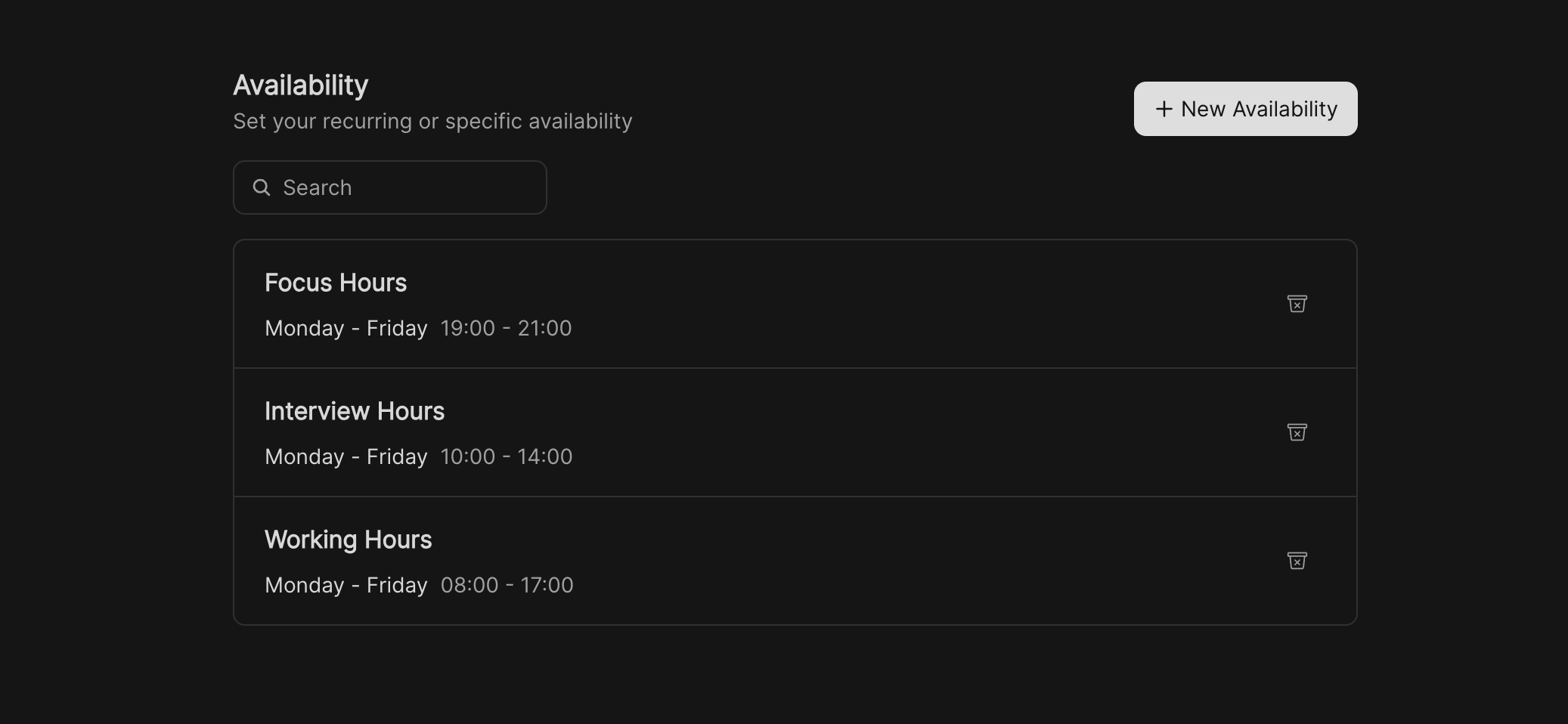
 This ensures meetings and booking steps only happen when you're actually available.
# Enrollment Status
Source: https://docs.zyme.sh/enrollment/enrollment-status
Learn about all enrollment statuses in zyme and what they mean for both clients and planners.
## Overview
Each booking in zyme goes through a lifecycle represented by an **enrollment status**.\
Statuses help both clients and planners understand where a booking stands — from initial request to completion.
## Statuses explained
This lifecycle ensures clients know what to expect and planners can efficiently manage participation:
### Waiting List
The user has requested a booking, but all available spots are full. They are placed in a **waiting list** until a spot becomes available.
### Pending
The user has requested a booking that requires approval. The request is awaiting confirmation from the host/planner.
### Accepted
The host/planner has approved the booking request. The client now has access to the workflow.
### Rejected
The host/planner declined the booking request. The client will not gain access to the workflow.
### Expired
The booking request was not acted upon within a set time frame. It automatically expired due to inactivity or timeout.
### In Progress
The booking is active and the workflow is currently ongoing. This includes bookings with upcoming or ongoing steps.
### Completed
The workflow has been finished successfully. The booking is marked complete, and the client has gone through all steps.
### Canceled
The booking was approved but later canceled; either by the client or the planner. The workflow is no longer active for that booking.
# Glossary
Source: https://docs.zyme.sh/glossary
All terms used in zyme.
## A
**Analytics**\
Metrics that track the impact of your workflows, including views, bookings, conversions, and user progress.
**API**\
Application Programming Interface, used to integrate zyme with external systems.
**Attachment**\
A workflow step type that allows you to upload and share files or request uploads from clients.
**Audit Log**\
A detailed history of actions taken in your account, useful for monitoring and compliance.
**Availability**\
Recurring or specific times you set to indicate when you’re open for meetings and bookings.
**Automation**\
Rules or triggers that help automate repetitive tasks in workflows.
## B
**Booking**\
A request made by a client to enroll in a workflow.
**Booking Status**\
The state of a booking (Pending, Accepted, Rejected, etc.).
**Branding**\
Custom logos, colors, and themes applied to workflows.
**Busy**\
A schedule type that blocks new bookings during the selected time period.
**Billing**\
Subscription and payment details for your zyme account.
**Button Label**\
Customizable call-to-action text for workflow booking buttons.
## C
**Client**\
An individual or organization added to your client list.
**Conversion Rate**\
The percentage of visitors who book compared to total views.
**Collaboration**\
Working with team members on shared workflows.
**Cancellation**\
Stopping a booking before it happens.
**Capacity**\
The maximum number of participants allowed in a workflow.
**Currency**\
The selected unit for payments (e.g., USD, EUR).
## D
**Dashboard**\
Your main overview page showing workflows, bookings, and analytics.
**Description**\
A field for providing context or instructions in workflows.
**Domain**\
A custom URL domain for sharing workflows.
**Draft**\
A workflow saved but not yet published.
**Duration**\
The length of a meeting or workflow step.
**Discount**\
Price reduction applied to a paid workflow.
## E
**Email**\
Primary channel for communication with clients.
**Enrollment**\
The process of joining a workflow after booking.
**Expired**\
A booking status when no response is received in time.
**Edit**\
The action of changing details of a workflow, client, or booking.
**Export**\
Download data or reports from zyme for offline use.
**Event**\
A scheduled occurrence such as a meeting or workshop.
## F
**Feedback**\
Responses or ratings collected from clients.
**Form**\
A custom input step for gathering structured information.
**Free Plan**\
zyme subscription tier with limited features.
**Folder**\
Organizational unit for grouping workflows.
**Filter**\
Search option to narrow down clients, bookings, or analytics.
**Functionality**\
The features available within zyme.
## G
**Glossary**\
Reference guide for all important zyme terms.
**Group**\
Collection of workflows or clients.
**Google Login**\
Authentication method using Google account.
**Goal**\
The intended outcome of a workflow step.
**Growth**\
The increase in bookings, clients, or workflow usage over time.
## H
**Hosting**\
zyme infrastructure that serves workflows online.
**History**\
Chronological list of activities in your account.
**Header**\
Top section of workflow or client forms.
**Help Center**\
Support resources and FAQs for zyme.
**Hidden**\
A workflow or step not visible to clients until activated.
**Home View**\
Default page you land on when opening zyme.
## I
**Integration**\
Connecting zyme with third-party services.
**Invite**\
Option to send invitations to clients or collaborators.
**In Progress**\
Booking status for an active workflow.
**Invoice**\
Payment record generated for billing purposes.
**Import**\
Bringing external data into zyme.
**Idle**\
A status indicating no activity.
## J
**Join Link**\
A URL provided to clients to access workflows.
**JSON**\
Data format sometimes used for imports and exports.
**Journey**\
A client’s path through multiple workflows.
**Job Title**\
Metadata field for client details.
**Journal**\
Record of activities or notes in workflows.
**Just-in-Time**\
Availability or workflow timing set dynamically.
## K
**Keyword**\
A searchable tag for workflows, clients, or bookings.
**Knowledge Base**\
Documentation and guides for using zyme.
**Key Result**\
A measurable outcome tied to workflow goals.
**Keep Alive**\
Session handling to prevent auto-logouts.
**Kanban**\
A visual workflow organization method.
**Kit**\
A collection of workflow templates.
## L
**Label**\
A tag for organizing workflows or clients.
**Layout**\
The visual structure of a workflow.
**Link**\
A shareable URL for workflows.
**Limit**\
A restriction such as number of bookings or views.
**Login**\
Authentication step to access zyme.
**Logout**\
Action of leaving the zyme platform.
## M
**Meeting**\
A workflow step type with link, location, and duration.
**Modal**\
A pop-up interface for creating or editing items.
**Metrics**\
Numerical indicators of performance in analytics.
**Membership**\
Subscription level of a user.
**Message**\
Custom communication shown to clients.
**Multi-step**\
Workflows with more than one step type.
## N
**Note**\
A workflow step type with text content.
**Notification**\
System alert for updates or reminders.
**Navigation**\
Menu or sidebar for accessing pages.
**Nickname**\
Alternative display name for clients.
**Network**\
Connections between workflows, clients, and bookings.
**Newsletter**\
Email sent to share updates and news.
## O
**Out of Office**\
A status that blocks new bookings and informs clients.
**Onboarding**\
The process of welcoming and guiding new users.
**Owner**\
The account holder responsible for workflows.
**Option**\
A setting choice within preferences.
**OTP Login**\
One-time passcode method for quick login.
**Overview**\
High-level summary of workflows, clients, or bookings.
## P
**Payment**\
A workflow option where users pay for access.
**Plan**\
A structured set of steps in zyme.
**Private Access**\
Restricted sharing of workflows via unique links.
**Progress**\
Client advancement through workflow steps.
**Profile**\
User account details and settings.
**Publishing**\
Making a workflow live and shareable.
## Q
**Queue**\
List of clients waiting for approval or availability.
**Quota**\
Limit on workflow or booking usage.
**Quick Action**\
Shortcut to perform tasks faster.
**Quality**\
Measure of feedback ratings.
**Query**\
A request for information from the database.
**Quarterly Plan**\
Subscription tier billed every three months.
## R
**Rating**\
Stars or scores given by clients.
**Recurring**\
Repetitive availability settings.
**Rejected**\
Booking status when denied.
**Reminder**\
Notification sent to clients about bookings.
**Report**\
Generated analytics file.
**Reschedule**\
Change the date/time of a booking.
## S
**Schedule**\
Temporary adjustments to your availability.
**Slug**\
Unique identifier in workflow URLs.
**Spot**\
Available seat for a booking.
**Subscription**\
Ongoing paid access to zyme features.
**Summary**\
Analytics overview box with totals.
**Survey**\
Form for collecting structured feedback.
## T
**Template**\
A prebuilt workflow structure.
**Timezone**\
The region-based offset applied to bookings.
**Token**\
Custom access code for private links.
**Trial**\
Temporary free use of premium features.
**Tracking**\
Monitoring analytics and progress.
**Theme**\
Visual appearance of zyme UI.
## U
**Unique**\
Analytics metric showing distinct users.
**Upgrade**\
Move to a higher subscription plan.
**Update**\
Modify workflow, booking, or preferences.
**URL**\
A web link to access workflows.
**User**\
An individual with a zyme account.
**Usage Limit**\
Restriction on number of times a workflow can be used.
## V
**Video**\
A workflow step type with embedded playback.
**Violator**\
Urgency label, e.g., 'Only 5 spots left'.
**View**\
Analytics metric showing page impressions.
**Version**\
Saved state of a workflow over time.
**Visibility**\
Whether a workflow is public or private.
**Verification**\
Authentication step ensuring account validity.
## W
**Waitlist**\
Queue of clients when spots are full.
**Workflow**\
A structured sequence of steps.
**Workspace**\
A shared environment for teams.
**Weekly Plan**\
Recurring availability or subscription tier.
**Webhook**\
Integration callback triggered by events.
**Widget**\
Embed of zyme elements in external sites.
# Google Calendar
Source: https://docs.zyme.sh/integrations/google-calendar
Connect your Google Calendar to automatically create, update, and cancel events.
## Overview
Connect **Google Calendar** to sync zyme bookings with your schedule. When enabled, zyme will automatically create events for confirmed bookings, keep them up to date when things change, and cancel them if a booking is withdrawn.
## What the integration does
* **Auto-create events** for confirmed bookings and meeting steps.
* **Two-way updates**: reschedules or cancellations in zyme are reflected on your calendar.
* **Conferencing links**: add a Google Meet link to events when applicable.
* **Timezone aware**: events are created using the correct timezone (including Schedule/Travel changes).
* **Reminders**: your Google Calendar notifications work as usual.
> Your calendar is only used for the permissions you grant. You can revoke access at any time.
## Connect Google Calendar
In the list of apps, locate **Google Calendar** and click **Install**.
Sign in with your Google account and grant the requested calendar permissions so zyme can create and manage events on your behalf.
Once connected, the app shows **Enabled**. New confirmed bookings will start syncing to your calendar.
## Using the integration
* **Booking confirmed** → event is created on your Google Calendar.
* **Booking rescheduled** → event time is updated automatically.
* **Booking canceled** → event is removed from your calendar.
* **Requires confirmation** → event is created only after you approve the booking.
* **Private workflows** still sync events for you (not publicly visible).
## Google Meet links
When enabled, zyme adds a **Google Meet** link to the event. You can also paste a different meeting link in your **Meeting** step if you prefer Zoom/Teams; the event will use that link instead.
## Manage or disconnect
* Return to **Applications → Google Calendar** to see the app status.
* Click **Details** to review permissions.
* Click **Disconnect** to stop syncing; existing events remain on your calendar.
## Troubleshooting
* **No event created?** Make sure the booking is confirmed and the app shows **Active**.
* **Wrong time or timezone?** Check your **Schedule** (Travel/Busy/OOO) and workflow timezone settings.
* **Permission error**: Reconnect the app and grant permissions again.
# Attachment
Source: https://docs.zyme.sh/node/attachment
Add attachments to workflow steps or request users to upload files, making it easy to exchange documents, images, and other resources.
## Overview
An **Attachment** step lets you share files with participants or request them to upload their own.\
This step is ideal for exchanging documents, images, contracts, or any resources needed to complete the workflow.
***
## Creating an Attachment step
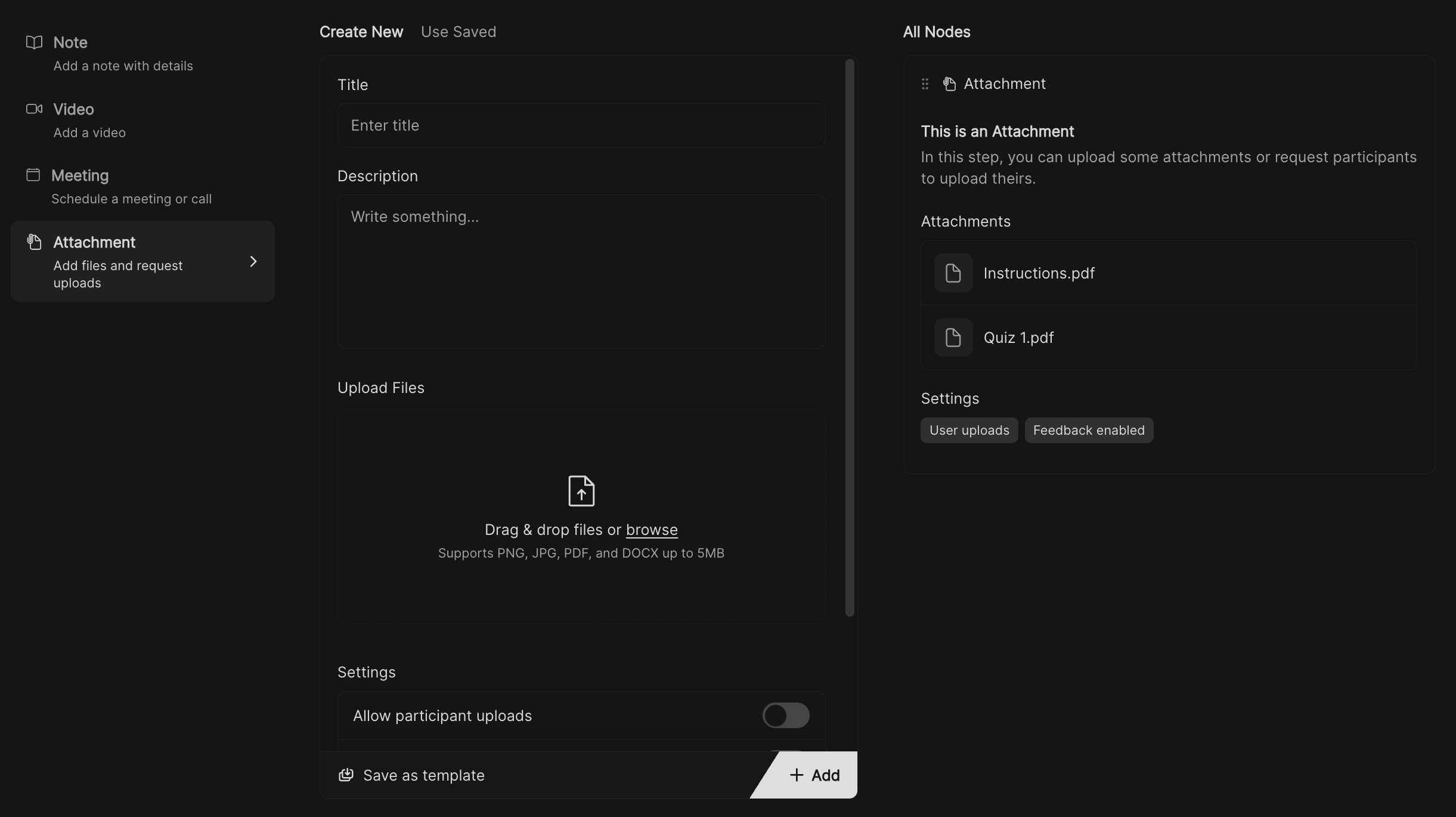 In your workflow, and select **Attachment** from the list of step types.
Give the attachment a clear name.\
Example: *Project Brief* or *Upload your ID Document*.
Provide context or instructions for the attachment.\
Example: *Please review the document before the next session*.
Drag and drop files into the upload area or click to select from your computer.\
Files must be **5MB or smaller**.
Toggle this option if you want participants to upload their own files as part of the workflow.\
Example: *Upload your signed agreement*.
* **Allow receiving feedback** – Collect comments on the uploaded file.
* **Allow receiving rating** – Let users rate the usefulness of the attachment.
* **Hide in client view** – Keep the attachment private to your team if needed.
Click **Save this for later** to add the attachment into the attachment templates list.
Click **Apply** to add the attachment into the attachment sequence.
Click **Save** to store your workflow changes.
***
## Best practices
* Use descriptive titles so users immediately know what the file is for.
* Request uploads only when necessary to reduce friction for clients.
* Hide internal files (like templates or internal docs) if they’re not meant for clients.
* Combine attachments with **Notes** or **Tasks** to provide extra instructions.
# Meeting
Source: https://docs.zyme.sh/node/meeting
Add a meeting step to your workflow to schedule and manage live sessions with participants directly inside zyme.
## Overview
A **Meeting** step lets you schedule live sessions like consultations, coaching calls, or team syncs directly within a workflow.
It connects with your favorite calendar tools so you can manage availability, time zones, and participation settings in one place, making coordination easy.
***
## Creating a Meeting step
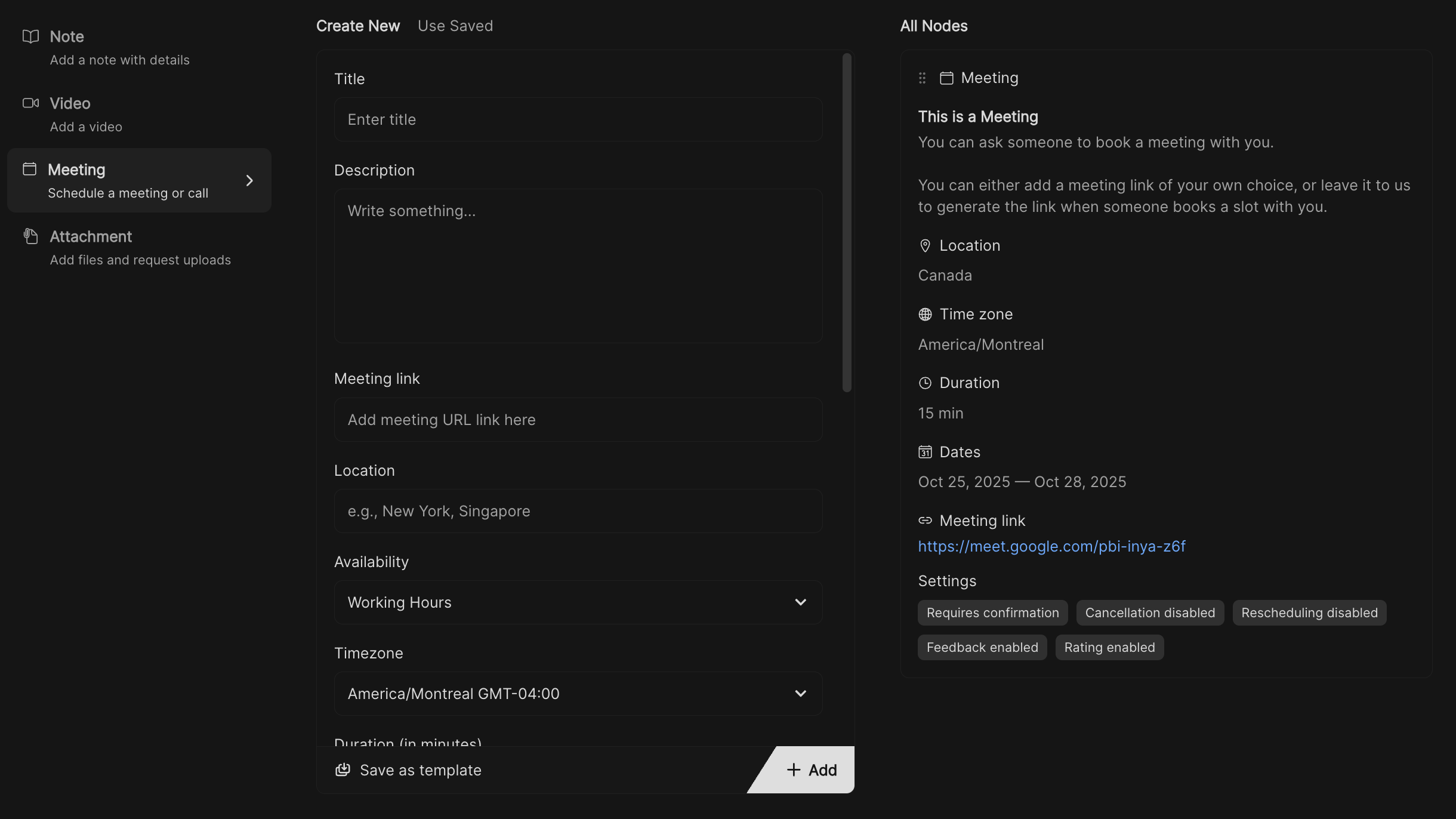 In your workflow, select **Meeting** from the available step types.
Give the meeting a clear title.\
Example: *Weekly Check-in* or *Client Kickoff Call*.
Add context about what the meeting covers.\
Example: *Discuss project milestones and blockers*.
* Paste a video conferencing link (Zoom, Google Meet, Teams, etc.).
* Optionally, add a physical location if relevant.
* Choose when participants can book this meeting.
* Select the timezone to avoid confusion for international clients.
* **Duration** – Set length in minutes.
* **Start offset** – Add buffer time before meetings begin.
* **Start date / End date** – Limit when meetings are available to book.
* **Requires confirmation** – Approve bookings before they’re confirmed.
* **Disable cancelling** – Prevent participants from cancelling.
* **Disable rescheduling** – Prevent participants from changing times.
* **Allow receiving feedback** – Collect comments after the meeting.
* **Allow receiving rating** – Gather star ratings for the session.
* **Hide in client view** – Keep the meeting internal-only if needed.
Click **Save this for later** to add the meeting into the meeting templates list.
Click **Apply** to add the meeting into the workflow sequence.
Click **Save** to store your workflow changes.
***
## Best practices
* Use buffer times (start offset) to prevent back-to-back sessions.
* Keep durations realistic, shorter for quick syncs, longer for deep-dive sessions.
* Collect ratings and feedback to improve future meetings.
# Note
Source: https://docs.zyme.sh/node/note
Add notes to your workflow steps to capture instructions, context, or important details for clients and teammates.
## Overview
A **Note** step allows you to add text-based instructions, context, or reminders directly into a workflow.\
Notes are flexible and can be used to explain a process, provide background information, or share key details with your clients and team.
***
## Creating a Note step
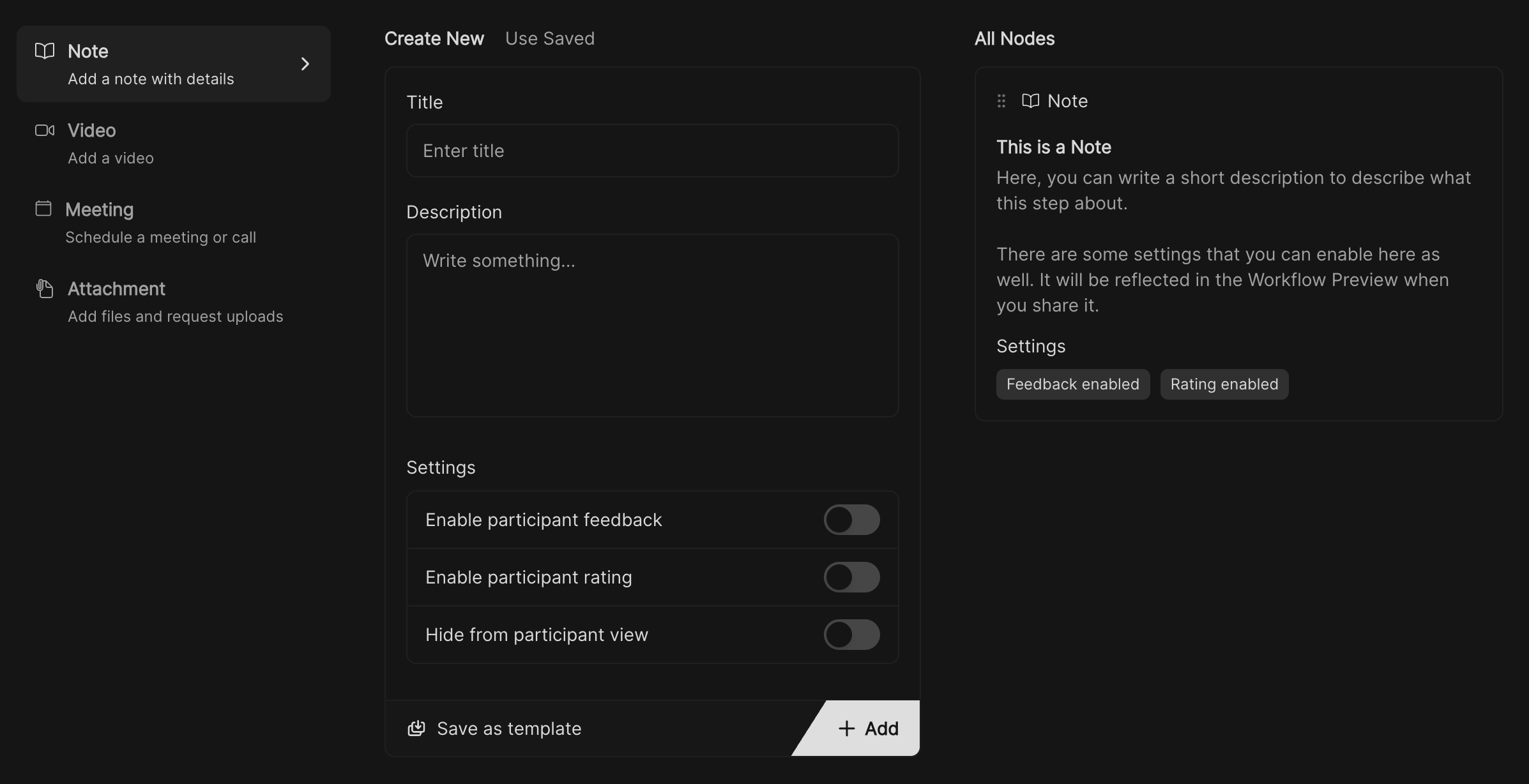 In your workflow, select **Note** from the list of available step types.
Give your note a clear, descriptive title.\
Example: *Preparation guidelines* or *Next steps after the session*.
Add detailed instructions, comments, or context in the **Body** field.\
This can include bullet points, best practices, or resources.
* **Allow receiving feedback** – Let users comment on the note.
* **Allow receiving rating** – Gather star ratings or quick evaluations.
* **Hide in client view** – Keep the note visible only to internal team members.
Click **Save this for later** to store the note inside the workflow.
Click **Apply** to add the note to your workflow.
Click **Save** to store your workflow changes.
***
## Best practices
* Use notes to reduce confusion, add context before complex steps.
* Hide internal notes if they’re only meant for your team.
* Combine notes with other step types (like tasks, files, or meetings) for richer workflows.
# Video
Source: https://docs.zyme.sh/node/video
Add videos to your workflow steps to share tutorials, recordings, or any media content directly with clients and teammates.
## Overview
A **Video** step allows you to embed and share videos within your workflow.\
Use this step to provide tutorials, training content, or recordings that help guide participants through the process.
***
## Creating a Video step
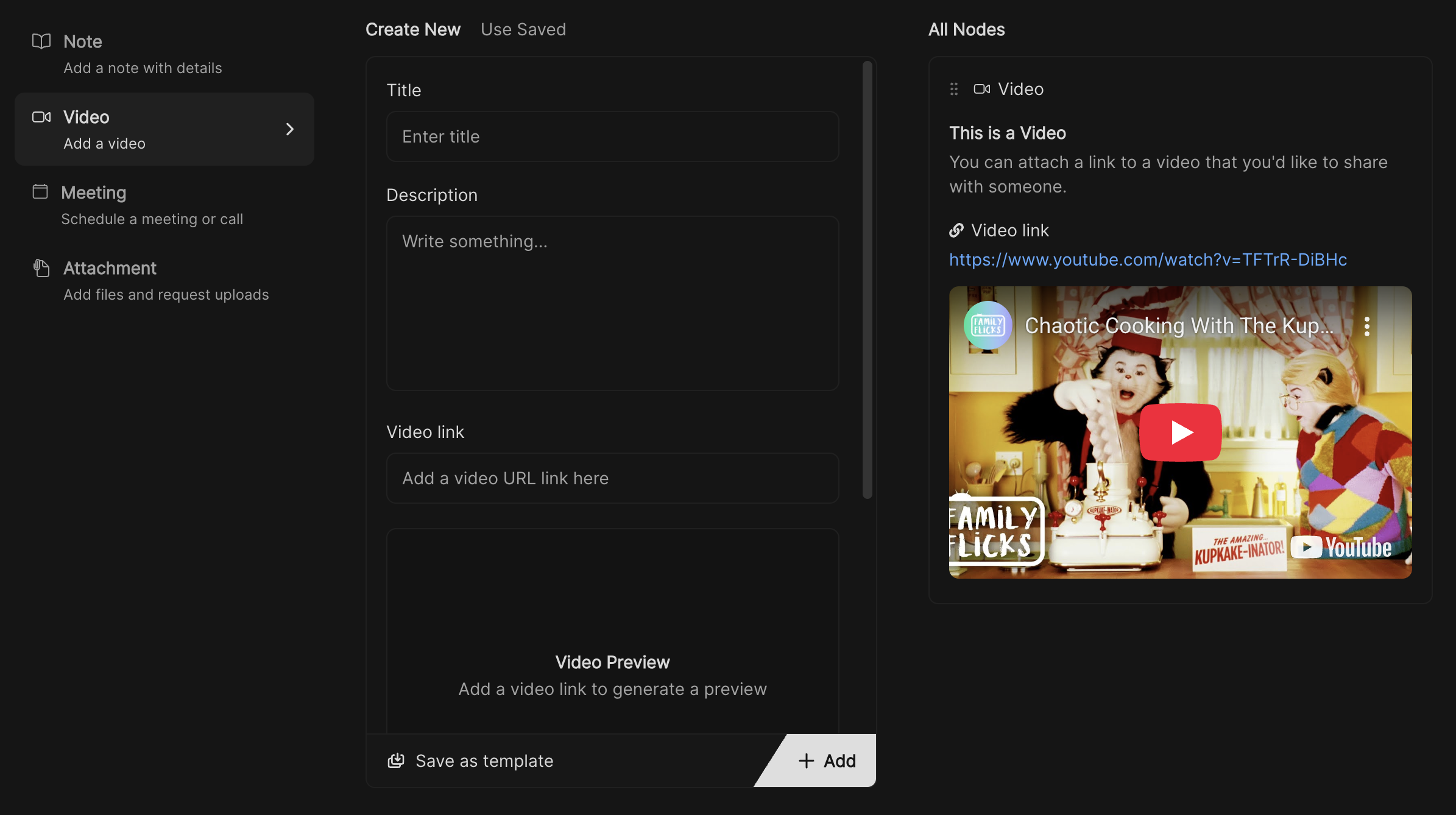 In your workflow, select **Video** from the list of available step types.
Give the video a clear, descriptive title.\
Example: *Introduction to Onboarding* or *How to prepare for your session*.
Add context for the video so viewers know what to expect.\
Example: *This video covers the basics of account setup*.
Insert a valid video link (e.g., YouTube, Vimeo, or a hosted URL).\
Once added, a **preview** will automatically appear below the input field.
* **Allow receiving feedback** – Let users leave comments on the video.
* **Allow receiving rating** – Collect ratings after the video is watched.
* **Hide in client view** – Keep the video internal if you don’t want clients to see it.
Click **Save this for later** to add the video into the workflow templates list.
Click **Apply** to add the video into the workflow sequence.
Click **Save** to store your workflow changes.
***
## Best practices
* Use short, focused videos for better engagement.
* Always add a description to explain why the video is important.
* Hide internal training videos if they’re only relevant to your team.
# Out of office
Source: https://docs.zyme.sh/ooo
Manage your out-of-office status in zyme to pause new bookings and notify clients when you’re unavailable.
## Overview
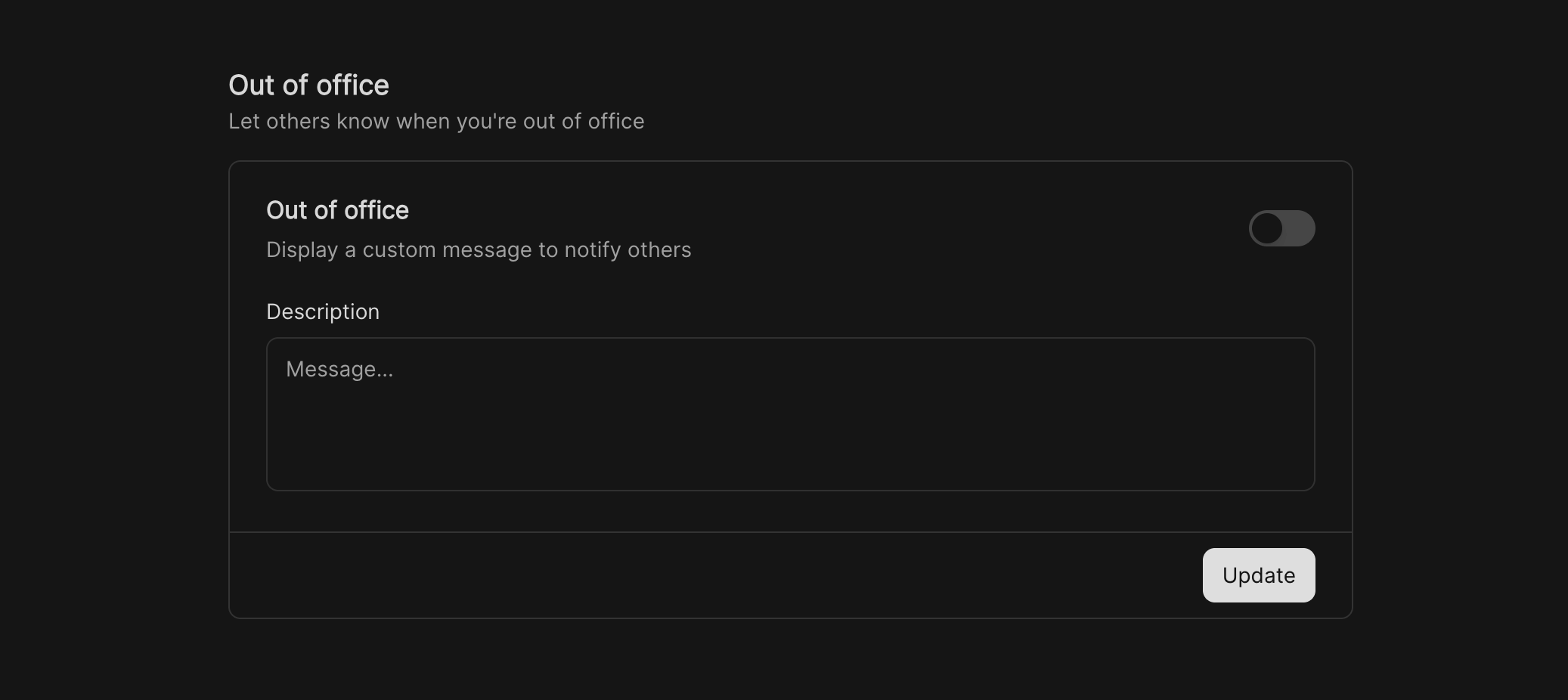
The **Out of Office** feature lets you display a custom message when you’re unavailable.
When enabled, it appears on your public preview page so clients know you are away and cannot accept new bookings.
 ## How it works
* When **Out of Office** is turned on, a visible banner is shown on your workflow preview page.
* This automatically **notifies all affected bookings and requests reschedules** for today’s meetings.
* Clients can still view your workflows but will see your custom message explaining the situation.
* To plan time off in advance, schedule your **Out of Office** period ahead to automatically block future dates.
* Your **Out of Office** status will remain active until you turn it off.
## Setting your out-of-office message
Navigate to **Preferences → Out of Office** in the sidebar.
Switch the toggle on to activate your out-of-office status.
In the **Description** field, add a short note to inform clients (e.g., *“Can’t make it today, please reschedule”*).
Click **Update** to publish your status.
## Best practices
* Keep your message clear and include expected return dates if possible.
* Update your status as soon as you’re available again.
* Use this feature when you’re on **leave, or temporarily unavailable** for meetings and let us handle the rest for you.
# Schedule
Source: https://docs.zyme.sh/schedule
Use schedules in zyme to adjust availability during travel, busy periods, or out-of-office times.
## Overview
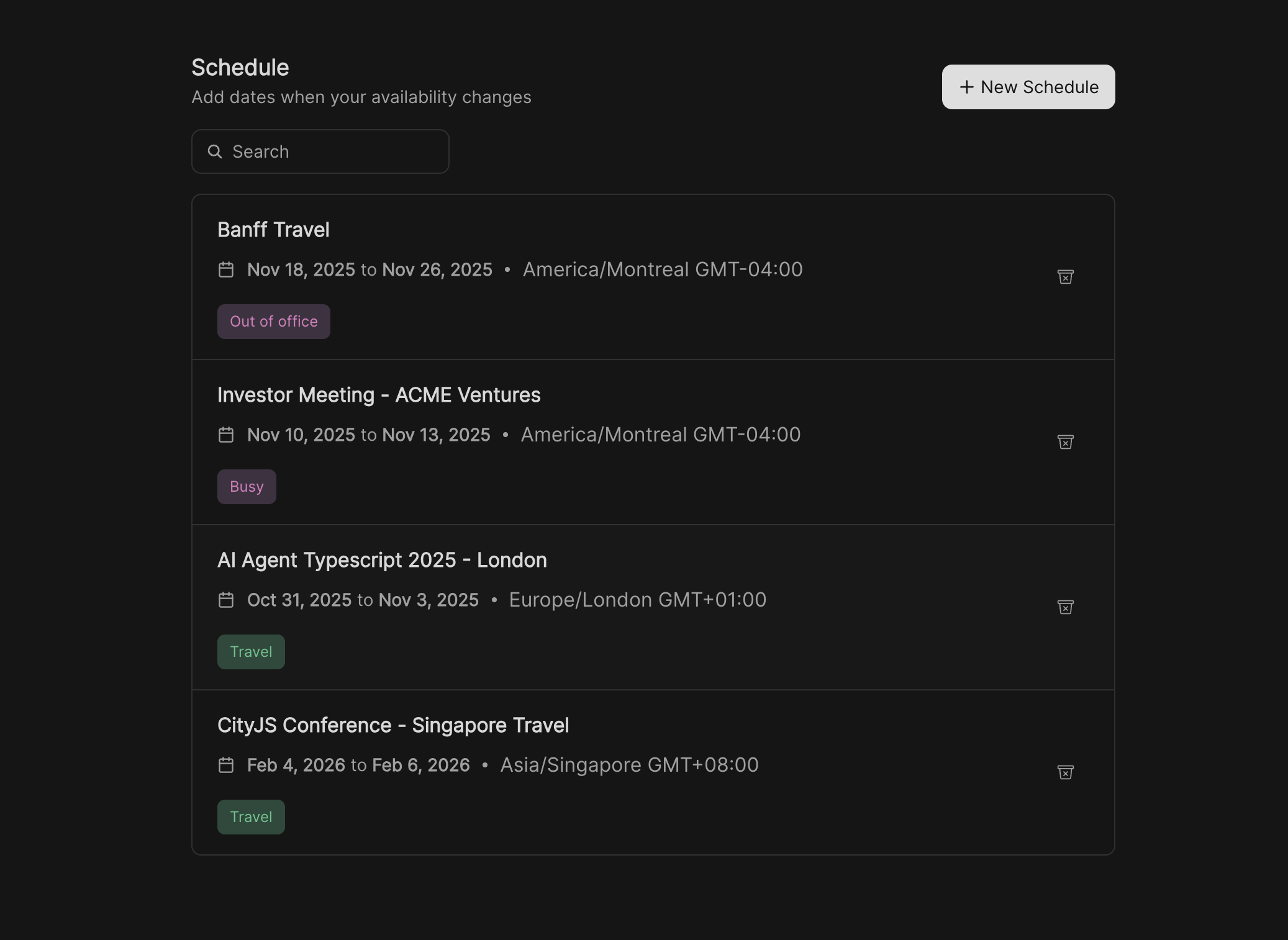
The **Schedule** page lets you set exceptions to your normal availability.
Schedules apply temporary changes, such as travel, busy periods, or out-of-office status, that affect how bookings are handled during specific timeframes.
 ## How it works
* Each schedule has a **title**, **description**, **date range**, **timezone**, and **status**.
* The status determines how bookings behave during the scheduled period:
* **Travel** – Keeps bookings open but updates the timezone for all meetings.
* **Busy** – Blocks new bookings during the specified period.
* **Out of Office** – Blocks all bookings and shows clients you are unavailable.
## Creating a new schedule
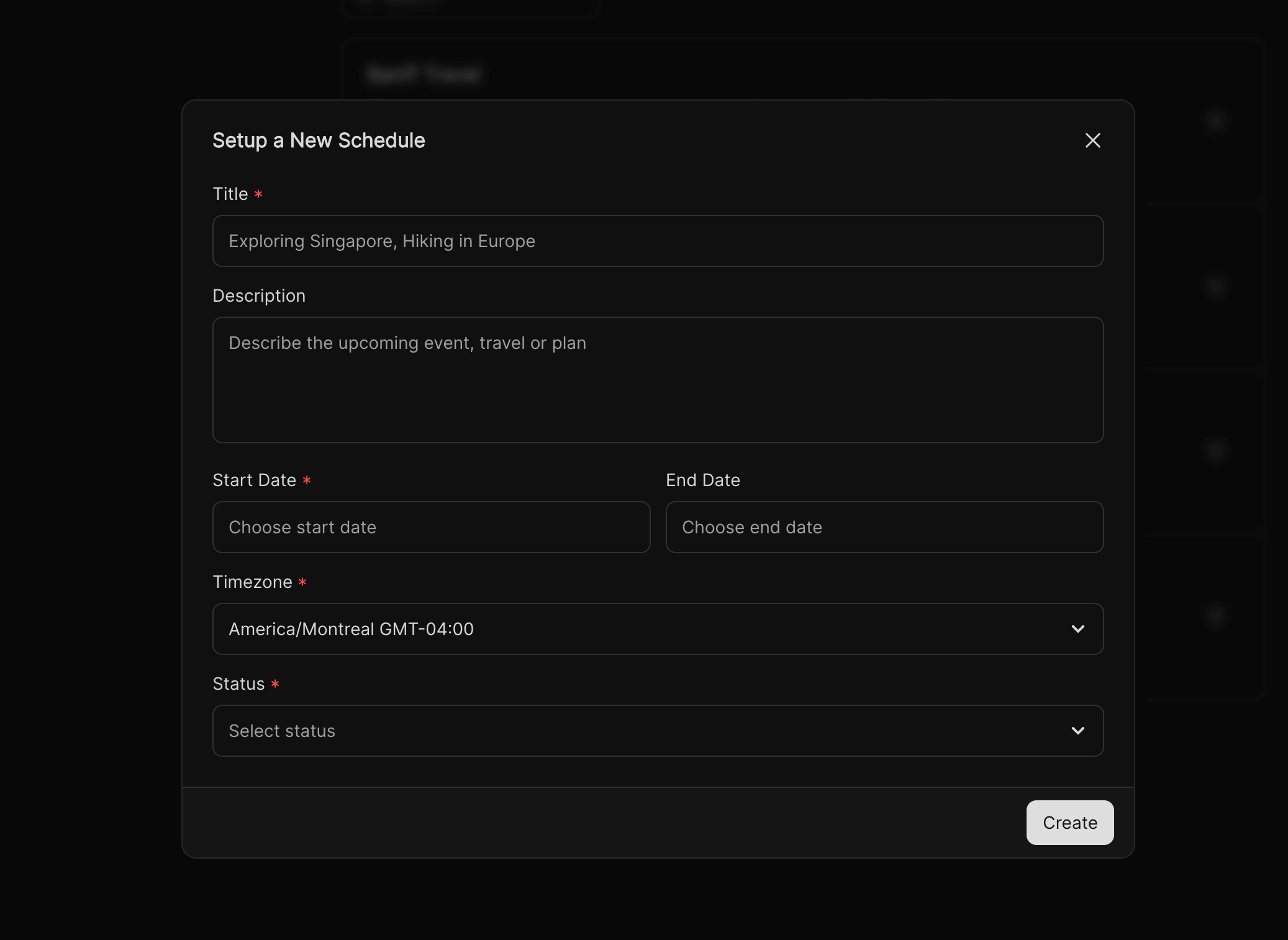 From the Schedule page, select **+ New Schedule** to set up a new entry.
* **Title**: A short name (e.g., *Travel to Singapore*, *Family Time*).
* **Description**: Optional context for your schedule.
Choose the **start** and **end date** for your schedule.\
Bookings outside this range will remain unaffected.
Define the timezone for this period. Useful when traveling or working in another region.
Pick **Travel**, **Busy**, or **Out of Office** to control how bookings behave.
Click **Create** to add the schedule. It will now appear in your schedule list.
## Managing schedules
* View all upcoming schedules in the **list view**.
* Edit or delete schedules at any time.
* Use the **search and filters** to quickly find specific entries.
## Example scenarios
* **Traveling abroad** – Mark as *Travel* to shift your meeting timezone while still allowing bookings.
* **Heads-down project work** – Use *Busy* to block new bookings temporarily.
* **Vacation leave** – Set as *Out of Office* to block all bookings and notify clients.
# Start Guide
Source: https://docs.zyme.sh/start-guide
Welcome to the zyme docs!
 We built zyme to make planning and coordination simple. Whether you’re a tutor scheduling lessons,
a property agent arranging viewings, or running multiple meetings to manage your business and collect
data, things can quickly get confusing when everything is spread across chats, emails, and calls.
zyme brings it all together in one place, making it easy to start, stay organized, and scale your business fast.
## Intro to zyme
Watch this video for a high-level overview of how zyme works:
## Learning Library
A [playlist of onboarding videos](https://www.youtube.com/playlist?list=PLJ-ZpnRW--0DtsYZq0XRU2D5Ts4K1zcXE) covering the most common basic workflows regularly used by zyme users.
# Create Workflow
Source: https://docs.zyme.sh/workflow/create-workflow
Learn the fastest way to create and manage workflows in zyme.
## Overview
Workflows define a sequence of actions for your process. Each workflow belongs to a specific project or team and usually requires a name or title, while all additional settings (like triggers or templates) are optional.
## Quick creation methods
* **Press `W`** anywhere in the app to open the "Create Workflow" modal instantly.
* **Click the “New” button**, located in the sidebar or top toolbar.
* **Use our API** to programmatically create workflows—ideal for integrating with external tools or automating creation.
## Creating a new workflow
When you open the **Create Workflow** modal, you’ll see fields to define the title, URL, description, and optional labels for your workflow.
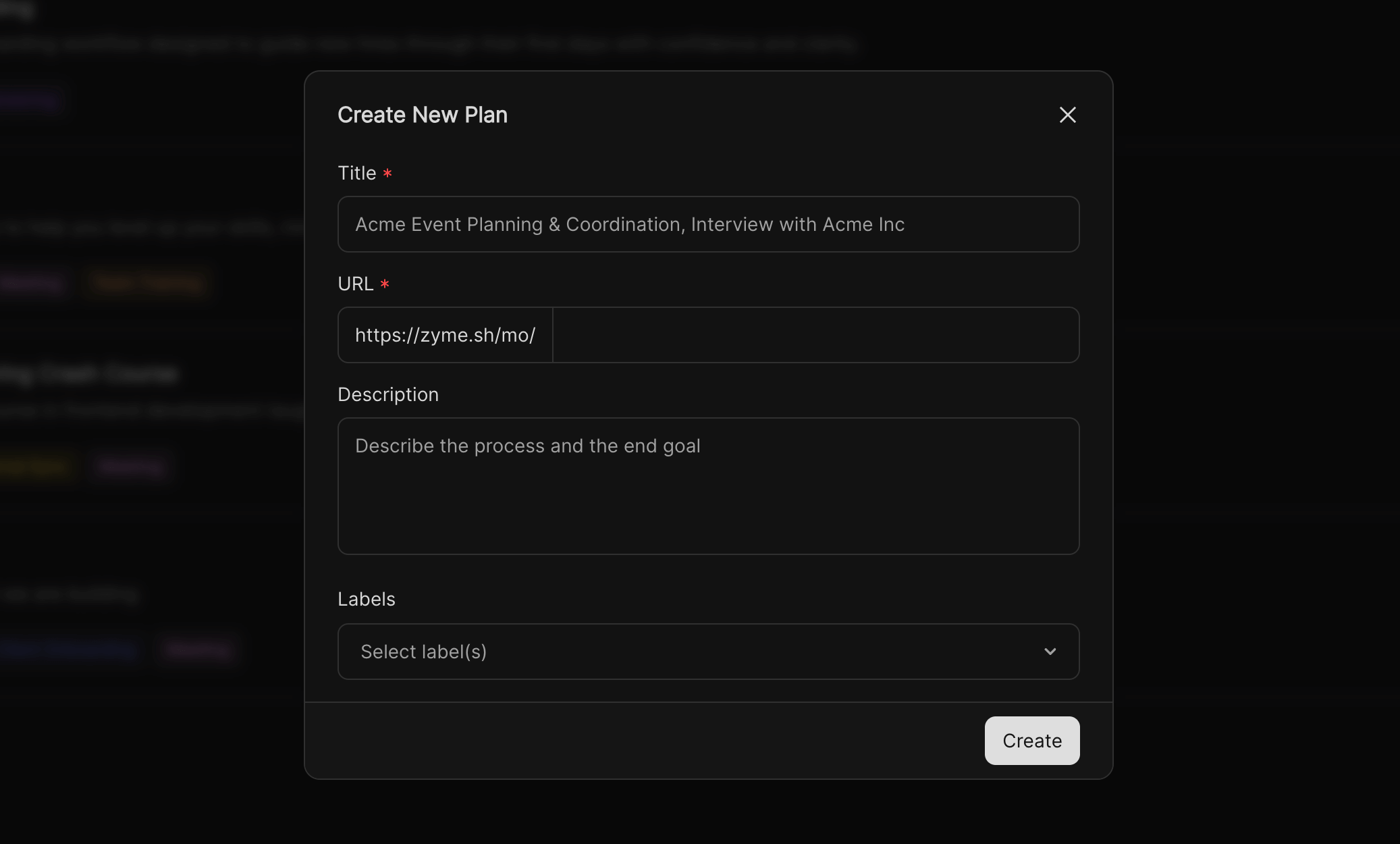 Use the shortcut **`W`**, click the **New button**, or trigger workflow creation via API.
Give your workflow a clear and descriptive name, such as\
*Acme Event Planning & Coordination* or *Interview with Acme Inc*.\
This makes it easier for your team to identify and reuse workflows.
Each workflow generates a unique link (e.g. `https://zyme.sh//`).\
You can edit this to make the URL easy to remember and share.
Summarize the purpose, process, and expected outcome of the workflow.\
A good description helps teammates understand context before they start using it.
Use labels to group workflows by category, team, or priority.\
This makes searching and filtering easier across your organization.
Once all fields are set, click **Create**.\
Your new workflow will be instantly available and you can start to customize it.
# Edit Workflow
Source: https://docs.zyme.sh/workflow/edit-workflow
Learn how to edit workflows in zyme, from updating titles and URLs to refining descriptions and labels.
# Overview
Workflows aren’t set in stone. As your process evolves, you can easily update any workflow to keep it accurate and useful.
## How to edit a workflow
Editing a workflow uses the same modal as creation, but with existing details pre-filled.
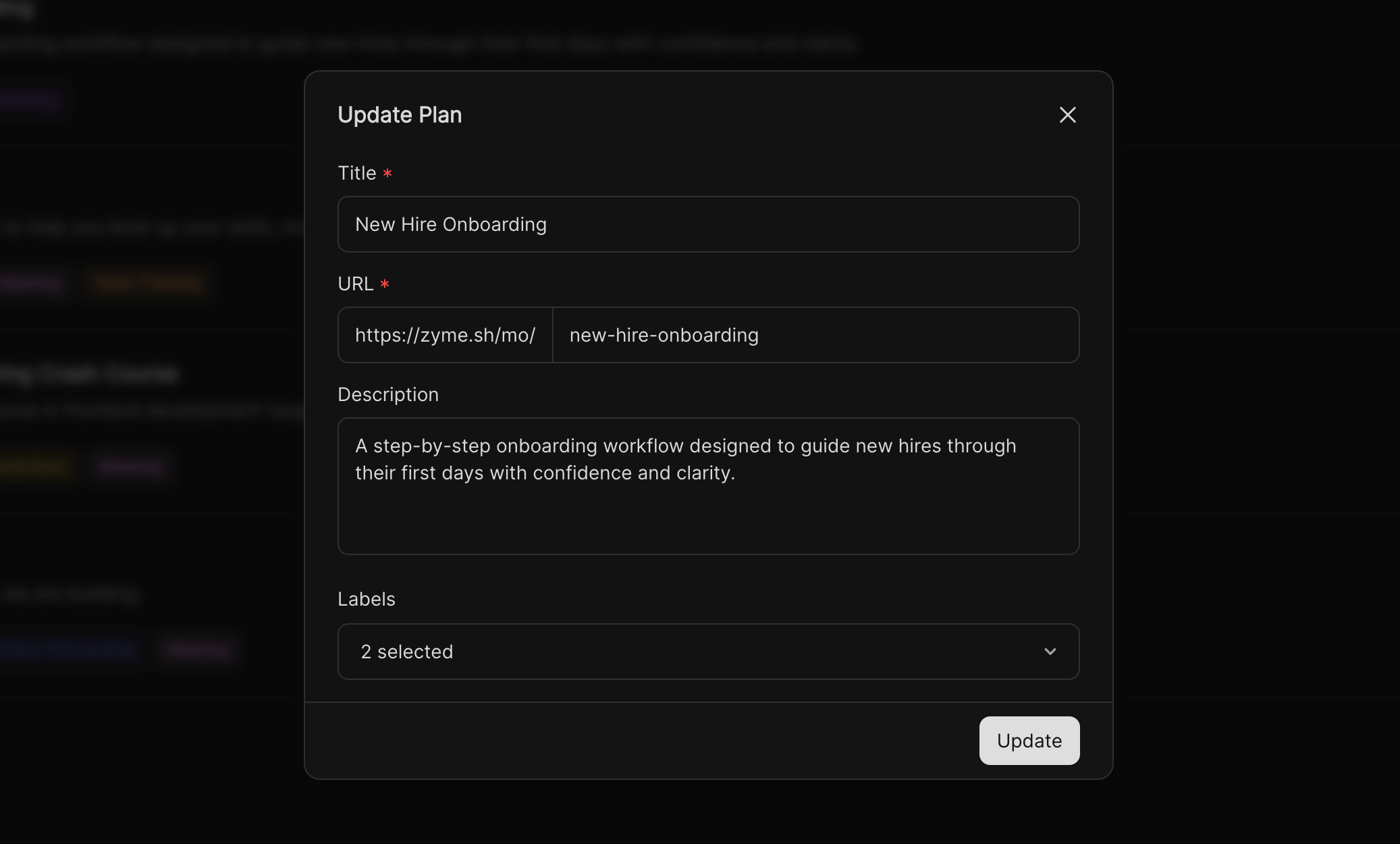 Navigate to the workflow you want to edit.\
Click the **`…` (more options)** button in the top-right corner of the workflow card.
From the dropdown menu, choose **Edit workflow**.\
This opens the same modal used for creation.
* **Title**: Change the workflow’s name to better reflect its purpose.
* **URL**: Adjust the link to something more descriptive or shareable.
* **Description**: Revise the summary or goals as your process changes.
* **Labels**: Add, remove, or update labels for improved organization.
Click **Update** to confirm your edits.\
The workflow will be refreshed instantly with your new details.
***
## What can be edited?
* **Titles** and **descriptions** for clarity.
* **URLs** for easier sharing.
* **Labels** for better filtering.
**Note**: All edits are logged, so your team can track changes over time.
***
## Best practices
* Keep edits transparent and update descriptions to explain *why* changes were made.
* Use consistent labeling so workflows remain searchable across teams.
* Review old workflows regularly to make sure they’re still relevant and aligned with your goals.
# Publish Workflow
Source: https://docs.zyme.sh/workflow/publish-workflow
Learn how to publish workflows and make them publicly accessible through a shareable link.
## Overview
Workflows can be kept private for your team or published publicly so others can access them via a shareable link.
## How to publish a workflow
You can make a workflow public in two ways:
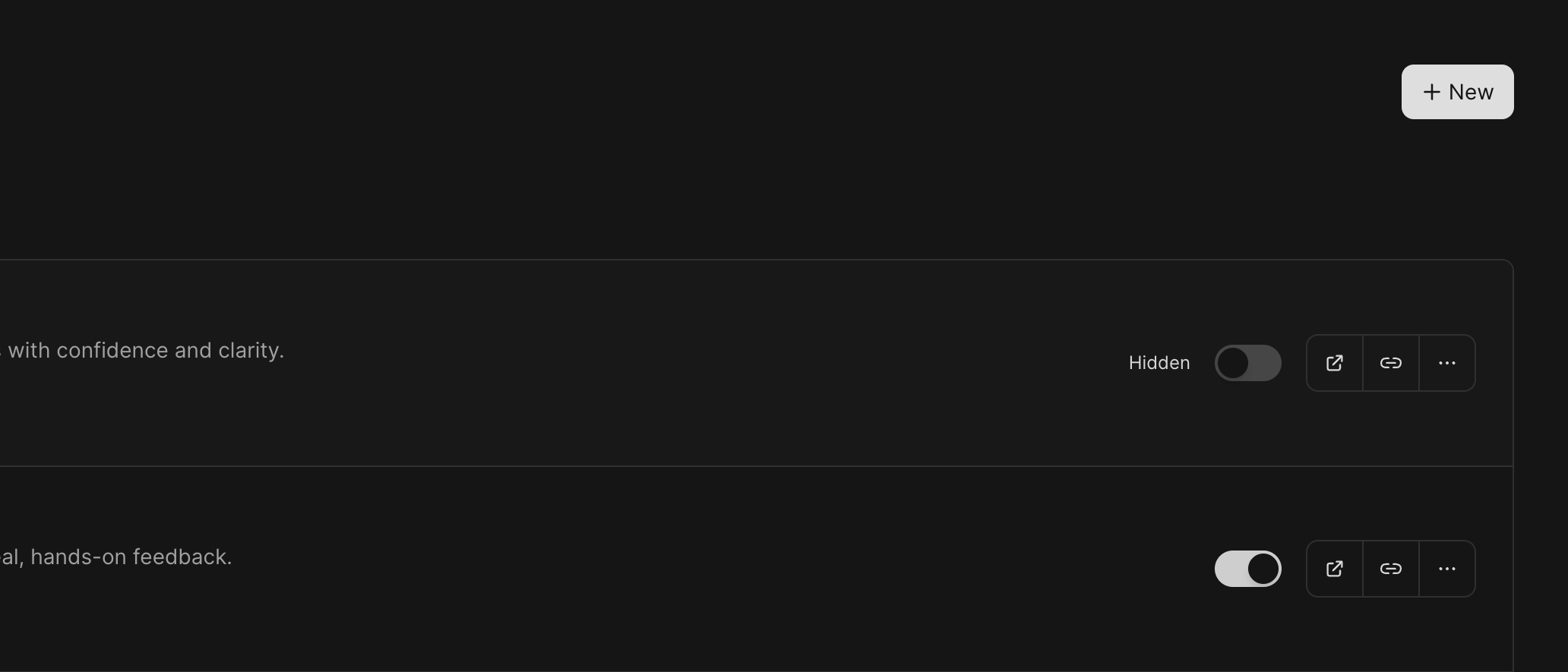 Go to the **Workflows list** view.\
Locate the workflow you want to share and toggle the **Publish switch** directly on the card.
Open the workflow’s detail page.\
In the top-right corner, toggle the **Publish switch** to make it public.
***
## Accessing published workflows
Once a workflow is published, it will be available through the unique link you created during setup (e.g. `https://zyme.sh//`).\
Anyone with this link can view and access the workflow—even if they’re not part of your workspace.
***
## Best practices
* Only publish workflows you’re comfortable sharing externally.
* Use clear titles and descriptions before publishing, since they’ll be visible publicly.
* Share the link directly with clients, partners, or collaborators for easy access.
# Remove Workflow
Source: https://docs.zyme.sh/workflow/remove-workflow
Learn how to remove workflows safely without affecting any active or ongoing plans.
## Overiew
If a workflow is no longer needed, you can remove it from zyme.\
Removing a workflow is safe and does not impact any ongoing plans, those continue to run even after the workflow is deleted.
***
## How to delete a workflow
 Navigate to the workflow you want to delete.\
Click the **`…` (more options)** button in the top-right corner of the workflow card.
From the dropdown menu, choose **Delete workflow**.\
A confirmation dialog will appear.
Confirm your choice to permanently delete the workflow.\
Once deleted, the workflow will no longer appear in your workspace.
***
## Important notes
* **Safe to delete**: Removing a workflow does not affect active or ongoing plans.
* **Permanent action**: Deleted workflows cannot be restored, so double-check before confirming.
* **Best practice**: Archive or export any information you want to keep before deleting.
# Workflow Preferences
Source: https://docs.zyme.sh/workflow/workflow-preferences
Configure advanced workflow settings such as appearance, availability, payment, and access controls to customize how workflows are shared and used.
## Overview
Workflow preferences let you fine-tune the details of how your workflow looks, when it’s available, and how people can interact with it. These settings ensure each workflow matches the context, audience, and goals you have in mind.
## General
Update the basic information for your workflow:
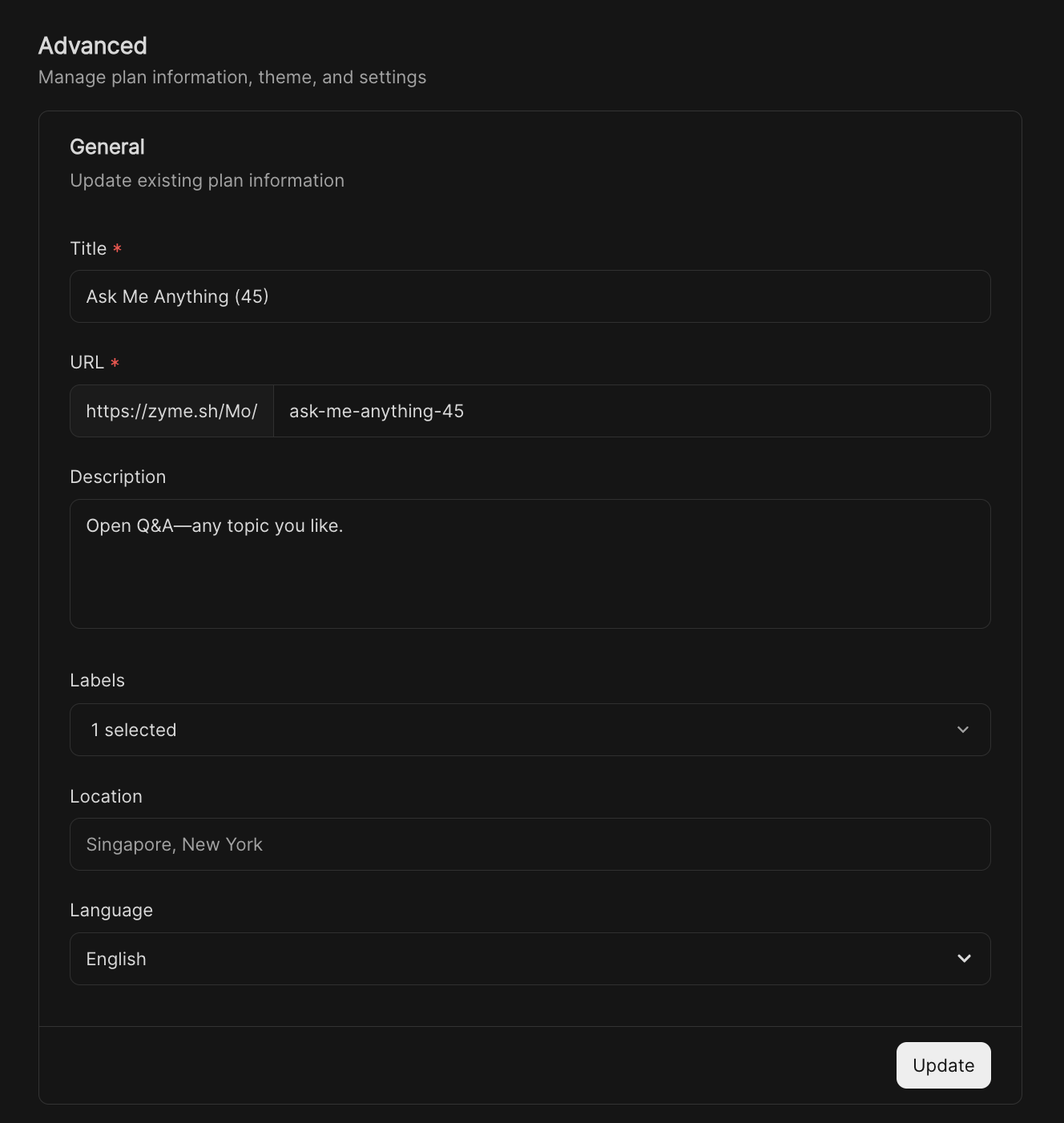 * **Title** – The name displayed to collaborators and clients.
* **URL** – Customize the shareable link to make it memorable.
* **Description** – Provide context, goals, or extra details about the workflow.
* **Labels** – Add tags to organize workflows by category, priority, or team.
* **Location** – Define where this workflow applies (e.g., Singapore, New York).
* **Language** – Select the default display language.
***
## Appearance
Control how the workflow looks:
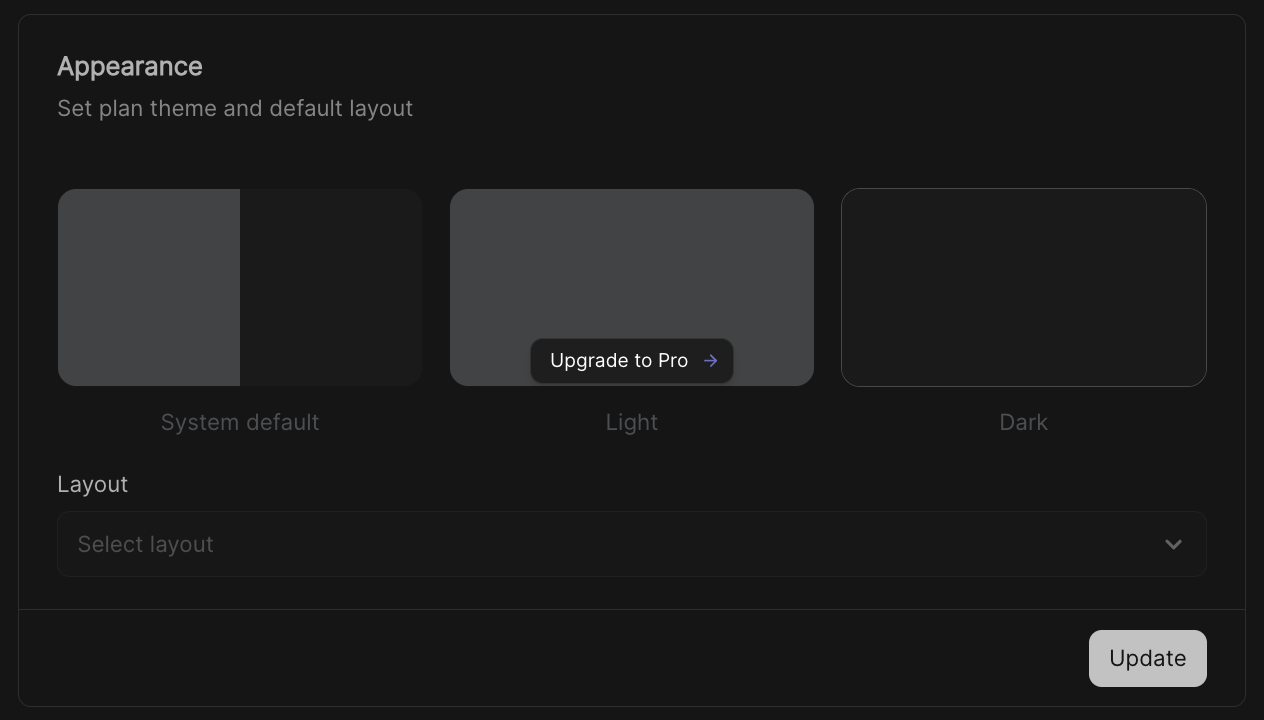 * **Theme** – Choose between **System default**, **Light**, or **Dark**.
* **Layout** – Select a preferred layout option for displaying the workflow.
These changes affect how the workflow is presented to both you and participants.
***
## Availability
Set when the workflow and its booking options are active:
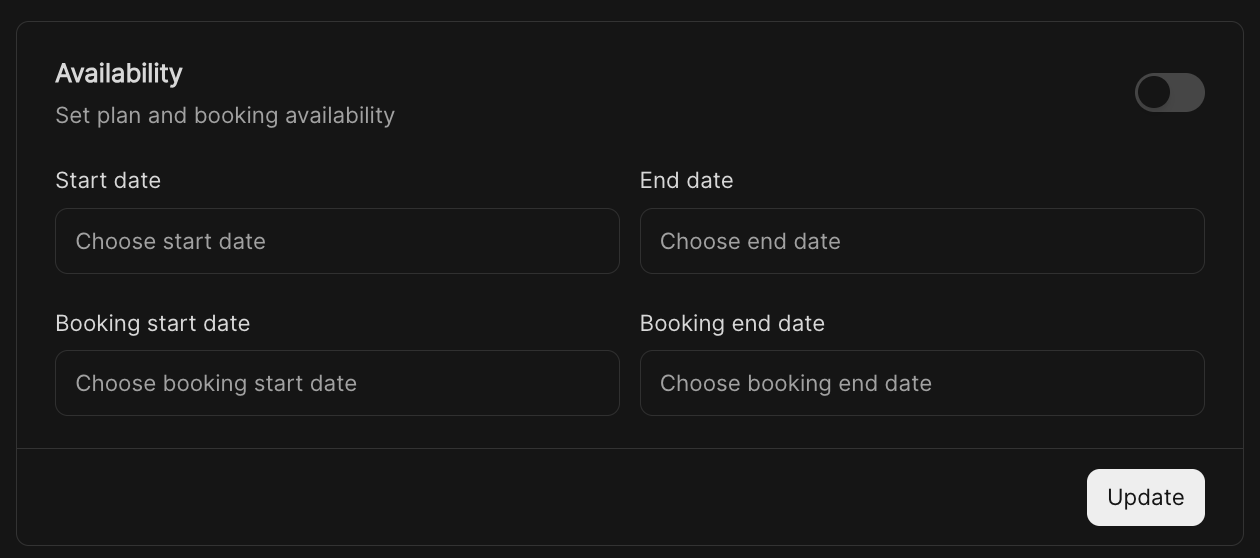 * **Start / End date** – Control the overall availability window.
* **Booking start / end date** – Limit when bookings can be made, separate from the workflow’s visibility.
Turning availability on ensures workflows are only accessible at the right times.
***
## Available Spots
Limit the number of bookings allowed:
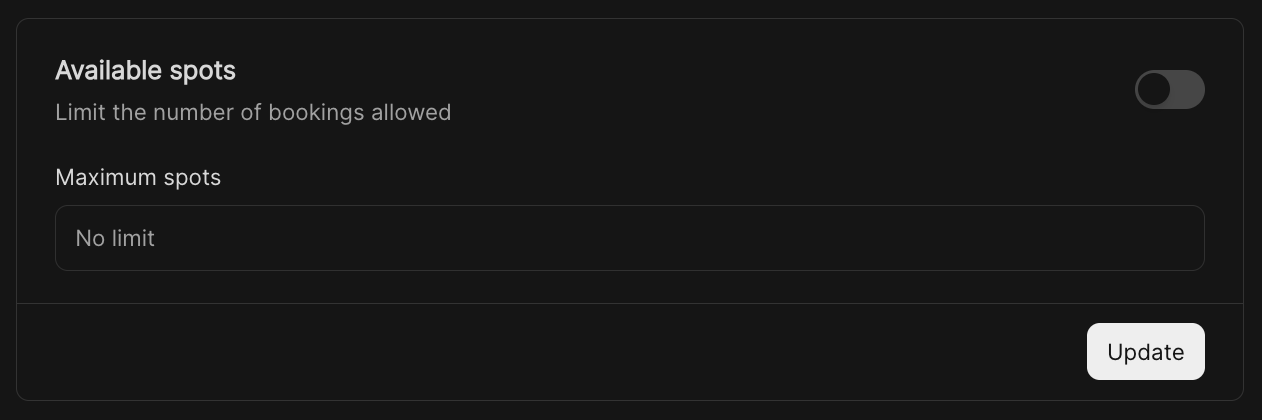 * **Maximum spots** – Set a cap on how many people can join.
* **No limit** – Leave open if you want unlimited participation.
This is useful for events, sessions, or plans where capacity matters.
***
## Violator
Add urgency or scarcity with a custom label:
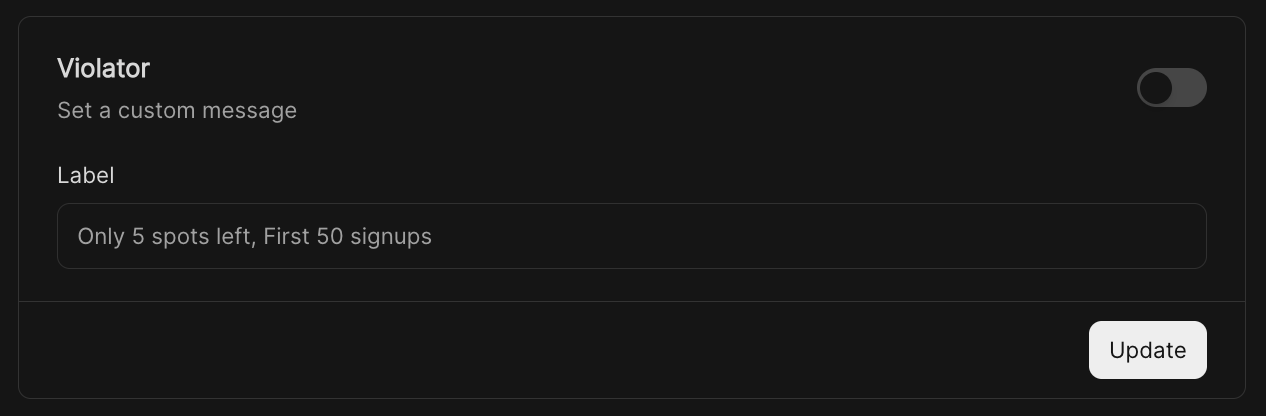 * Example: *“Only 5 spots left”* or *“First 50 signups”*.
* The label is displayed directly in the booking view.
***
## Payment
Set up paid workflows if applicable:
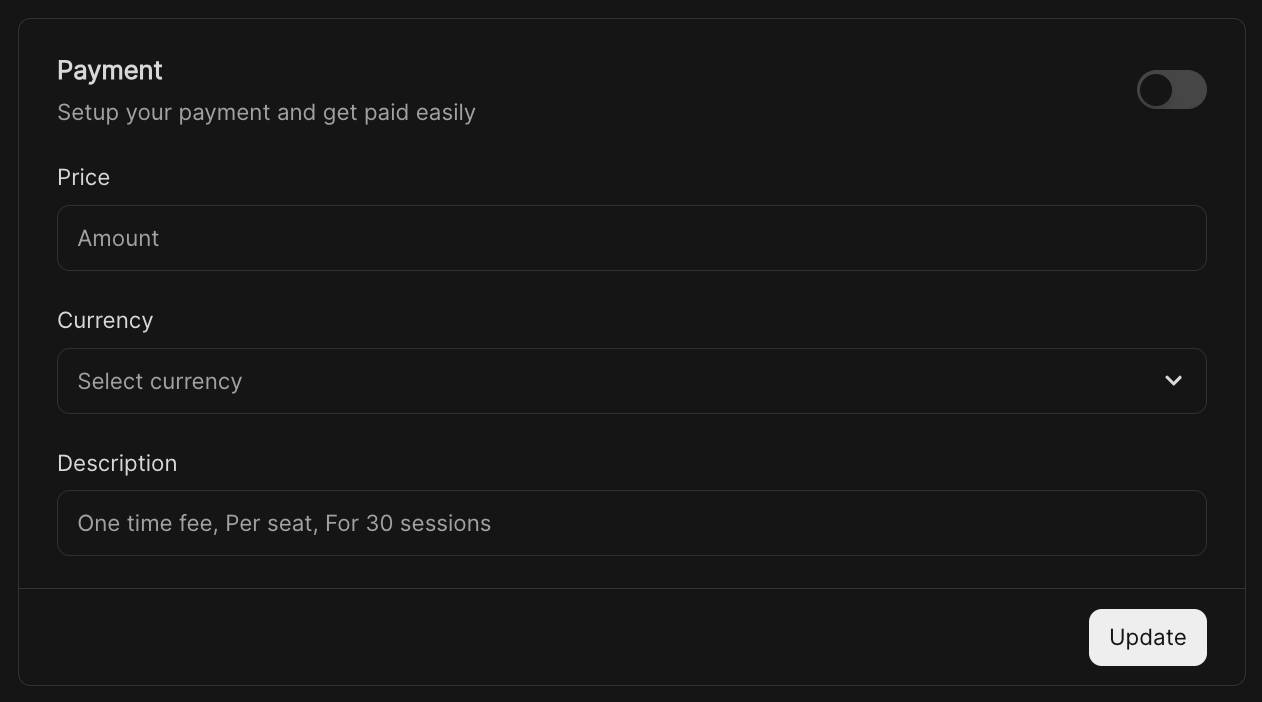 * **Price** – Define the amount for participation.
* **Currency** – Choose the currency for payments.
* **Description** – Add context such as *“One-time fee”* or *“Per seat, 30 sessions”*.
This allows you to monetize workflows securely.
***
## Private Access (via links)
Keep a workflow private but shareable with select participants:
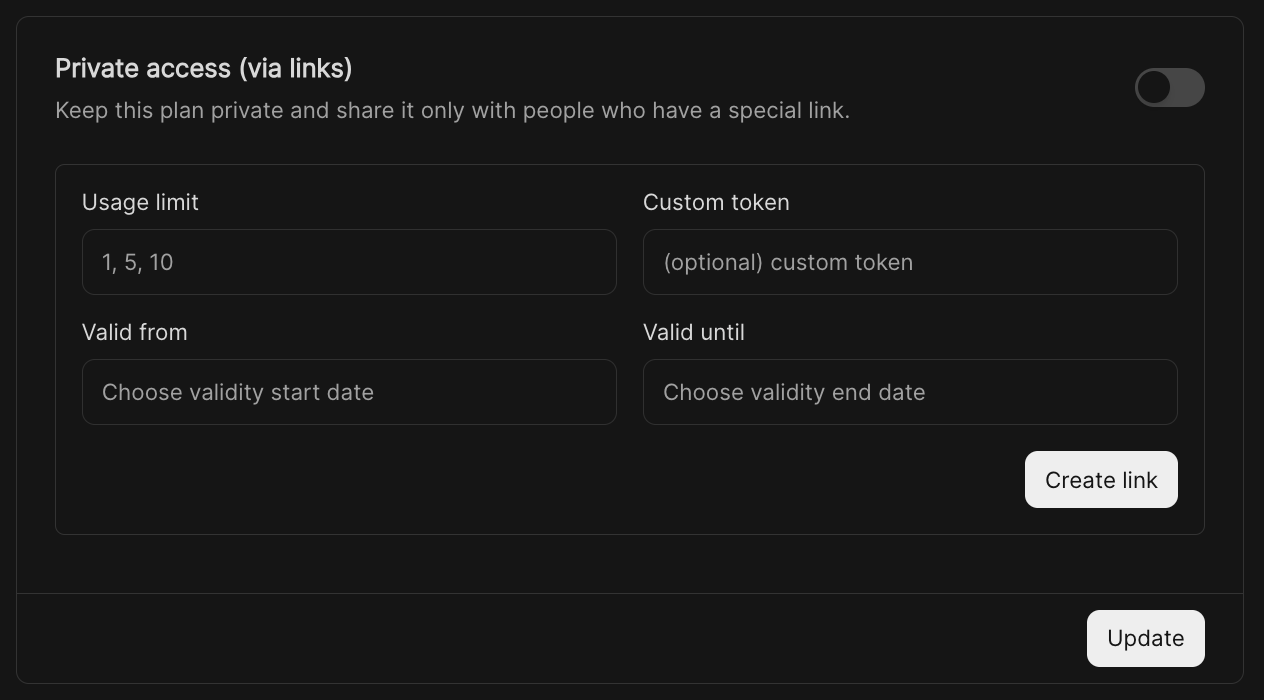 * **Usage limit** – Restrict the number of times the link can be used.
* **Custom token** – Add an optional identifier for the link.
* **Valid from / until** – Control the time window when the link works.
You can generate and share multiple access links to different groups.
***
## Booking Button
Customize the call-to-action for booking:
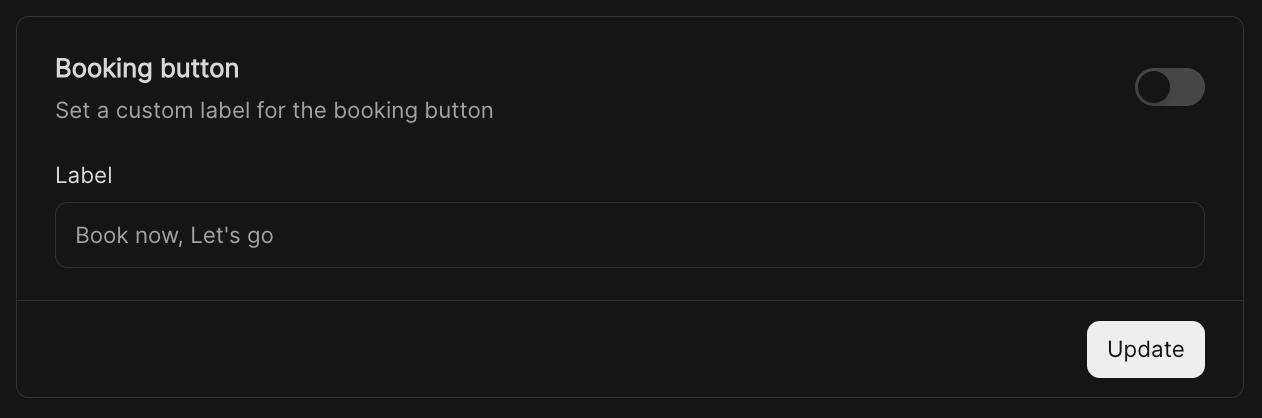 * Example: *“Book now”*, *“Let’s go”*, or *“Reserve your spot”*.
***
## Other Options
Additional settings to fine-tune the workflow:
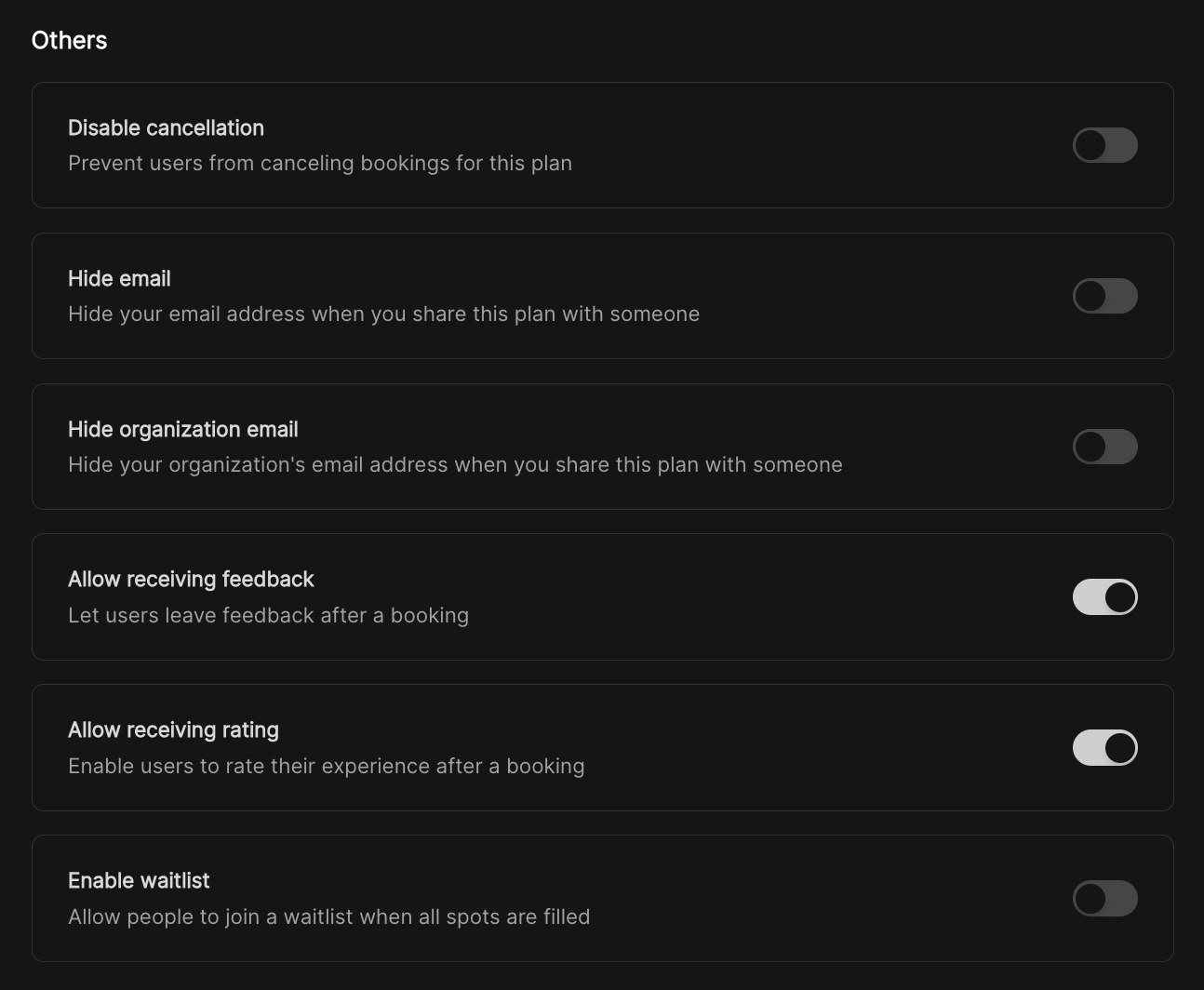 * **Disable cancellation** – Prevent users from canceling bookings.
* **Hide email** – Keep your personal email private when sharing.
* **Hide organization email** – Keep your organization’s email hidden when sharing.
* **Allow receiving feedback** – Let users leave comments after a booking.
* **Allow receiving rating** – Collect star ratings or scores after a booking.
* **Enable waitlist** – Allow people to join a waitlist if spots are filled.
***