> ## Documentation Index
> Fetch the complete documentation index at: https://docs.zyme.sh/llms.txt
> Use this file to discover all available pages before exploring further.
# Attachment
> Add attachments to workflow steps or request users to upload files, making it easy to exchange documents, images, and other resources.
## Overview
An **Attachment** step lets you share files with participants or request them to upload their own.\
This step is ideal for exchanging documents, images, contracts, or any resources needed to complete the workflow.
***
## Creating an Attachment step
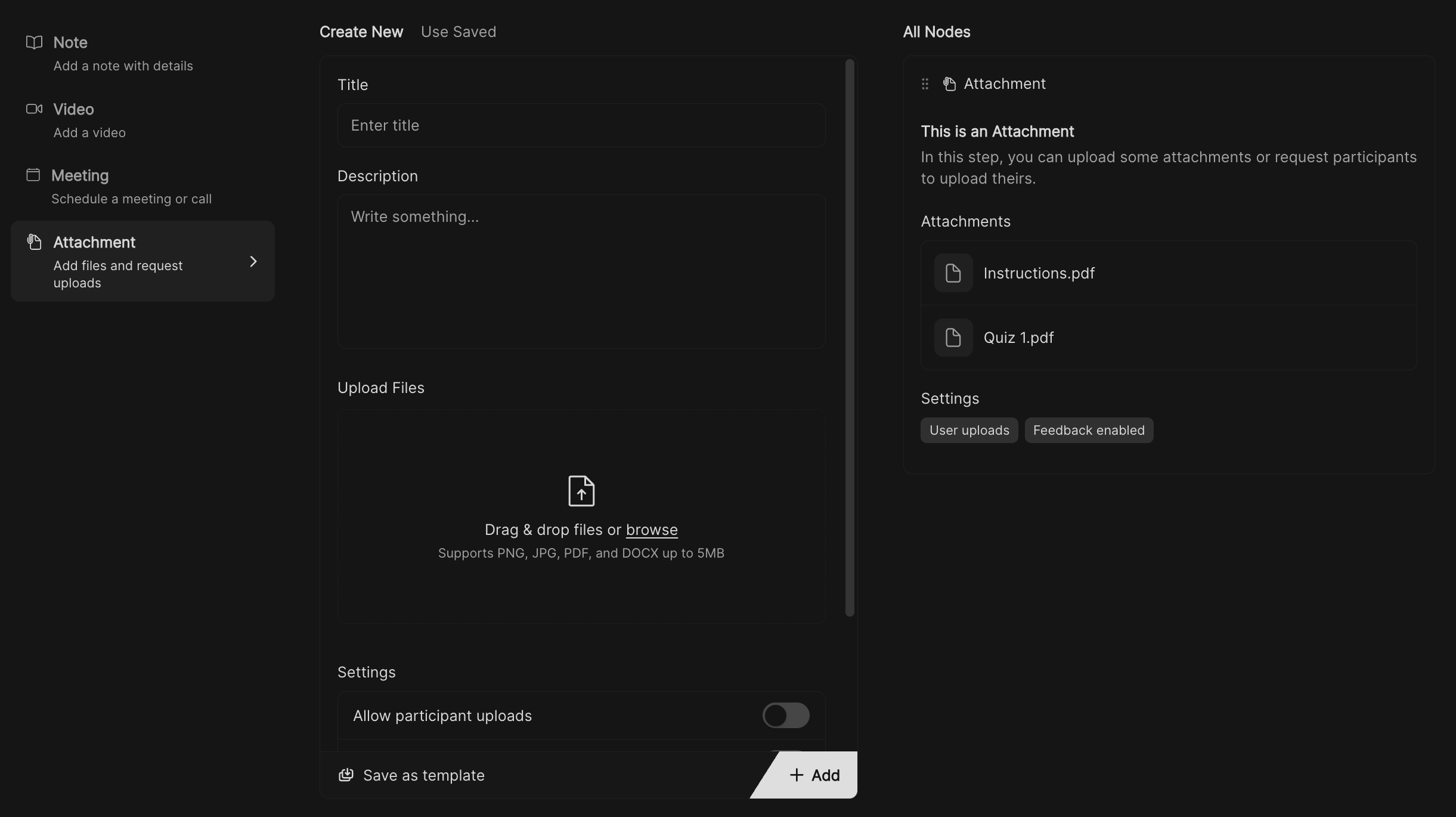 In your workflow, and select **Attachment** from the list of step types.
Give the attachment a clear name.\
Example: *Project Brief* or *Upload your ID Document*.
Provide context or instructions for the attachment.\
Example: *Please review the document before the next session*.
Drag and drop files into the upload area or click to select from your computer.\
Files must be **5MB or smaller**.
Toggle this option if you want participants to upload their own files as part of the workflow.\
Example: *Upload your signed agreement*.
* **Allow receiving feedback** – Collect comments on the uploaded file.
* **Allow receiving rating** – Let users rate the usefulness of the attachment.
* **Hide in client view** – Keep the attachment private to your team if needed.
Click **Save this for later** to add the attachment into the attachment templates list.
Click **Apply** to add the attachment into the attachment sequence.
Click **Save** to store your workflow changes.
***
## Best practices
* Use descriptive titles so users immediately know what the file is for.
* Request uploads only when necessary to reduce friction for clients.
* Hide internal files (like templates or internal docs) if they’re not meant for clients.
* Combine attachments with **Notes** or **Tasks** to provide extra instructions.
In your workflow, and select **Attachment** from the list of step types.
Give the attachment a clear name.\
Example: *Project Brief* or *Upload your ID Document*.
Provide context or instructions for the attachment.\
Example: *Please review the document before the next session*.
Drag and drop files into the upload area or click to select from your computer.\
Files must be **5MB or smaller**.
Toggle this option if you want participants to upload their own files as part of the workflow.\
Example: *Upload your signed agreement*.
* **Allow receiving feedback** – Collect comments on the uploaded file.
* **Allow receiving rating** – Let users rate the usefulness of the attachment.
* **Hide in client view** – Keep the attachment private to your team if needed.
Click **Save this for later** to add the attachment into the attachment templates list.
Click **Apply** to add the attachment into the attachment sequence.
Click **Save** to store your workflow changes.
***
## Best practices
* Use descriptive titles so users immediately know what the file is for.
* Request uploads only when necessary to reduce friction for clients.
* Hide internal files (like templates or internal docs) if they’re not meant for clients.
* Combine attachments with **Notes** or **Tasks** to provide extra instructions.