> ## Documentation Index
> Fetch the complete documentation index at: https://docs.zyme.sh/llms.txt
> Use this file to discover all available pages before exploring further.
# Meeting
> Add a meeting step to your workflow to schedule and manage live sessions with participants directly inside zyme.
## Overview
A **Meeting** step lets you schedule live sessions like consultations, coaching calls, or team syncs directly within a workflow.
It connects with your favorite calendar tools so you can manage availability, time zones, and participation settings in one place, making coordination easy.
***
## Creating a Meeting step
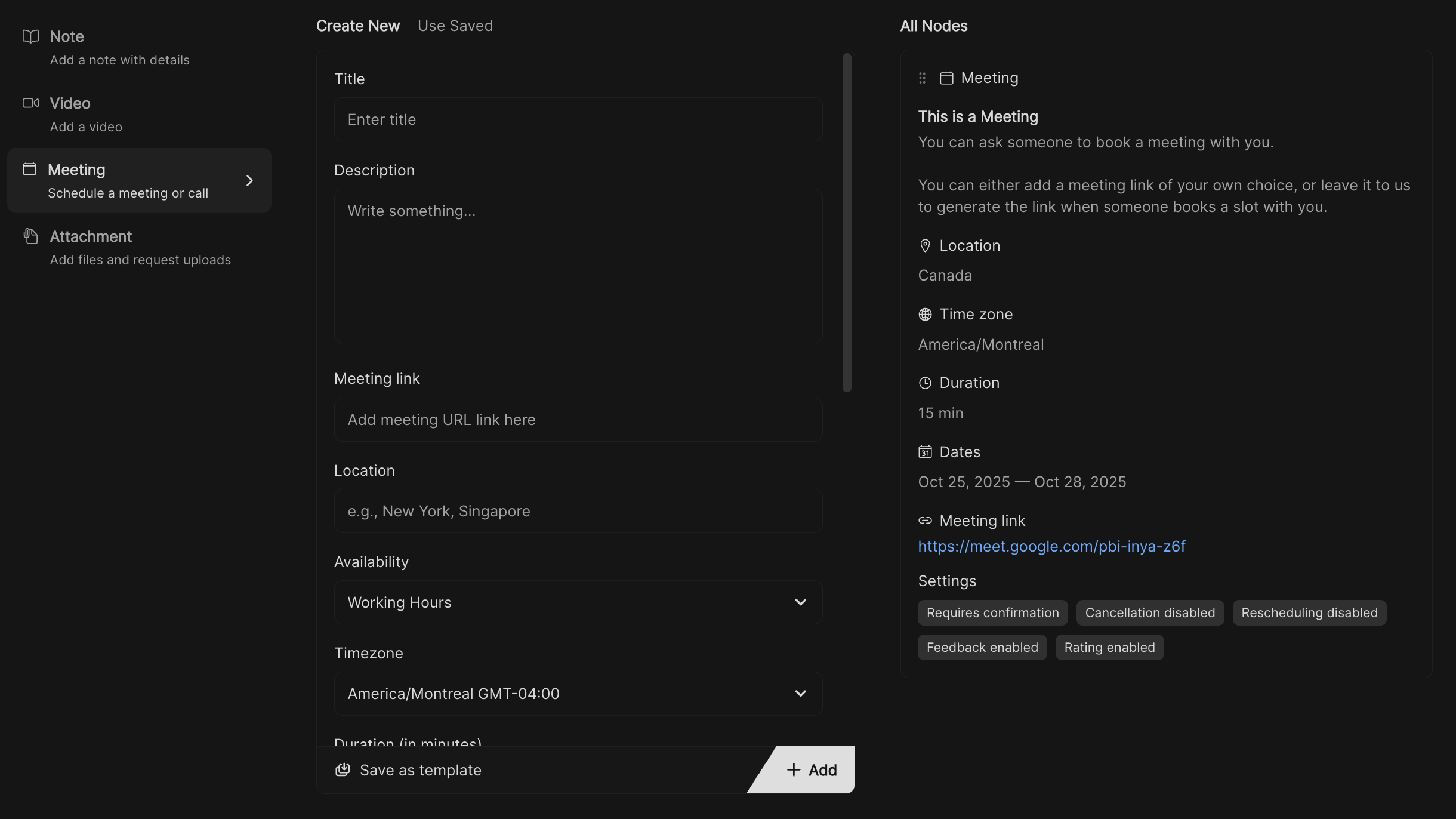 In your workflow, select **Meeting** from the available step types.
Give the meeting a clear title.\
Example: *Weekly Check-in* or *Client Kickoff Call*.
Add context about what the meeting covers.\
Example: *Discuss project milestones and blockers*.
* Paste a video conferencing link (Zoom, Google Meet, Teams, etc.).
* Optionally, add a physical location if relevant.
* Choose when participants can book this meeting.
* Select the timezone to avoid confusion for international clients.
* **Duration** – Set length in minutes.
* **Start offset** – Add buffer time before meetings begin.
* **Start date / End date** – Limit when meetings are available to book.
* **Requires confirmation** – Approve bookings before they’re confirmed.
* **Disable cancelling** – Prevent participants from cancelling.
* **Disable rescheduling** – Prevent participants from changing times.
* **Allow receiving feedback** – Collect comments after the meeting.
* **Allow receiving rating** – Gather star ratings for the session.
* **Hide in client view** – Keep the meeting internal-only if needed.
Click **Save this for later** to add the meeting into the meeting templates list.
Click **Apply** to add the meeting into the workflow sequence.
Click **Save** to store your workflow changes.
***
## Best practices
* Use buffer times (start offset) to prevent back-to-back sessions.
* Keep durations realistic, shorter for quick syncs, longer for deep-dive sessions.
* Collect ratings and feedback to improve future meetings.
In your workflow, select **Meeting** from the available step types.
Give the meeting a clear title.\
Example: *Weekly Check-in* or *Client Kickoff Call*.
Add context about what the meeting covers.\
Example: *Discuss project milestones and blockers*.
* Paste a video conferencing link (Zoom, Google Meet, Teams, etc.).
* Optionally, add a physical location if relevant.
* Choose when participants can book this meeting.
* Select the timezone to avoid confusion for international clients.
* **Duration** – Set length in minutes.
* **Start offset** – Add buffer time before meetings begin.
* **Start date / End date** – Limit when meetings are available to book.
* **Requires confirmation** – Approve bookings before they’re confirmed.
* **Disable cancelling** – Prevent participants from cancelling.
* **Disable rescheduling** – Prevent participants from changing times.
* **Allow receiving feedback** – Collect comments after the meeting.
* **Allow receiving rating** – Gather star ratings for the session.
* **Hide in client view** – Keep the meeting internal-only if needed.
Click **Save this for later** to add the meeting into the meeting templates list.
Click **Apply** to add the meeting into the workflow sequence.
Click **Save** to store your workflow changes.
***
## Best practices
* Use buffer times (start offset) to prevent back-to-back sessions.
* Keep durations realistic, shorter for quick syncs, longer for deep-dive sessions.
* Collect ratings and feedback to improve future meetings.