> ## Documentation Index
> Fetch the complete documentation index at: https://docs.zyme.sh/llms.txt
> Use this file to discover all available pages before exploring further.
# Note
> Add notes to your workflow steps to capture instructions, context, or important details for clients and teammates.
## Overview
A **Note** step allows you to add text-based instructions, context, or reminders directly into a workflow.\
Notes are flexible and can be used to explain a process, provide background information, or share key details with your clients and team.
***
## Creating a Note step
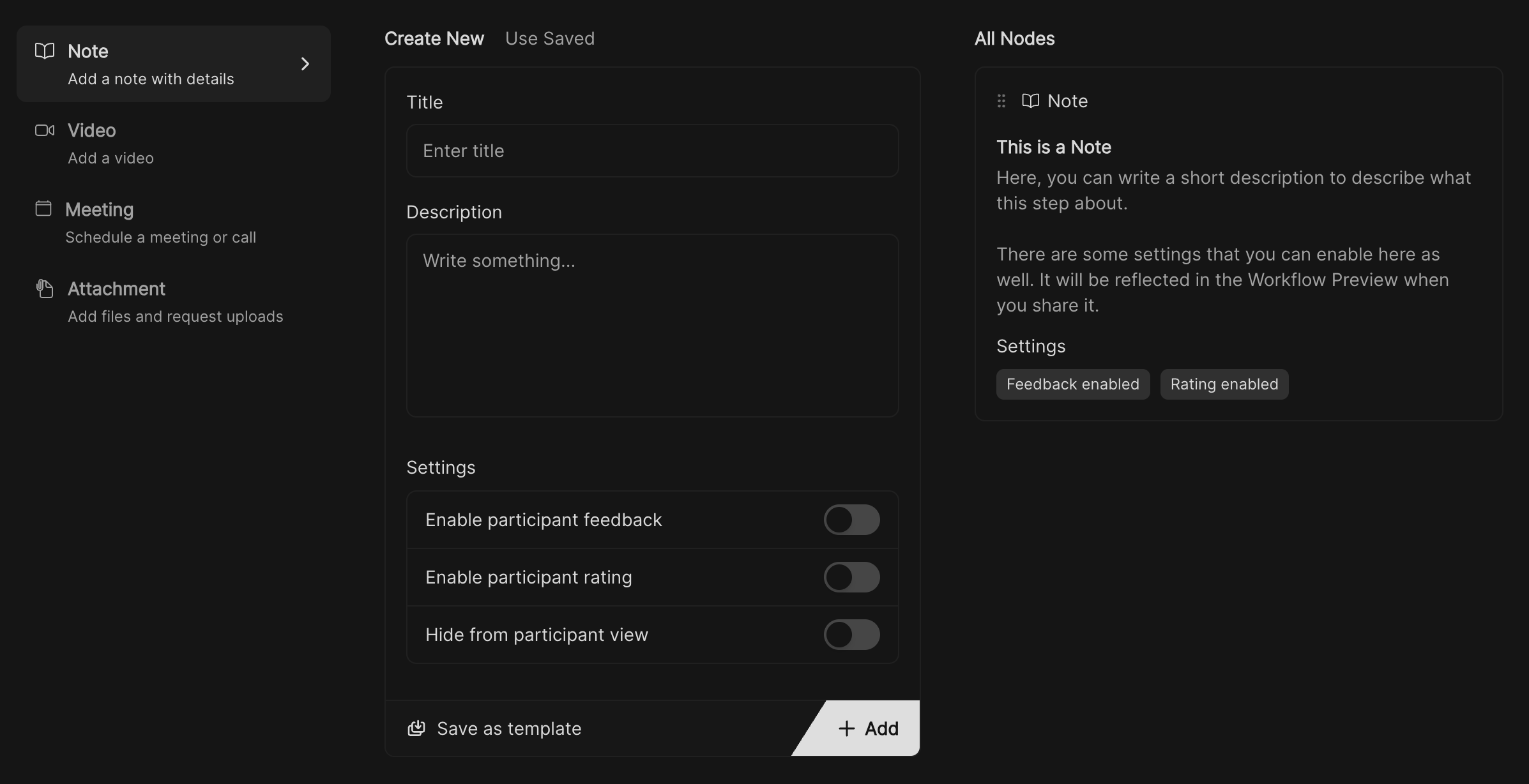 In your workflow, select **Note** from the list of available step types.
Give your note a clear, descriptive title.\
Example: *Preparation guidelines* or *Next steps after the session*.
Add detailed instructions, comments, or context in the **Body** field.\
This can include bullet points, best practices, or resources.
* **Allow receiving feedback** – Let users comment on the note.
* **Allow receiving rating** – Gather star ratings or quick evaluations.
* **Hide in client view** – Keep the note visible only to internal team members.
Click **Save this for later** to store the note inside the workflow.
Click **Apply** to add the note to your workflow.
Click **Save** to store your workflow changes.
***
## Best practices
* Use notes to reduce confusion, add context before complex steps.
* Hide internal notes if they’re only meant for your team.
* Combine notes with other step types (like tasks, files, or meetings) for richer workflows.
In your workflow, select **Note** from the list of available step types.
Give your note a clear, descriptive title.\
Example: *Preparation guidelines* or *Next steps after the session*.
Add detailed instructions, comments, or context in the **Body** field.\
This can include bullet points, best practices, or resources.
* **Allow receiving feedback** – Let users comment on the note.
* **Allow receiving rating** – Gather star ratings or quick evaluations.
* **Hide in client view** – Keep the note visible only to internal team members.
Click **Save this for later** to store the note inside the workflow.
Click **Apply** to add the note to your workflow.
Click **Save** to store your workflow changes.
***
## Best practices
* Use notes to reduce confusion, add context before complex steps.
* Hide internal notes if they’re only meant for your team.
* Combine notes with other step types (like tasks, files, or meetings) for richer workflows.