> ## Documentation Index
> Fetch the complete documentation index at: https://docs.zyme.sh/llms.txt
> Use this file to discover all available pages before exploring further.
# Video
> Add videos to your workflow steps to share tutorials, recordings, or any media content directly with clients and teammates.
## Overview
A **Video** step allows you to embed and share videos within your workflow.\
Use this step to provide tutorials, training content, or recordings that help guide participants through the process.
***
## Creating a Video step
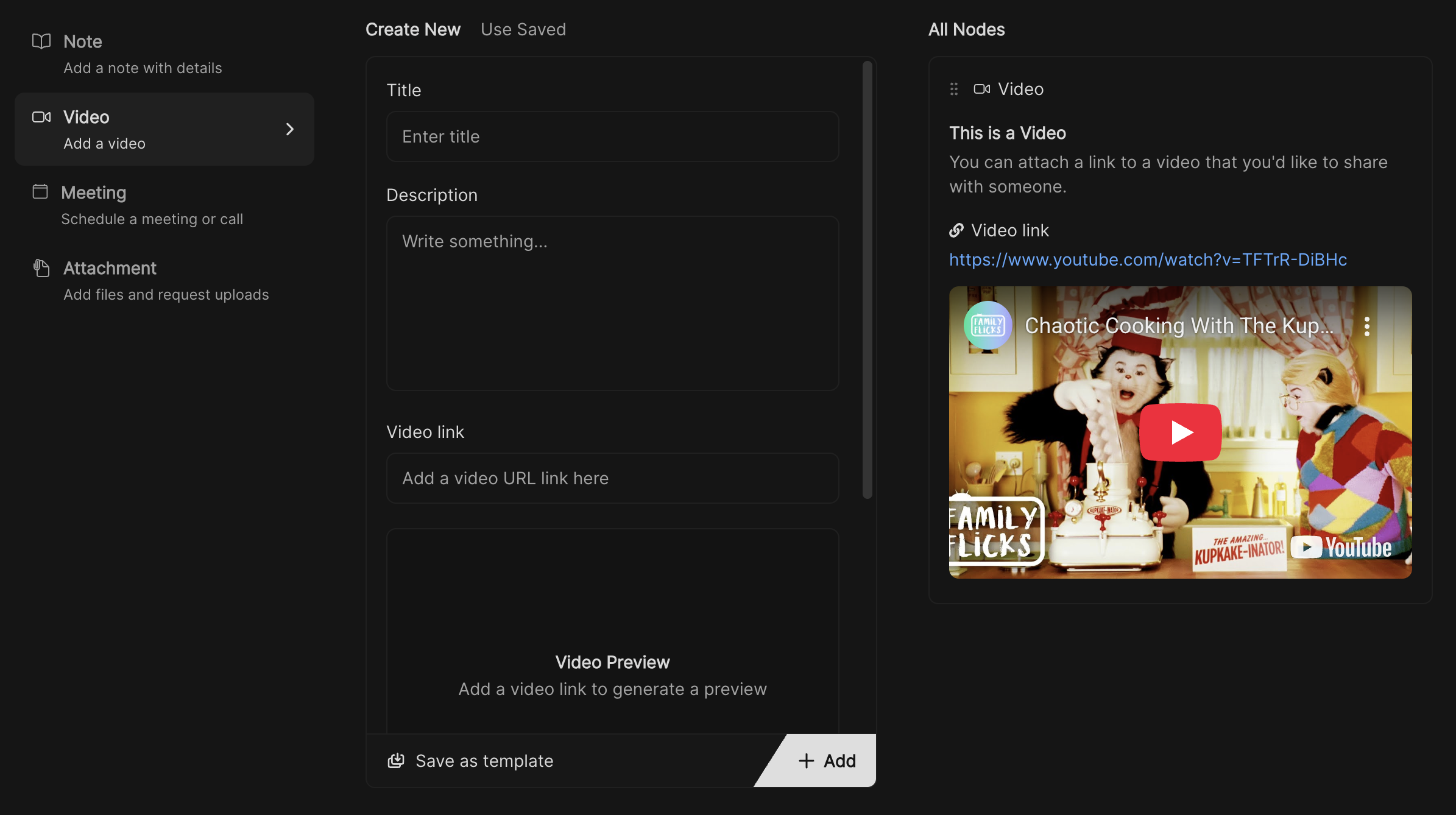 In your workflow, select **Video** from the list of available step types.
Give the video a clear, descriptive title.\
Example: *Introduction to Onboarding* or *How to prepare for your session*.
Add context for the video so viewers know what to expect.\
Example: *This video covers the basics of account setup*.
Insert a valid video link (e.g., YouTube, Vimeo, or a hosted URL).\
Once added, a **preview** will automatically appear below the input field.
* **Allow receiving feedback** – Let users leave comments on the video.
* **Allow receiving rating** – Collect ratings after the video is watched.
* **Hide in client view** – Keep the video internal if you don’t want clients to see it.
Click **Save this for later** to add the video into the workflow templates list.
Click **Apply** to add the video into the workflow sequence.
Click **Save** to store your workflow changes.
***
## Best practices
* Use short, focused videos for better engagement.
* Always add a description to explain why the video is important.
* Hide internal training videos if they’re only relevant to your team.
In your workflow, select **Video** from the list of available step types.
Give the video a clear, descriptive title.\
Example: *Introduction to Onboarding* or *How to prepare for your session*.
Add context for the video so viewers know what to expect.\
Example: *This video covers the basics of account setup*.
Insert a valid video link (e.g., YouTube, Vimeo, or a hosted URL).\
Once added, a **preview** will automatically appear below the input field.
* **Allow receiving feedback** – Let users leave comments on the video.
* **Allow receiving rating** – Collect ratings after the video is watched.
* **Hide in client view** – Keep the video internal if you don’t want clients to see it.
Click **Save this for later** to add the video into the workflow templates list.
Click **Apply** to add the video into the workflow sequence.
Click **Save** to store your workflow changes.
***
## Best practices
* Use short, focused videos for better engagement.
* Always add a description to explain why the video is important.
* Hide internal training videos if they’re only relevant to your team.