> ## Documentation Index
> Fetch the complete documentation index at: https://docs.zyme.sh/llms.txt
> Use this file to discover all available pages before exploring further.
# Out of office
> Manage your out-of-office status in zyme to pause new bookings and notify clients when you’re unavailable.
## Overview
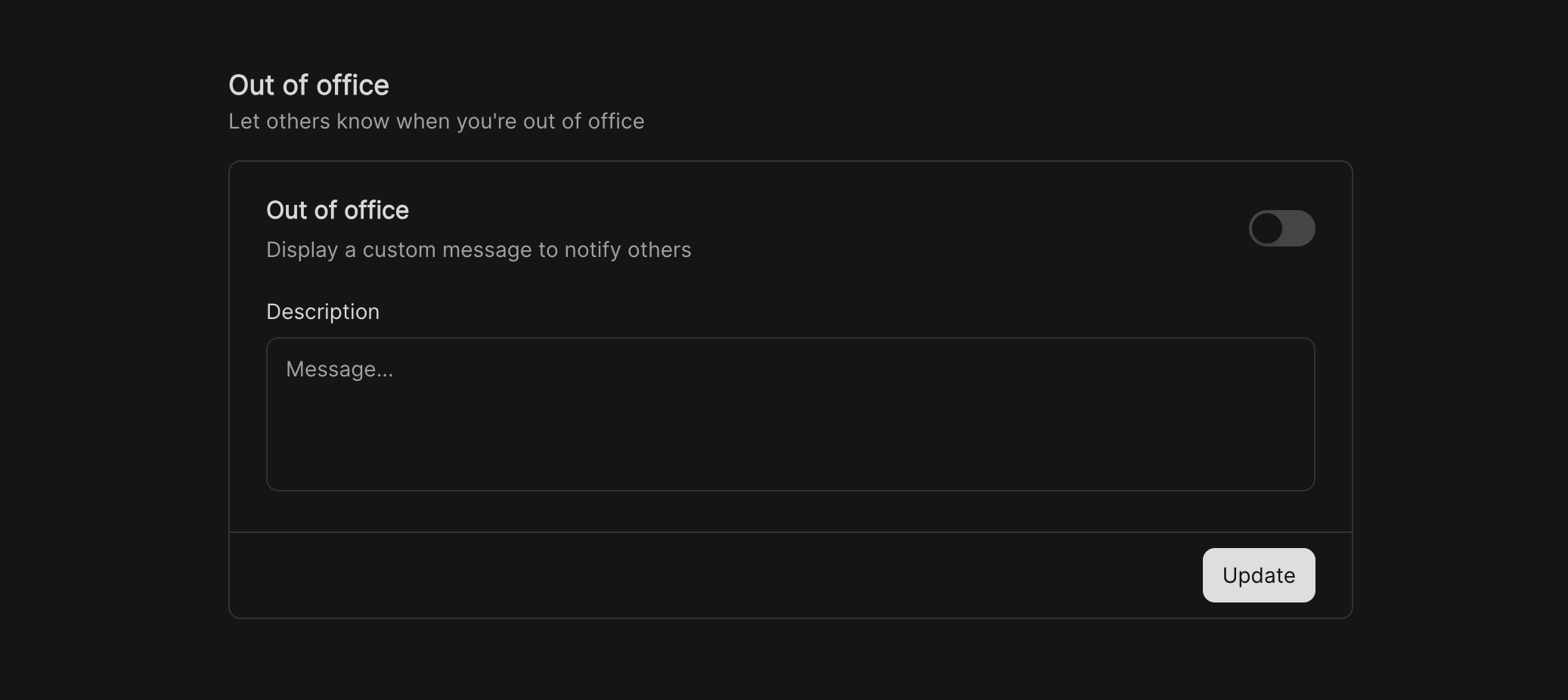
The **Out of Office** feature lets you display a custom message when you’re unavailable.
When enabled, it appears on your public preview page so clients know you are away and cannot accept new bookings.
 ## How it works
* When **Out of Office** is turned on, a visible banner is shown on your workflow preview page.
* This automatically **notifies all affected bookings and requests reschedules** for today’s meetings.
* Clients can still view your workflows but will see your custom message explaining the situation.
* To plan time off in advance, schedule your **Out of Office** period ahead to automatically block future dates.
* Your **Out of Office** status will remain active until you turn it off.
## Setting your out-of-office message
Navigate to **Preferences → Out of Office** in the sidebar.
Switch the toggle on to activate your out-of-office status.
In the **Description** field, add a short note to inform clients (e.g., *“Can’t make it today, please reschedule”*).
Click **Update** to publish your status.
## Best practices
* Keep your message clear and include expected return dates if possible.
* Update your status as soon as you’re available again.
* Use this feature when you’re on **leave, or temporarily unavailable** for meetings and let us handle the rest for you.
## How it works
* When **Out of Office** is turned on, a visible banner is shown on your workflow preview page.
* This automatically **notifies all affected bookings and requests reschedules** for today’s meetings.
* Clients can still view your workflows but will see your custom message explaining the situation.
* To plan time off in advance, schedule your **Out of Office** period ahead to automatically block future dates.
* Your **Out of Office** status will remain active until you turn it off.
## Setting your out-of-office message
Navigate to **Preferences → Out of Office** in the sidebar.
Switch the toggle on to activate your out-of-office status.
In the **Description** field, add a short note to inform clients (e.g., *“Can’t make it today, please reschedule”*).
Click **Update** to publish your status.
## Best practices
* Keep your message clear and include expected return dates if possible.
* Update your status as soon as you’re available again.
* Use this feature when you’re on **leave, or temporarily unavailable** for meetings and let us handle the rest for you.