

Overview
The Schedule page lets you set exceptions to your normal availability. Schedules apply temporary changes, such as travel, busy periods, or out-of-office status, that affect how bookings are handled during specific timeframes.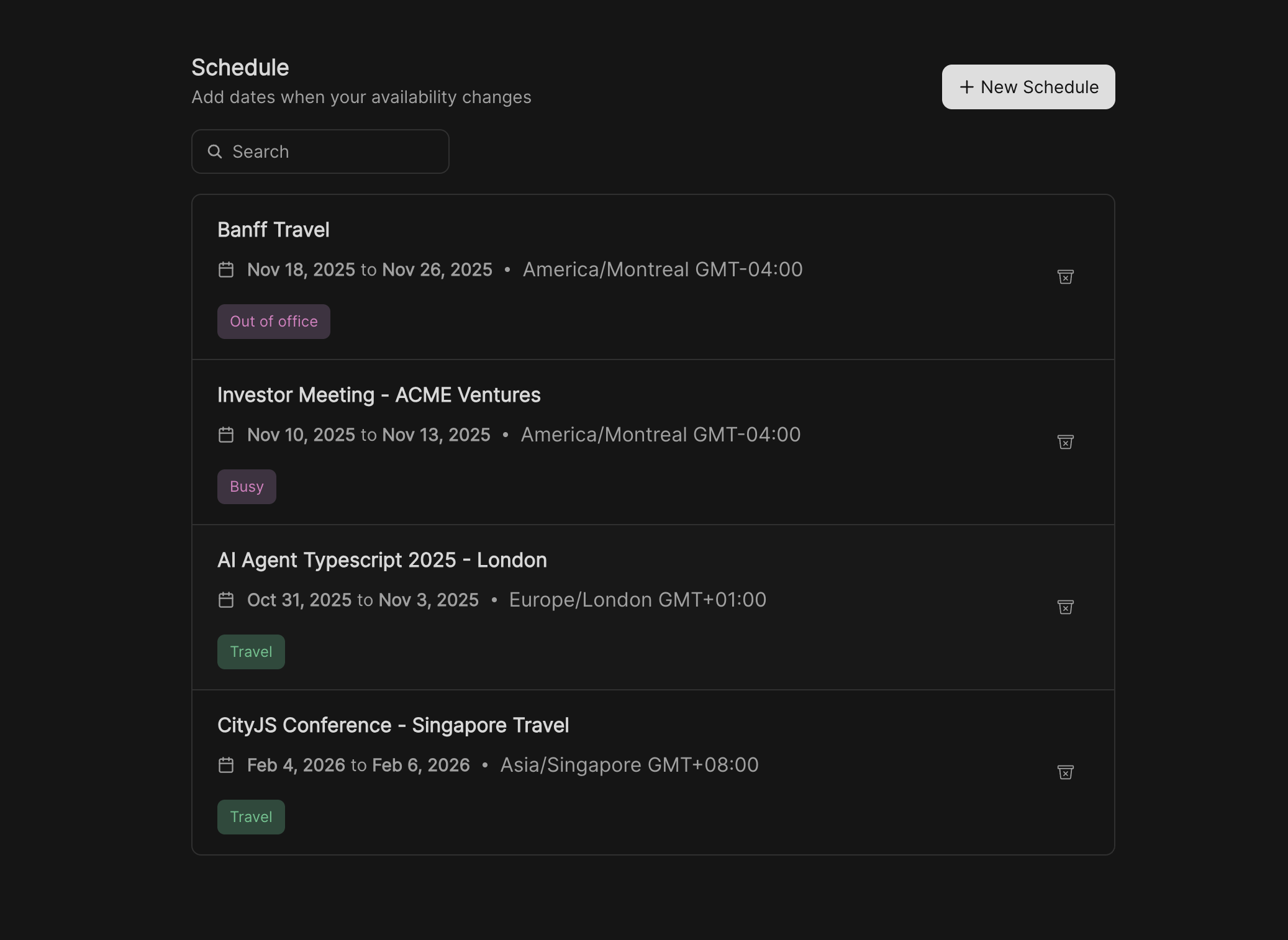
How it works
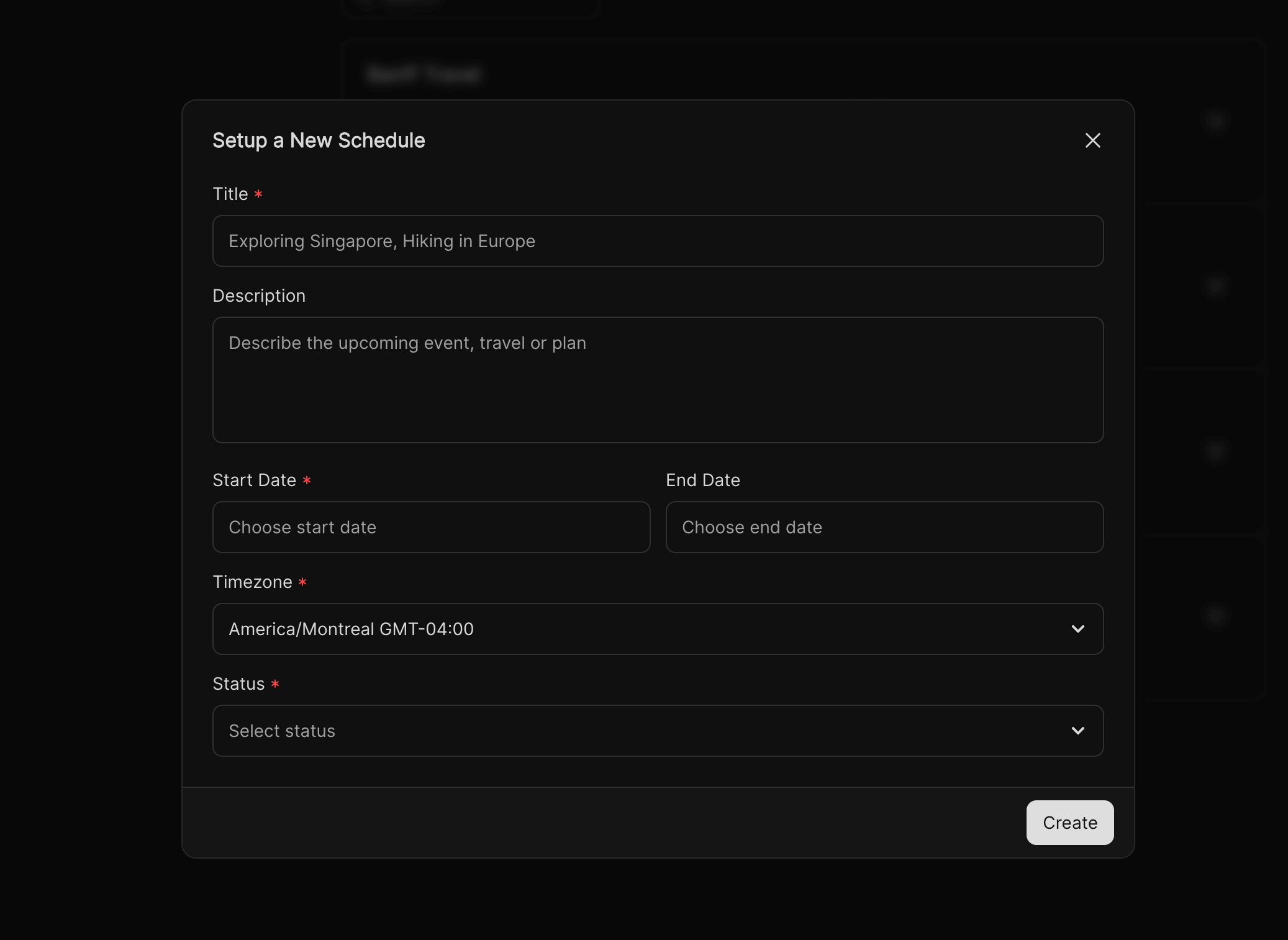
- Each schedule has a title, description, date range, timezone, and status.
-
The status determines how bookings behave during the scheduled period:
- Travel – Keeps bookings open but updates the timezone for all meetings.
- Busy – Blocks new bookings during the specified period.
- Out of Office – Blocks all bookings and shows clients you are unavailable.
Creating a new schedule
1
Click + New Schedule
From the Schedule page, select + New Schedule to set up a new entry.
2
Enter details
- Title: A short name (e.g., Travel to Singapore, Family Time).
- Description: Optional context for your schedule.
3
Set dates
Choose the start and end date for your schedule.
Bookings outside this range will remain unaffected.
Bookings outside this range will remain unaffected.
4
Select timezone
Define the timezone for this period. Useful when traveling or working in another region.
5
Choose status
Pick Travel, Busy, or Out of Office to control how bookings behave.
6
Save schedule
Click Create to add the schedule. It will now appear in your schedule list.
Managing schedules
- View all upcoming schedules in the list view.
- Edit or delete schedules at any time.
- Use the search and filters to quickly find specific entries.
Example scenarios
- Traveling abroad – Mark as Travel to shift your meeting timezone while still allowing bookings.
- Heads-down project work – Use Busy to block new bookings temporarily.
- Vacation leave – Set as Out of Office to block all bookings and notify clients.