

Overview
Workflows aren’t set in stone. As your process evolves, you can easily update any workflow to keep it accurate and useful.How to edit a workflow
Editing a workflow uses the same modal as creation, but with existing details pre-filled.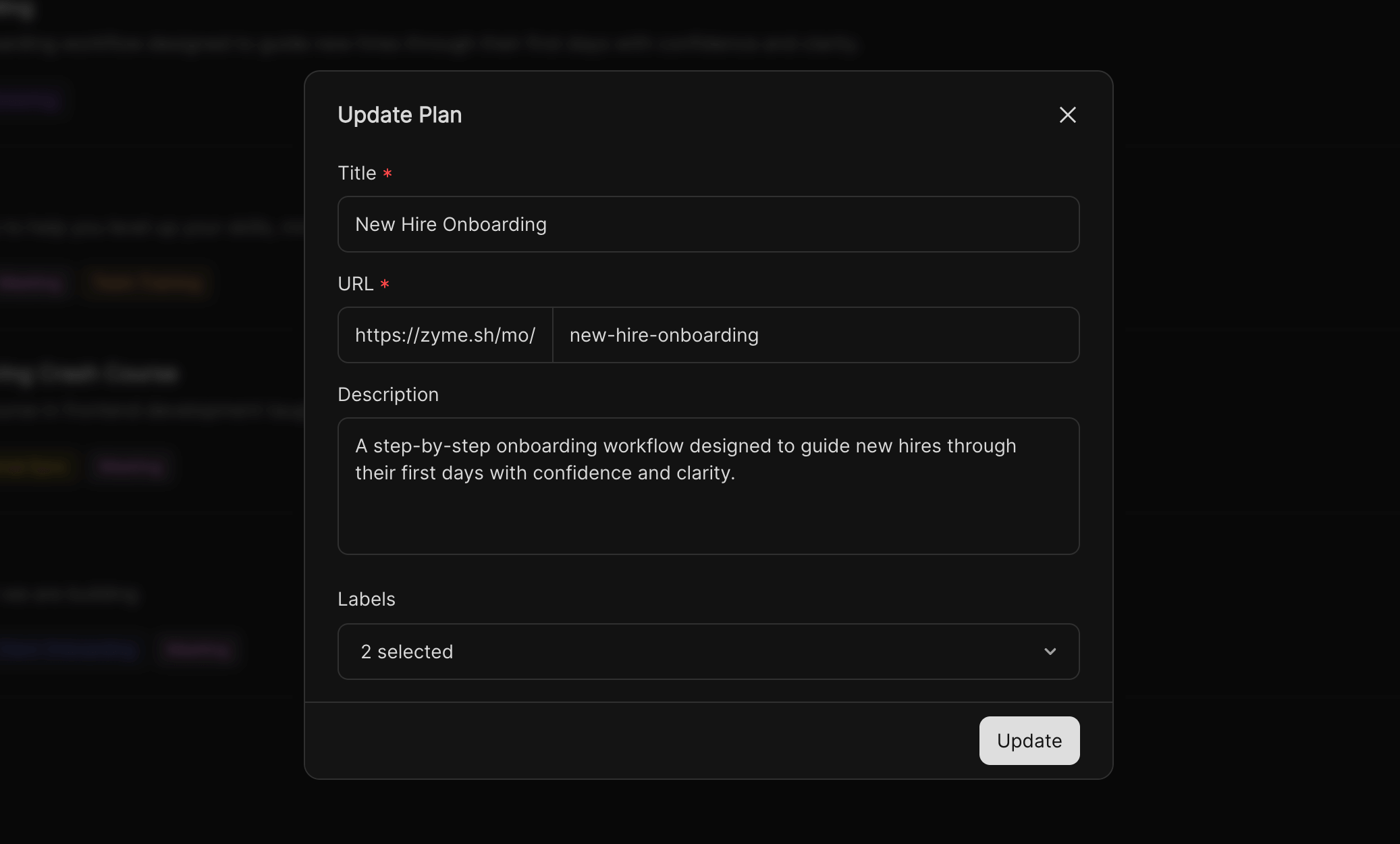
1
Open the workflow menu
Navigate to the workflow you want to edit.
Click the
Click the
… (more options) button in the top-right corner of the workflow card.2
Select Edit
From the dropdown menu, choose Edit workflow.
This opens the same modal used for creation.
This opens the same modal used for creation.
3
Update fields
- Title: Change the workflow’s name to better reflect its purpose.
- URL: Adjust the link to something more descriptive or shareable.
- Description: Revise the summary or goals as your process changes.
- Labels: Add, remove, or update labels for improved organization.
4
Save changes
Click Update to confirm your edits.
The workflow will be refreshed instantly with your new details.
The workflow will be refreshed instantly with your new details.
What can be edited?
- Titles and descriptions for clarity.
- URLs for easier sharing.
- Labels for better filtering.
Best practices
- Keep edits transparent and update descriptions to explain why changes were made.
- Use consistent labeling so workflows remain searchable across teams.
- Review old workflows regularly to make sure they’re still relevant and aligned with your goals.